Social media
Tips for Linking IG and Facebook Pages

Tips for linking IG and facebook pages. Using social media sites like Facebook and Instagram is essential for both individuals and businesses in the connected digital world of today. You may improve your reach, streamline your social media marketing efforts, and make content administration easier by connecting your Facebook and Instagram pages. Here is a step-by-step tutorial to help you get started if you want to connect the two platforms:
TIPS FOR LINKING IG AND FACEBOOK PAGES
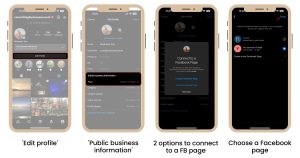
In addition to offering cross-posting, shared advertising, and unified messaging through Meta company Suite, linking Instagram (IG) to a Facebook page necessitates a professional account (company or creator). Use Facebook Settings > Linked Accounts or Instagram Settings > Account Center to connect them. Instantly send posts and stories to Facebook by using this Instagram “Edit Profile” instruction.
1. Access Your Instagram Account Settings:
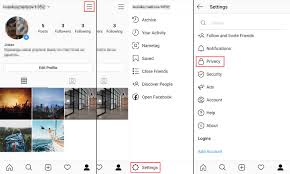

Open the Instagram app on your mobile device or access it through your web browser. Tap on your profile picture in the bottom right corner to navigate to your profile, then tap on the menu icon (three horizontal lines) in the top right corner. From the menu options, select “Settings.”
2. Navigate to Account Linked Accounts:
Within the settings menu, scroll down until you find the “Account” section. Tap on “Linked Accounts” to proceed.
3. Select Facebook:


Under “Linked Accounts,” you’ll see a list of social media platforms. Tap on “Facebook” to link your Instagram account with your Facebook page.
4. Log in to Facebook:
Instagram will prompt you to log in to your Facebook account. Enter your Facebook login credentials (email address and password) to proceed.
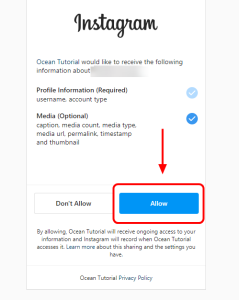
5. Authorize Instagram Access:

TIPS FOR LINKING IG AND FACEBOOK PAGES
Once logged in, Instagram will request permission to access your Facebook account. Tap on “Continue” to authorize the connection.
6. Choose Privacy Settings:
You’ll be prompted to select the audience for your Instagram posts that are shared to Facebook. Choose between “Public” (visible to anyone on Facebook), “Friends” (visible to your Facebook friends only), or “Only Me” (visible to you only). Select your preferred option and tap on “OK.”
7. Link Your Pages:

TIPS FOR LINKING IG AND FACEBOOK PAGES
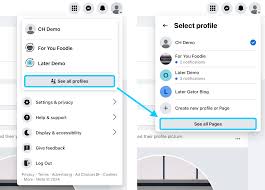
Instagram will display a list of Facebook pages associated with your account. Select the Facebook page you want to link to your Instagram account.
8. Complete the Process:
After selecting your Facebook page, tap on “Next” or “Done” to complete the linking process. Instagram will confirm the connection, and you’ll see a message indicating that your Instagram account is now linked to your Facebook page.
9. Adjust Additional Settings;

TIPS FOR LINKING IG AND FACEBOOK PAGES
Once linked, you can adjust additional settings such as whether to share your Instagram story to your Facebook story, or whether to share existing Instagram posts to your Facebook page.
10. Start Sharing:
With your Instagram page successfully linked to your Facebook page, you can now seamlessly share your Instagram posts and stories to your Facebook audience with just a few taps.
Summary
You may reach a wider audience, simplify your social media marketing efforts, and keep a consistent online presence across platforms by connecting your Facebook and Instagram pages. To fully utilize your social media strategy and create a smooth connection between your Facebook and Instagram accounts, follow these steps.