WRITING
WordPress contents and pictures

WordPress contents and pictures. Using images in your WordPress media is crucial for engaging your audience and improving the user experience in today’s visually-driven internet environment. Adding pertinent and excellent images to your content, whether it be blog posts, articles, or product pages, may make it more engaging and memorable. Don’t worry if you don’t know how to add photos to your website or are new to WordPress! We’ll walk you through the process of adding images to your WordPress articles in this detailed guide.
WORDPRESS CONTENTS AND PICTURES
You may improve your website’s aesthetic appeal and produce captivating content that draws in visitors by following these easy steps. Including pertinent and high-quality photographs is essential to leaving a lasting impression on your visitors, whether you’re publishing articles, sharing blog posts, or promoting merchandise.
Step 1: Log in to Your WordPress Dashboard;
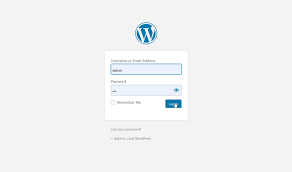

To get started, log in to your WordPress dashboard by entering your username and password. Once logged in, you’ll be taken to the WordPress admin area where you can manage your website’s content, settings, and media.
Step 2: Navigate to the Post or Page Editor;
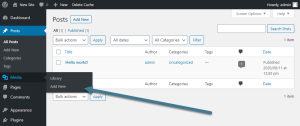
Next, navigate to the post or page editor where you want to add images. You can do this by selecting “Posts” or “Pages” from the left-hand menu and then clicking on the “Add New” button to create a new post or page. Alternatively, you can edit an existing post or page by selecting it from the list of published content.
Step 3: Insert the Image Block;

WordPress contents and pictures
Once you’re in the post or page editor, place your cursor where you want to insert the image and click on the (+) icon to add a new block. In the block inserter menu, select the “Image” block option. This will create a new image block where you can upload or select an existing image from your media library.
Step 4: Upload or Select an Image;
After inserting the image block, you’ll have the option to upload a new image or select an existing image from your media library. To upload a new image, click on the “Upload” button and select the image file from your computer. To select an existing image from your media library, click on the “Media Library” tab and choose the desired image.
Step 5: Customize Image Settings;

WordPress contents and pictures
Once you’ve uploaded or selected an image, you can customize its settings to fit your needs. You can adjust the image alignment, size, and caption by clicking on the image block and using the toolbar options that appear above it. Additionally, you can add alternative text (alt text) for accessibility purposes by clicking on the image block and entering a description in the “Alt Text” field.
Step 6: Preview and Publish Your Content;
After adding and customizing your image, preview your content to see how it looks on the frontend of your website. If everything looks good, you can go ahead and publish your post or page by clicking on the “Publish” button. Your image will now be visible to your website visitors when they view your published content.
Summary
WordPress’s built-in block editor is used to format text, while the Media Library is used to store images. Building visually appealing pages, optimizing load times, and centralizing all of your material are all made simple with this system.