WRITING
WordPress contents and pictures

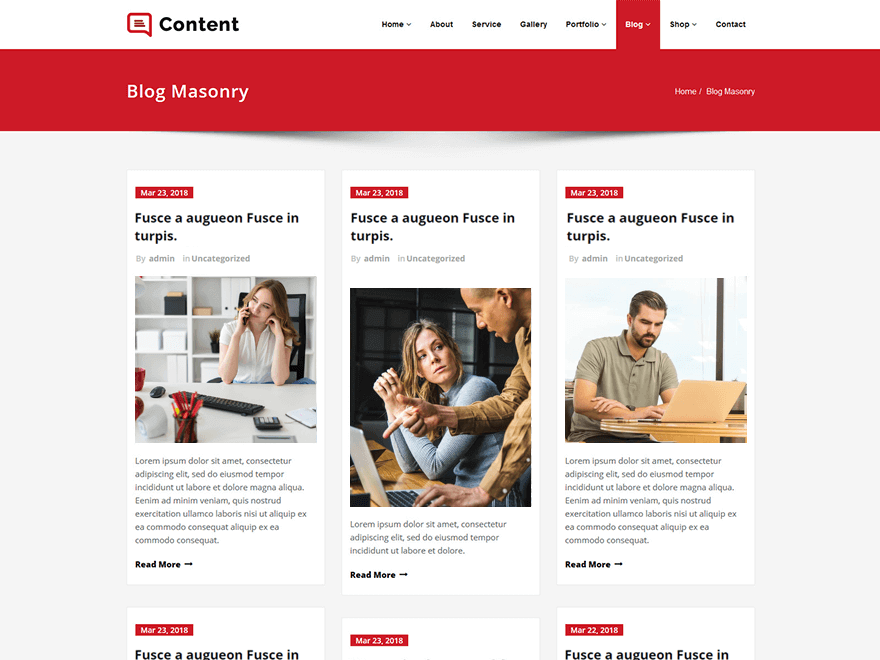
WordPress contents and pictures. Using images in your WordPress media is crucial for engaging your audience and improving the user experience in today’s visually-driven internet environment. Adding pertinent and excellent images to your content, whether it be blog posts, articles, or product pages, may make it more engaging and memorable. Don’t worry if you don’t know how to add photos to your website or are new to WordPress! We’ll walk you through the process of adding images to your WordPress articles in this detailed guide.
WORDPRESS CONTENTS AND PICTURES
You may improve your website’s aesthetic appeal and produce captivating content that draws in visitors by following these easy steps. Including pertinent and high-quality photographs is essential to leaving a lasting impression on your visitors, whether you’re publishing articles, sharing blog posts, or promoting merchandise.
Step 1: Log in to Your WordPress Dashboard;
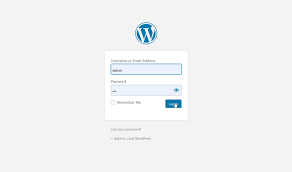
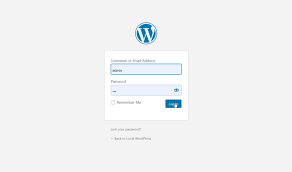
To get started, log in to your WordPress dashboard by entering your username and password. Once logged in, you’ll be taken to the WordPress admin area where you can manage your website’s content, settings, and media.
Step 2: Navigate to the Post or Page Editor;
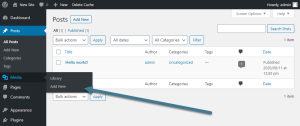
Next, navigate to the post or page editor where you want to add images. You can do this by selecting “Posts” or “Pages” from the left-hand menu and then clicking on the “Add New” button to create a new post or page. Alternatively, you can edit an existing post or page by selecting it from the list of published content.
Step 3: Insert the Image Block;
WordPress contents and pictures
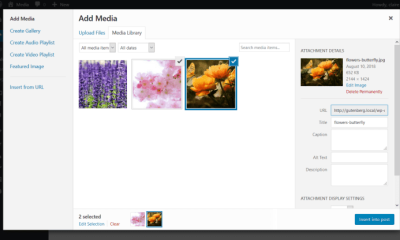
Once you’re in the post or page editor, place your cursor where you want to insert the image and click on the (+) icon to add a new block. In the block inserter menu, select the “Image” block option. This will create a new image block where you can upload or select an existing image from your media library.
Step 4: Upload or Select an Image;
After inserting the image block, you’ll have the option to upload a new image or select an existing image from your media library. To upload a new image, click on the “Upload” button and select the image file from your computer. To select an existing image from your media library, click on the “Media Library” tab and choose the desired image.
Step 5: Customize Image Settings;
WordPress contents and pictures
Once you’ve uploaded or selected an image, you can customize its settings to fit your needs. You can adjust the image alignment, size, and caption by clicking on the image block and using the toolbar options that appear above it. Additionally, you can add alternative text (alt text) for accessibility purposes by clicking on the image block and entering a description in the “Alt Text” field.
Step 6: Preview and Publish Your Content;
After adding and customizing your image, preview your content to see how it looks on the frontend of your website. If everything looks good, you can go ahead and publish your post or page by clicking on the “Publish” button. Your image will now be visible to your website visitors when they view your published content.
Summary
WordPress’s built-in block editor is used to format text, while the Media Library is used to store images. Building visually appealing pages, optimizing load times, and centralizing all of your material are all made simple with this system.


Key phrase density tips. It is important for SEO since it tells search engines how relevant a webpage’s content is. By deliberately inserting important keywords and phrases into their material while retaining a natural and engaging writing style. Owners of websites can increase their organic traffic and exposure in search engine rankings.
KEY PHRASE DENSITY TIPS
In the ever-evolving landscape of search engine optimization (SEO), key phrase density remains a crucial factor in determining a webpage’s relevance and visibility in search engine results. Key phrase density refers to the frequency at which a specific keyword or phrase appears within a piece of content relative to the total word count. While maintaining an optimal key phrase density can improve a page’s ranking in search engine results, it’s essential to strike the right balance to avoid over-optimization and potential penalties from search engines.
Understanding the Role of Key Phrase Density:

Key phrase density plays a significant role in SEO because search engines use algorithms to analyze the content of webpages and determine their relevance to specific search queries. Site owners can inform search engines that their content is pertinent to the subjects being searched for by deliberately inserting pertinent keywords and phrases into their webpage’s meta tags, headings, and URLs.
However, it’s essential to approach key phrase density with caution and avoid keyword stuffing. Which involves excessively repeating keywords or phrases in an attempt to manipulate search engine rankings. Keyword stuffing is considered a black hat SEO technique and can result in penalties from search engines. Including lower rankings or removal from search engine results altogether.
Finding the Right Balance:

Key phrase density tips
Achieving the optimal key phrase density involves finding the right balance between incorporating relevant keywords and phrases. Naturally into the content while ensuring readability and user experience are not compromised. Rather than focusing solely on keyword density, website owners should prioritize creating high-quality. Valuable content that resonates with their target audience.
Keyword research is a critical component of effective SEO strategy. By identifying relevant keywords and phrases that align with the topics and themes of their content. Website owners can strategically incorporate them into their content in a way that feels organic and seamless. Additionally, leveraging long-tail keywords, which are more specific and less competitive. Can help target niche audiences and improve the relevance of a webpage’s content.
Monitoring and Adjusting Key Phrase Density;
Key phrase density tips
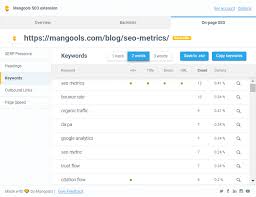
Monitoring key phrases density and performance metrics is essential for optimizing SEO efforts over time. SEO tools and analytics platforms can provide insights into how well specific keywords are performing in terms of search engine rankings, organic traffic, and user engagement.
Website owners should regularly review their content to ensure that key phrases are used appropriately and effectively. This may involve updating existing content with new keywords. Optimizing meta tags and headings, and creating new content to target emerging search trends and topics.
Summary
Avoiding over-optimization is crucial. Additionally, give top priority to producing valuable, high-quality material that appeals to users. by finding the ideal mix and consistently assessing and modifying their SEO initiatives. In the cutthroat world of the internet, website owners can set themselves up for long-term success.

Media incorporation into articles. In order to improve understanding and retention, increase shareability and virality, improve engagement, and improve SEO performance, you must incorporate media into your content. Whether you’re writing blog posts, news pieces, instructional materials, or marketing collateral, including pertinent and excellent images can improve your writing and meaningfully engage your readers. You may write articles that connect with readers, increase website traffic, and eventually accomplish your content marketing objectives by utilizing the power of multimedia content.
MEDIA INCORPORATION INTO ARTICLES
Incorporating media into your articles can be a game-changer for grabbing and holding readers’ attention in the current digital era, where attention spans are short and competition for online visibility is intense. Multimedia material, which includes everything from pictures and videos to infographics and interactive features, improves the reader experience and effectively reaffirms your point. Here are four compelling arguments for including media in your articles:
1. Enhances Engagement;

Visual media, such as images and videos, have the ability to grab the attention of your audience and make your content more engaging and memorable. Research has shown that articles with relevant images receive significantly more views and shares than those without visuals. By incorporating media into your articles, you can break up large blocks of text, create visual interest, and keep readers engaged from start to finish.
2. Improves Comprehension and Retention;

Multimedia content has been shown to improve comprehension and retention of information compared to text-only articles. Visuals help to illustrate complex concepts, reinforce key points, and provide context for the written content. Incorporating charts, graphs, and infographics can make data more digestible and easier to understand for readers. Additionally, videos allow you to demonstrate processes, showcase products, or tell stories in a dynamic and engaging way, enhancing the reader’s overall understanding and retention of the content.
3. Increases Shareability and Virality;

Media incorporation into articles
Articles with compelling visuals are more likely to be shared on social media platforms, leading to increased exposure and virality. Visual content is inherently more shareable and eye-catching in social media feeds, making it easier for readers to engage with and amplify your message to their networks. By including shareable media in your articles, you can extend the reach of your content and attract new audiences who may not have discovered your articles otherwise.
4. Boosts SEO Performance;

Media incorporation into articles
Search engines prioritize content that is rich in multimedia elements, as they enhance the user experience and increase dwell time on your website. Articles with relevant images, videos, and other media are more likely to rank higher in search engine results pages (SERPs) and attract organic traffic. Additionally, alt text, captions, and descriptive filenames associated with media elements provide valuable metadata that search engines use to index and rank your content more effectively.
Summary
Including media in articles increases reader engagement, breaks up long material, and works with digital platforms that rely on algorithms. Digital content and images are now essential to the conveyance of information in the modern era.
Tips for deleting articles on wordpress. On WordPress, deleting an article is a simple operation, but it’s important to proceed carefully to make sure you’re eliminating the correct content and preventing any unexpected repercussions. This step-by-step guide will help you through the process of removing your article from WordPress, regardless of whether you published it with mistakes, out-of-date material, or just decided it was no longer relevant.
TIPS FOR DELETING ARTICLES ON WORDPRESS
These easy methods can help you keep your WordPress website current and relevant by eliminating unnecessary or out-of-date information. To prevent inadvertently destroying important content, always double-check the article you’re deleting. If at all possible, think about upgrading or archiving articles rather than completely deleting them.
Step 1;
Log in to Your WordPress Dashboard,
Begin by logging in to your WordPress dashboard using your username and password. Once logged in, you’ll be taken to the WordPress admin area where you can manage your website’s content, settings, and users.
Step 2;
Navigate to the Posts or Pages Section, Depending on whether your article is a blog post or a static page, navigate to the appropriate section in the WordPress dashboard. To delete a blog post, click on “Posts” in the left-hand menu. To delete a static page, click on “Pages” instead.
Step 3;
Tips for deleting articles on wordpress
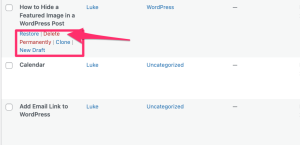
Locate the Article You Want to Delete, Once you’re in the Posts or Pages section, locate the specific article you want to delete from your WordPress website. You can use the search bar or browse through the list of published articles to find the one you’re looking for.
Step 4;
Edit the Article Hover your mouse over the title of the article you want to delete, and several options will appear beneath it. Click on the “Edit” option to open the article editor and make changes to the content if necessary. This step is optional but can be useful if you want to review the article before deleting it.
Step 5;
Tips for deleting articles on wordpress
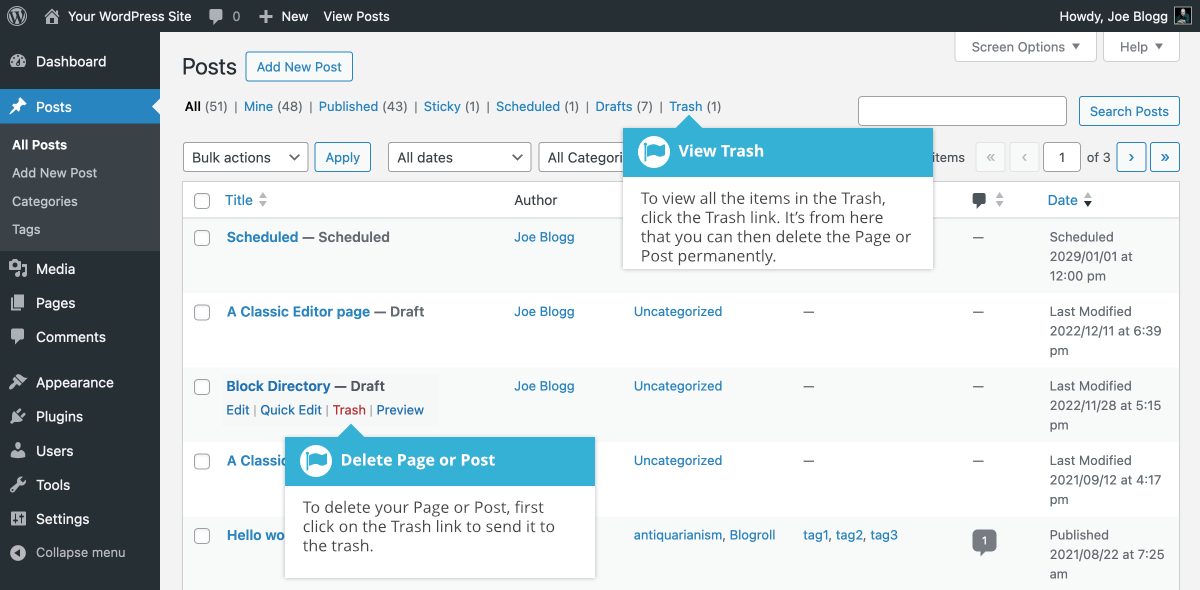
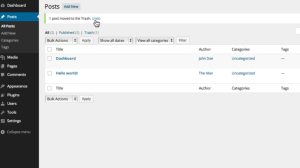
Move the Article to Trash, After reviewing the article (if desired), click on the “Move to Trash” link located in the right-hand sidebar of the article editor. Confirm the action when prompted to move the article to the trash. Alternatively, you can also click on the “Trash” link directly from the list of articles in the Posts or Pages section and select the article you want to delete.
Step 6;
Empty the Trash (Optional), Once you’ve moved the article to the trash, it will remain there until you permanently delete it. To permanently remove the article from your WordPress website, click on the “Trash” link in the Posts or Pages section, select the article, and click on the “Empty Trash” button. Confirm the action when prompted, and the article will be permanently deleted from your site.
Summary
Go to your dashboard, select Posts > All Posts, mouse over the particular item, and select Trash to remove it from WordPress. This places the article in the trash folder, where it will either remain until it is removed or WordPress will automatically remove it after 30 days.

Compact cameras disadvantages

Mirrorless cameras disadvantages

Top bridge cameras

A Step-by-Step Guide to Deleting Reels on Instagram

A Comprehensive Guide to Setting Up a YouTube Premiere