
TECHNOLOGY
Tips for Turning on Macbook


Tips for turning on macbook. To fully utilize your MacBook and unleash your creativity and productivity, you must first turn it on. Making the most of your new Apple device and accessing a world of possibilities only requires a single button click. Start your adventure into the fascinating world of macOS computing by turning on your MacBook. So, you’ve just got your hands on a shiny new MacBook laptop, and now it’s time to dive into the world of Apple computing.
TIPS FOR TURNING ON MACBOOK
Verify that your laptop is receiving the power it requires. A dead battery could be the cause of your MacBook’s inability to come on. Before attempting to turn it on again, plug it in and let it charge for at least 30 minutes. After plugging it in, do you not perceive an improvement in battery power? See our tutorial on how to handle a non-charging MacBook battery. But before you can start exploring all the features and possibilities, you need to know how to turn on your MacBook. Don’t worry; it’s a simple process, and we’re here to guide you through it step by step.
1. Locate the Power Button:

The power button on a MacBook is typically located at the top-right corner of the keyboard, above the delete key. It’s a small circular button that may have the power symbol (⏻) engraved on it.
2. Open the Lid:
If your MacBook’s lid isclosed, open it gently to reveal the screen and keyboard.
3. Press the Power Button:

With the lid open, locate the power button and press it once. You should feel a slight click as you press the button.
4. Wait for Startup:
After pressing the power button, your MacBook will begin the startup process. This may take a few moments, depending on your MacBook model and configuration. During startup, you’ll see the Apple logo appear on the screen, along with a progress bar indicating the startup progress.
5. Enter Your Password:

TIPS FOR TURNING ON MACBOOK
If you’ve set up a password for your MacBook, you may be prompted to enter it after the startup process is complete. Simply type your password using the keyboard and press the Enter key (⏎) to log in.
6. Explore Your MacBook:

TIPS FOR TURNING ON MACBOOK
Congratulations! Your laptop is now powered on and ready to use. Take some time to familiarize yourself with the macOS operating system and explore the various built-in apps and features.
7. Adjust Settings:
Depending on your preferences, you may want to adjust some settings on your MacBook, such as display brightness, keyboard backlighting, or sound volume. You can do this by clicking on the Apple menu () in the top-left corner of the screen and selecting “System Preferences.”
8. Shut Down Your MacBook:

TIPS FOR TURNING ON MACBOOK
When you’re done using your laptop, you can shut it down by clicking on the Apple menu () and selecting “Shut Down.” This will safely power off your MacBook until the next time you’re ready to use it.
Summary
Start by scrutinizing the charger for visible damage, such as frayed cables or bent connectors. Then try replacing out the charger for one you’re confident works and is compatible with your MacBook model. Additionally, make sure the power outlet you’re connecting to is operational by plugging in additional devices.
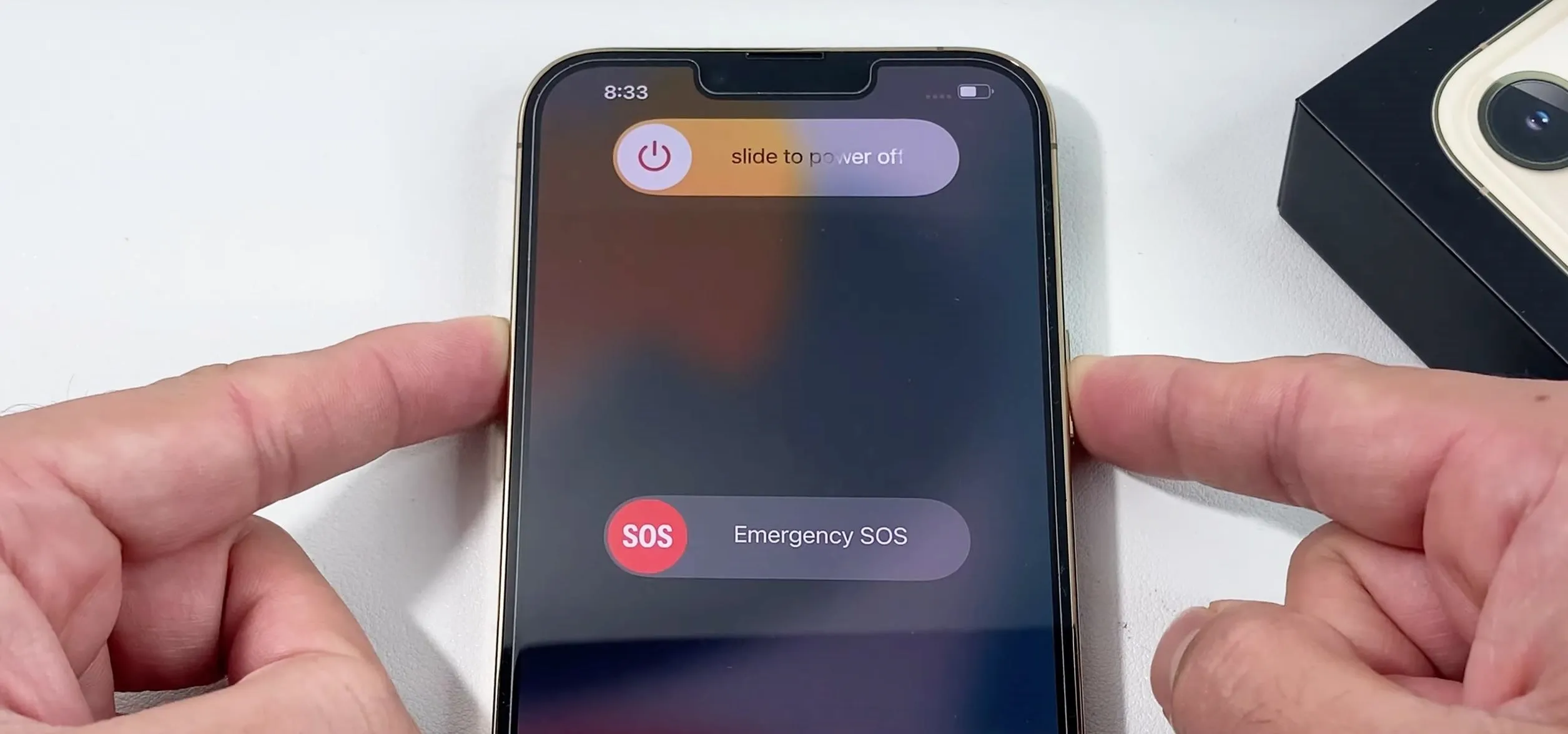
How to turn off iphone. It’s crucial to know how to correctly shut down your iPhone for a number of reasons, such as extending battery life, resolving problems, or just taking a break. You may confidently turn off your iPhone anytime needed by following the instructions in this article. Gaining proficiency with this fundamental feature will guarantee a more seamless interaction with your iPhone, regardless of your level of experience.
HOW TO TURN OFF IPHONE
Shutting down your iphone might seem like a straightforward task, but with the absence of a physical button dedicated solely to this function, it can sometimes be confusing. Whether you need to conserve battery life, troubleshoot a problem, or simply power down your device for a while, knowing the correct method to shut down your iPhone is essential. In this article, we’ll guide you through the steps to properly power off your iPhone.
Step 1: Locate the Side Button;
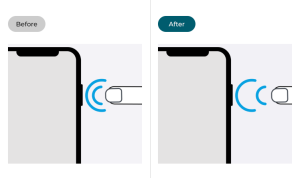
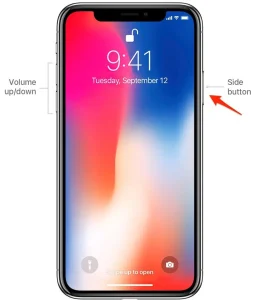
The side button, located on the right side of your phone, serves multiple functions, including powering on/off your device, activating Siri, and taking screenshots. It’s important to differentiate between a quick press and a long press for shutting down the device.
Step 2: Simultaneously Press Side Button and Volume Button;
To initiate the power off process, simultaneously press and hold the side button and one of the volume buttons (either the volume up or volume down button) on it. Hold both buttons down at the same time until the “slide to power off” slider appears on the screen.
Step 3: Slide to Power Off;
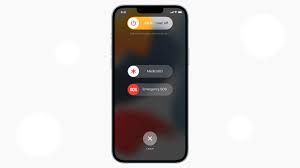
How to turn off iphone
Once the “slide to power off” slider appears, release the side button and volume button. You can then use your finger to slide the slider from left to right to power off.
After sliding the power off slider, your phone will begin the shutdown process. Depending on your device model and any ongoing tasks, this process may take a few moments. Once shut down, your iPhone’s screen will go completely black, indicating that it is powered off.
Power On Your iPhone;
How to turn off iphone
To power on again, simply press and hold the side button until the Apple logo appears on the screen. Your device will then boot up, and you can use it as usual.
Summary
utilize the physical buttons, go through Settings, or utilize Siri to quickly shut off your phone.
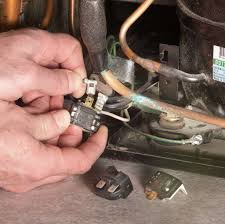
Tips for resettting refrigerator compressor. Resetting your refrigerator compressor is a fairly easy procedure that can assist fix a lot of typical problems with your equipment. You may securely reset your compressor and get your refrigerator operating again by following the instructions in this guide. Always put safety first, and seek professional advice if you run into any challenges or ongoing issues with your refrigerator.
TIPS FOR RESETTING REFRIGERATOR COMPRESSOR
A malfunctioning refrigerator compressor can be a real headache, causing your food to spoil and your energy bills to soar. Fortunately, many compressor issues can be resolved by simply resetting the unit. Unplug the refrigerator (or switch the circuit breaker) for ten minutes to clear electrical faults and recalibrate the sensors in order to reset a refrigerator compressor. Make sure the internal temperature controls are correctly adjusted when the power is restored, and listen for the compressor to hum and vibrate smoothly.
In this guide, we’ll walk you through the steps to reset your refrigerator compressor safely and effectively.
Step 1: Unplug the Refrigerator

Before attempting any repairs or resets, always unplug the refrigerator from the power source. This step is crucial for your safety and prevents any electrical mishaps.
Step 2: Locate the Compressor
The compressor is typically located at the back of the refrigerator, near the bottom. It’s a large, cylindrical component with metal tubes and wires attached to it. Once you’ve located the compressor, take a moment to inspect it for any visible signs of damage or wear.
Step 3: Access the Reset Button
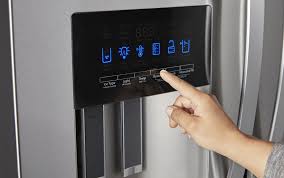
Some refrigerators come equipped with a reset button on the compressor itself. Look for a small button or switch near the base of the compressor. If your compressor has a reset button, proceed to step 4. If not, skip to step 5.
Step 4: Press the Reset Button;
Using a small tool such as a pen or pencil, press and hold down the reset button for approximately 10-15 seconds. You may hear a clicking sound as the compressor resets. Once you’ve held the button down for the specified time, release it and proceed to step 6.
Step 5: Power Cycle the Refrigerator

Tips for resettting refrigerator compressor
If your refrigerator does not have a reset button on the compressor, you can perform a manual reset by power cycling the unit. To do this, leave the refrigerator unplugged for at least 10-15 minutes. This allows the compressor to fully discharge any built-up electrical charge. After the waiting period, plug the refrigerator back in and proceed to step 6.
Step 6: Test the Refrigerator
Once the compressor has been reset, plug the refrigerator back in and wait for it to power up. Listen for any unusual noises or vibrations coming from the compressor. Additionally, monitor the temperature inside the refrigerator to ensure that it begins to cool properly.
Step 7: Monitor for Continued Issues

Tips for resettting refrigerator compressor
After resetting the compressor, keep an eye on your refrigerator for any signs of recurring problems. If the compressor continues to malfunction or if you notice any other issues with your refrigerator, it may be time to consult a professional technician for further diagnosis and repair.
Summary
The “heart” of your refrigerator is the compressor. It serves as a pump that moves refrigerant throughout the system, compressing it from a cool, low-pressure state to a hot, high-pressure state. Through this process, heat from the refrigerator is absorbed and released outside.
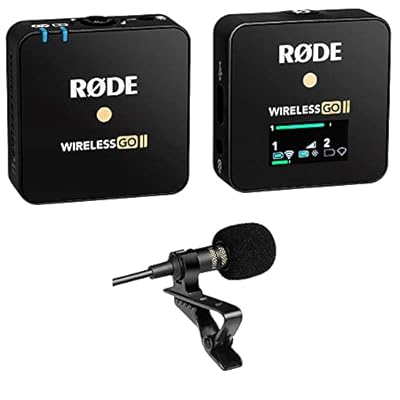
Best podcast microphone. Because of its portability, the Rode Wireless Go has made a name for itself in the podcasting industry. dependable performance, flexible connectivity, sound quality, and ease of use. It is the perfect option for podcasters who want to improve their audio production because of these capabilities. without the limitations and complications of conventional wired systems. Tools like the Rode Wireless Go will probably continue to be crucial for producers looking to create excellent content as podcasting grows as a medium.
BEST PODCAST MICROPHONE
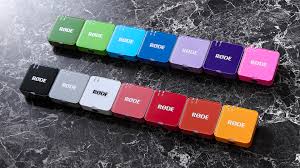
Your setup and money will determine which podcast microphone is ideal for you. The Fifine K688 and Samson Q2U are excellent choices for novices. The Rode PodMic USB is a great all-in-one option, but the Shure SM7B is the industry standard for high-quality, broadcast-style audio. In the rapidly evolving world of podcasting, audio quality remains paramount. Among the myriad of microphone options available, the Rode Wireless Go has emerged as a favorite for many podcasters. Here are five compelling reasons why this wireless microphone system is a top choice.
1. Portability and Convenience;
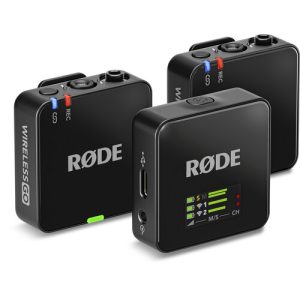
The Rode Wireless Go is renowned for its compact and lightweight design, making it incredibly easy to transport and set up. Each unit is roughly the size of a matchbox, which means podcasters can carry it anywhere without the bulk typically associated with high-quality audio equipment. This portability is particularly beneficial for podcasters who frequently record on the go or in various locations, ensuring they can maintain professional sound quality without being tethered to a studio.
2. Exceptional Sound Quality;
Despite its small size, the Rode Wireless Go delivers impressive sound quality. It features a built-in omnidirectional condenser microphone, which captures clear and natural audio. Additionally, it offers a high signal-to-noise ratio, reducing background noise and ensuring that voices come through crisply and cleanly. This level of audio fidelity is crucial for podcasters aiming to provide their audience with a professional listening experience.
3. User-Friendly Operation;
Best podcast microphone
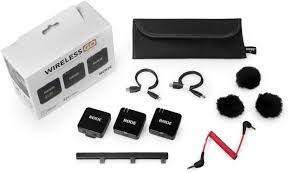
One of the standout features of the Rode Wireless Go is its ease of use. The system includes a transmitter and receiver that pair instantly upon activation. There’s no need for complicated setups or technical know-how, making it accessible for beginners and experienced podcasters alike. The intuitive LCD screen on the receiver displays all essential information, such as battery life and signal strength, allowing users to monitor their setup effortlessly.
4. Versatile Connectivity;
However, the Rode Wireless Go offers versatile connectivity options, which is a significant advantage for podcasters. It can be used with a variety of devices, including DSLR cameras, smartphones, tablets, and computers. This flexibility is facilitated by the 3.5mm TRS output on the receiver, which can be connected to a wide range of recording devices with the appropriate cables.
5. Reliable Performance;
Best podcast microphone
Also, for podcasters, reliability is key. The Rode Wireless Go boasts a stable and robust wireless connection with a range of up to 70 meters (about 230 feet) in optimal conditions. This ensures that the audio remains consistent and uninterrupted, even when the podcaster moves around. The built-in rechargeable batteries provide up to 7 hours of operation on a single charge.
Summary
A transducer that transforms sound waves into electrical impulses is called a microphone. Telecommunications, broadcasting, content creation, live sound, and consumer electronics like laptops and smartphones are just a few of the applications that use it to record, transmit, and collect audio.

Nivea body wash for men

Business maintenance

Athlete conviction of murder

A Step-by-Step Guide to Deleting Reels on Instagram

A Comprehensive Guide to Setting Up a YouTube Premiere

How to Create a WhatsApp Group
-

 Health4 weeks ago
Carbonated drinks side effects
-

 Business4 weeks ago
Smart ideas for business startups
-

 Deodorants4 weeks ago
Reasons for wearing deodorants
-

 Deodorants3 weeks ago
Reviewing tom ford oud
-

 Deodorants4 weeks ago
Review for saint laurent black
-

 Deodorants3 weeks ago
Varieties of perfumes for men