Social media
How to Delete Reels on IG

How to delete reels on IG. One quick and simple strategy to manage your content and keep your Instagram profile well-curated is to delete reels. You can keep your Instagram account structured and consistent with your personal or brand identity by following these steps, whether you’re deleting out-of-date content or improving your feed.
HOW TO DELETE REELS ON IG
Short-form video content creation and sharing on Instagram has grown in popularity thanks to the Reels feature. Deleting Reels on Instagram is a simple procedure, regardless of whether you posted a Reel that you’re no longer satisfied with or you just want to get rid of out-of-date content. We’ll lead you through the process of removing Reels from your Instagram account in this article.
1. Open the Instagram App:


Launch the Instagram app on your mobile device. Ensure that you’re logged into the account from which you want to delete the Reel.
2. Navigate to Your Profile:
Tap on your profile picture or the profile icon located in the bottom right corner of the screen. This will take you to your Instagram profile.
3. Access Your Reels:


Once on your profile, locate the Reels tab. You can find this beneath your bio section, next to the Posts and IGTV tabs. Tap on the Reels icon to view all the Reels you’ve posted.
4. Select the Reel You Want to Delete:
Scroll through your Reels until you find the one you wish to remove. Tap on the Reel to open it and view it in full screen.
5. Tap on the Three Dots Menu:
In the top right corner of the Reel screen, you’ll see three dots arranged vertically. Tap on these dots to access additional options and settings for the Reel.
6. Choose “Delete”:


HOW TO DELETE REELS ON IG
After tapping on the three dots, a menu will appear with various options. Select “Delete” from this menu to initiate the deletion process.
7. Confirm Deletion:
Instagram will ask you to confirm whether you want to delete the Reel. Confirm your decision by tapping on “Delete” again in the confirmation prompt.
8. Reel Successfully Deleted:

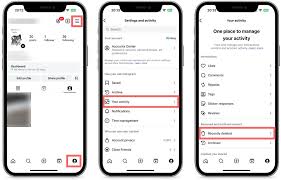
HOW TO DELETE REELS ON IG
Once confirmed, Instagram will remove the Reel from your account. You’ll see a message confirming that the Reel has been deleted, and you’ll be returned to your Reels feed.
9. Repeat for Additional Reels:
If you have multiple Reels you wish to delete, simply repeat the process outlined above for each Reel you want to remove.
10. Refresh Your Profile:


HOW TO DELETE REELS ON IG
After deleting the Reel, you may want to refresh your profile to ensure that the deleted Reel is no longer visible to your followers or on your profile page.
Summary
Go to your profile, press the three-line menu, choose Your Activity > Photos and Videos > Reels, pick the Reels you want to erase, and then tap Delete to remove your own Instagram Reels. Reels cannot be completely disabled, but you can choose “Not Interested” for suggested reels or use a desktop browser for less reels.