WRITING
Inbound links and wordpress articles

Inbound links and wordpress articles. Backlinks, sometimes referred to as inbound links, are hyperlinks pointing straight to your WordPress articles from other websites. They serve as a “vote of confidence,” letting search engines like Google know that your material is reliable, authoritative, and pertinent. Improving the Search Engine Optimization (SEO) of your WordPress website requires knowing how to obtain external inbound connections and how to organize your internal “inbound” links.
INBOUND LINKS AND WORDPRESS ARTICLES
A web content management system is called WordPress. It was first developed as a tool for publishing blogs, but it has since expanded to facilitate the publication of other online material, such as more conventional websites, mailing lists, online forums, media galleries, membership sites, learning management systems, and online shops.
Step 1: Log in to Your WordPress Dashboard
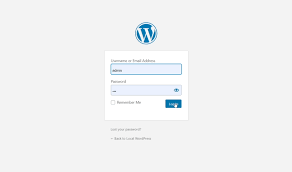
Begin by logging in to your WordPress dashboard using your username and password. Once logged in, navigate to the post or page editor where you want to add the inbound link.

Step 2: Highlight the Text You Want to Link
Within the post or page editor, select the text that you want to turn into an inbound link. This could be a relevant keyword, phrase, or descriptive anchor text that provides context for the linked content.
Step 3: Click the Insert/Edit Link Button
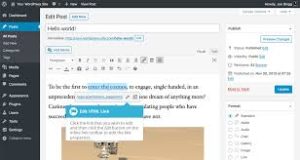

After highlighting the text, click on the “Insert/Edit Link” button in the toolbar above the editor. It looks like a chain link icon and is typically located next to other formatting options like bold and italic.
WordPress inbound links guides;
Step 4: Enter the URL of the Target Page
In the pop-up window that appears, enter the URL of the target page that you want to link to. You can either type the URL directly into the field or paste it from your browser. Make sure to include the full URL, including the “http://” or “https://” prefix.
Step 5: Add Link Options (Optional)

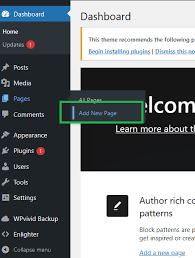
Inbound links and wordpress articles
Optionally, you can configure additional link options before inserting the inbound link. These options include setting the link to open in a new tab, adding a title attribute for accessibility, and specifying link rel attributes for SEO purposes. Adjust these settings as needed, then click the “Add Link” button to insert the inbound link.
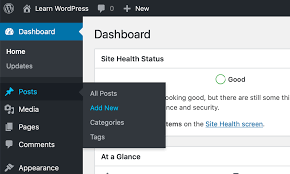
Step 6: Review and Publish Your Article

Inbound links and wordpress articles
After adding the inbound link, review your article to ensure that the link appears as intended and functions correctly. You can do this by previewing the post or page in the WordPress editor or by viewing it on the frontend of your website. Once you’re satisfied with the placement and functionality of the inbound link, click the “Publish” or “Update” button to save your changes and make the article live on your website.
Summary
Hyperlinks from an external website to a page on your own website are known as inbound links, or backlinks. They serve as “votes of confidence,” assisting search engines in determining the authority of your website, generating direct referral traffic, and greatly raising your search engine results.