Social media
Instagram Post and Adding Location

Instagram post and adding location. By including location tags in your Instagram posts, you may improve the narrative quality of your material and make it more discoverable. Whether you’re talking about local experiences or trip memories. or just capturing moments from your everyday existence. Your contributions get depth and importance when you include location information. by putting the advice given into practice and adhering to the straightforward procedures described in this book. Location tags are a great way to interact with your audience and tell the world about your experiences.
INSTAGRAM POST AND ADDING LOCATION
Instagram has emerged as a popular tool for sharing events and experiences with friends, family, and followers because to its visual storytelling features. The option to include location information is one element that improves the context of your posts. Adding a location to your Instagram images gives them more depth and importance, whether you’re sharing food experiences, travel excursions, or just the beauty of your surroundings. We’ll look at how to easily add location tags to your Instagram posts in this post.
Why Add Location to Your Instagram Posts?


Adding a location to your Instagram posts serves multiple purposes:
1. Contextual Relevance: Location tags provide context to your posts, helping your audience understand where the photo or video was taken.
2. Discoverability: Posts with location tags are discoverable by users exploring content from specific locations. This can increase the visibility of your posts to a broader audience.
3. Personalization:


Sharing your location allows you to connect with others who have visited or are familiar with the same places, fostering engagement and conversation.
Steps to Add Location to Your Instagram Post;
1. Capture or Select Your Content: Start by capturing a photo or video using the Instagram camera or selecting an existing piece of media from your device’s gallery.
2. Editing Your Post:

Instagram post and adding location
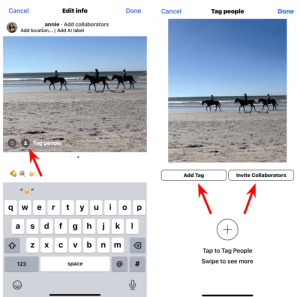
Proceed to the editing screen by tapping the “+” icon at the bottom of the screen or tapping your profile picture to access your gallery. Choose the photo or video you want to share.
3. Adding Location: After selecting or capturing your content, you’ll be directed to the editing screen. Below the caption field, you’ll see an option labeled “Add Location.” Tap on it.
4. Search for Location: Type the name of the location you want to tag in the search bar. Instagram will suggest locations based on your input. Select the correct location from the suggestions.
5. Confirm Location:


Instagram post and adding location
Once you’ve selected the location, it will be added to your post. You can further customize the location tag by tapping on it to adjust the name or remove it entirely.
6. Completing Your Post: After adding the location, proceed to add a caption, tag users, and choose additional sharing options such as adding to your story or sharing on other platforms.
7. Share Your Post:

Instagram post and adding location
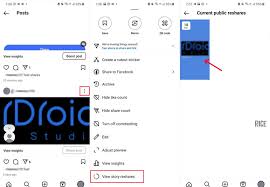
Once you’re satisfied with your post, tap on the “Share” button to publish it to your Instagram feed.
Summary
To add a place to an Instagram post, search for and choose your location by tapping Add place on the final sharing screen prior to posting. By making your post searchable and discoverable on the Instagram Map, this increases engagement. The “Edit” tab also allows you to add locations to previous articles.