WRITING
Tips for deleting articles on wordpress

Tips for deleting articles on wordpress. On WordPress, deleting an article is a simple operation, but it’s important to proceed carefully to make sure you’re eliminating the correct content and preventing any unexpected repercussions. This step-by-step guide will help you through the process of removing your article from WordPress, regardless of whether you published it with mistakes, out-of-date material, or just decided it was no longer relevant.
TIPS FOR DELETING ARTICLES ON WORDPRESS
These easy methods can help you keep your WordPress website current and relevant by eliminating unnecessary or out-of-date information. To prevent inadvertently destroying important content, always double-check the article you’re deleting. If at all possible, think about upgrading or archiving articles rather than completely deleting them.
Step 1;
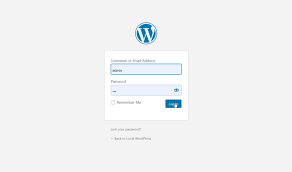

Log in to Your WordPress Dashboard,
Begin by logging in to your WordPress dashboard using your username and password. Once logged in, you’ll be taken to the WordPress admin area where you can manage your website’s content, settings, and users.
Step 2;
Navigate to the Posts or Pages Section, Depending on whether your article is a blog post or a static page, navigate to the appropriate section in the WordPress dashboard. To delete a blog post, click on “Posts” in the left-hand menu. To delete a static page, click on “Pages” instead.
Step 3;

Tips for deleting articles on wordpress
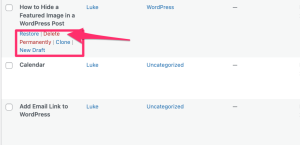
Locate the Article You Want to Delete, Once you’re in the Posts or Pages section, locate the specific article you want to delete from your WordPress website. You can use the search bar or browse through the list of published articles to find the one you’re looking for.
Step 4;
Edit the Article Hover your mouse over the title of the article you want to delete, and several options will appear beneath it. Click on the “Edit” option to open the article editor and make changes to the content if necessary. This step is optional but can be useful if you want to review the article before deleting it.
Step 5;

Tips for deleting articles on wordpress
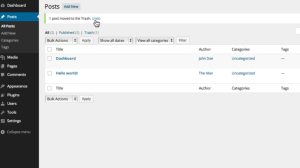
Move the Article to Trash, After reviewing the article (if desired), click on the “Move to Trash” link located in the right-hand sidebar of the article editor. Confirm the action when prompted to move the article to the trash. Alternatively, you can also click on the “Trash” link directly from the list of articles in the Posts or Pages section and select the article you want to delete.
Step 6;
Empty the Trash (Optional), Once you’ve moved the article to the trash, it will remain there until you permanently delete it. To permanently remove the article from your WordPress website, click on the “Trash” link in the Posts or Pages section, select the article, and click on the “Empty Trash” button. Confirm the action when prompted, and the article will be permanently deleted from your site.
Summary
Go to your dashboard, select Posts > All Posts, mouse over the particular item, and select Trash to remove it from WordPress. This places the article in the trash folder, where it will either remain until it is removed or WordPress will automatically remove it after 30 days.