Social media
Tips for editing whatsapp messages

Tips for editing whatsapp messages. It’s crucial to remember that although these techniques provide means to modify delivered messages, they have drawbacks. If the receiver has previously seen the original communication, for example, they may not be aware of the changes unless specifically mentioned. Additionally, depending on the recipient’s notification settings, modified messages can still show up in notifications.
TIPS FOR EDITING WHATSAPP MESSAGES
In today’s fast-paced digital world, communication often happens in real-time, leading to occasional typos, errors, or unintended messages. WhatsApp, one of the most popular messaging apps worldwide, recognizes the need for users to rectify such mistakes even after hitting the send button. While WhatsApp does offer a built-in feature to edit sent messages directly, there are a few workarounds to achieve this.
1. Quick Fix: Delete and Resend:
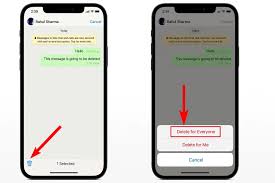

The simplest method is to delete the message immediately after sending it and then resend the corrected version. To do this, long-press the message, tap on the trash bin icon, and confirm deletion. Then, rewrite the message with the necessary corrections and send it again.
2. Edit through Forwarding:

Tips for editing whatsapp messages
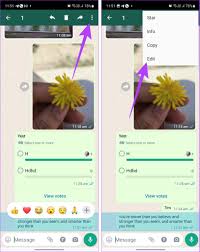
Another way to edit a sent message is by forwarding it to the same contact or group with the desired corrections. This method maintains the original message’s context while allowing you to make changes before forwarding it. Simply tap and hold the message, select “Forward,” make the necessary edits in the text field, and then tap the send button.
3. Utilize WhatsApp Web or Desktop: If you’re using WhatsApp on your computer through WhatsApp Web or the desktop app, editing sent messages becomes easier. After sending a message, hover over it, click on the three dots that appear on the right side, and select “Edit.” Make the necessary changes and press Enter to save the edited message.
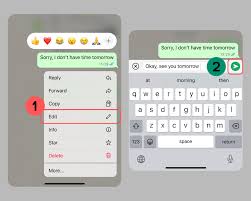
4. Edit it after sending: Updated version of WhatApp supports editing of messages not more than 14 minutes after sending.
Steps

Tips for editing whatsapp messages
– Hold the sent message and few options will pop up, tap on the edit option.
– After editing the error, retype your typos and tap on ✅ that’s all.
Summary
Within 15 minutes of sending a WhatsApp message, you can amend it by long-pressing it and choosing “amend” from the menu. This enables text modifications without generating a new notification; nevertheless, the message will be marked as “modified”. Media files cannot use this capability, however text messages on Android, iOS, and WhatsApp Web may.