Social media
Tips for Facebook Live Broadcast

Tips for facebook live broadcast. Use a reliable, fast connection, advertise your stream ahead of time, and address viewers by name to increase interaction if you want to run a successful Facebook Live broadcast. Create a well-organized schedule, limit broadcasts to 10 to 90 minutes, use a tripod for stability, and encourage people to follow and share for alerts. Live video has become a potent tool for interacting with people in real time and on a personal level in the current digital era. In instance,
TIPS FOR FACEBOOK LIVE BROADCAST
Facebook Live gives people, companies, and organizations an easy way to share live video content with their followers. Going live on your Facebook page can help you establish a genuine connection with your audience, whether you want to broadcast a live event, share behind-the-scenes videos, or organize a Q&A session. We’ll lead you through the process of effectively launching your Facebook page in this guide.
Step 1: Access Your Facebook Page
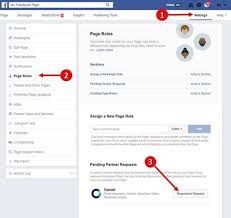

To go live on your Facebook page, you’ll first need to log in to your Facebook account and navigate to your page. You can do this by clicking on the page’s name in the left sidebar of your Facebook homepage.
Step 2: Click on the Live Video Option
Once you’re on your page, look for the “Live” option, typically located near the top of the page. Click on this option to start the process of going live.
Step 3: Configure Your Live Video Settings
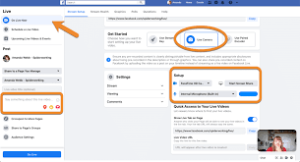

Before you start broadcasting, Facebook will prompt you to configure your live video settings. Here, you can add a description for your live video, choose who can see it (public, friends, specific groups, etc.), and select any additional settings, such as allowing viewers to comment or react during the broadcast.
Step 4: Set Up Your Camera and Microphone
Next, make sure your camera and microphone are set up and working correctly. You can use your device’s built-in camera and microphone or connect external equipment for higher quality audio and video.
Step 5: Choose Your Audience and Privacy Settings
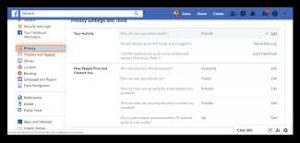

Once your camera and microphone are set up, you’ll need to choose your audience and privacy settings. Decide whether you want to broadcast to the public, specific friends, or a custom audience, and adjust your settings accordingly.
Step 6: Add a Compelling Description
Before you go live, take a moment to add a compelling description for your video. This description will appear alongside your live video and can help attract viewers to tune in.
Step 7: Click on the “Go Live” Button

TIPS FOR FACEBOOK LIVE BROADCAST
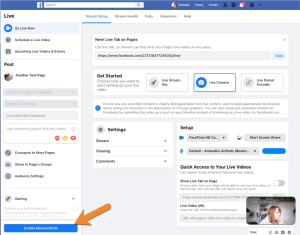
When you’re ready to start broadcasting, click on the “Go Live” button. Facebook will count down from three, giving you a final chance to prepare before your live video begins.
Step 8: Interact with Your Audience
Once you’re live, take advantage of the opportunity to interact with your audience in real-time. Respond to comments, answer questions, and engage with viewers to make the experience more interactive and engaging.
Step 9: End Your Broadcast;

TIPS FOR FACEBOOK LIVE BROADCAST
When you’re ready to end your live broadcast, simply click on the “Finish” button. Facebook will give you the option to save your video to your page for later viewing or delete it if you prefer.
Step 10: Review Your Performance;

TIPS FOR FACEBOOK LIVE BROADCAST
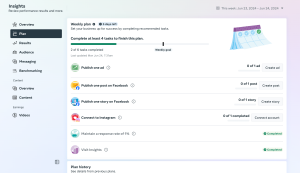
After your live broadcast ends, take some time to review your performance using Facebook Insights. Insights provide valuable data on your video’s reach, engagement, and audience demographics, allowing you to learn from your experience and improve future broadcasts.
Summary
By following these guidelines and making the most of Facebook Live, you can improve your online presence on the biggest social media network in the world, provide insightful information, and establish important connections with your audience.