TECHNOLOGY
Tips for shutting down laptops

Tips for shutting down laptops. Data security and component durability are guaranteed when a laptop is properly shut down. Always shut down programs, save your work, and choose “Shut Down” from the Start Menu. To start a safe shutdown on Windows, press Alt+F4 on the desktop, press Win+X then U twice, or momentarily push the power button.
TIPS FOR SHUTTING DOWN LAPTOPS
Although shutting down your laptop can seem easy, doing it correctly will help preserve its functionality and increase its longevity. This thorough article will help you through the process of safely and effectively shutting down your laptop, regardless of your level of experience with technology.
Step 1: Save Your Work;


Before shutting down your laptop, it’s essential to save any open documents, projects, or applications to prevent data loss. Take a moment to close all programs and ensure that any unsaved changes are saved.
Step 2: Close All Applications;
Once your work is saved, close all open applications and programs running on your laptop. This not only frees up system resources but also ensures that no processes are interrupted during the shutdown process.
Step 3: Disconnect External Devices;
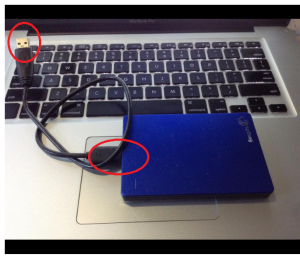

If you have any external devices connected to your laptop, such as USB drives, external hard drives, or peripherals, it’s a good idea to disconnect them before shutting down. This prevents potential data corruption and ensures a clean shutdown.
Step 4: Start the Shutdown Process;
To initiate the shutdown process, locate the power button on your laptop. Depending on your laptop model and operating system, the power button may be located on the keyboard, near the screen, or on the side of the laptop. Press and hold the power button for a few seconds until you see the shutdown options menu appear on the screen.
Step 5: Select the Shutdown Option;


Once the shutdown options menu appears, you’ll typically see several options, including “Shut down,” “Restart,” and “Sleep.” Use the arrow keys on your keyboard or the touchpad to navigate to the “Shut down” option and press the Enter key to select it.
Step 6: Wait for the Laptop to Power Off;
After selecting the shutdown option, your laptop will begin the shutdown process. Depending on your laptop’s hardware and the number of programs running, this process may take a few moments. Be patient and wait for your laptop to power off completely.
Step 7: Verify the Power Off;


TIPS FOR SHUTTING DOWN LAPTOPS
Once your laptop has powered off, verify that all lights on the laptop, including the power indicator light, have turned off. This indicates that the laptop has shut down completely and is no longer drawing power.
Step 8: Close the Lid;


TIPS FOR SHUTTING DOWN LAPTOPS
If you prefer, you can close the lid of your laptop after it has powered off. This helps protect the screen and keyboard from dust and debris when the laptop is not in use.
Summary
A straightforward yet crucial step in preserving your laptop’s functionality and extending its longevity is shutting it down correctly. You may guarantee a secure and effective shutdown procedure by following these guidelines, giving you the assurance and peace of mind to turn off your laptop.