Social media
Whatsapp group link creation

Whatsapp group link creation. A quick and easy approach to invite individuals to join your group and grow your network is to create a WhatsApp group link. WhatsApp group links make it easier to maintain group memberships and enable smooth communication between members, whether they are used for socializing, teamwork, or community building.
WHATSAPP GROUP LINK CREATION
WhatsApp group links provide a convenient way to invite people to join your group without needing to manually add them. Whether you’re organizing an event, coordinating with colleagues, or connecting with like-minded individuals, creating a WhatsApp group link makes it easy to expand your group’s membership. In this guide, we’ll walk you through the process of generating a WhatsApp group link.
1. Open WhatsApp:


Start by opening the WhatsApp application on your smartphone. WhatsApp is available for both iOS and Android devices and can be downloaded from the App Store or Google Play Store if you haven’t already installed it.
2. Navigate to Your Group:
Once you’re in the WhatsApp interface, navigate to the group for which you want to create a group link. Tap on the group name to enter the group chat.
3. Access Group Settings:
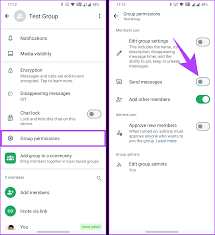

In the group chat interface, tap on the group name at the top of the screen. This will open the group settings menu, where you can access various options for managing the group.
4. Select “Invite to Group via Link”:
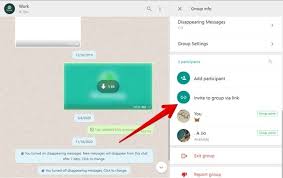
Scroll down the group settings menu until you find the option labeled “Invite to Group via Link.” Tap on this option to proceed.
5. Generate Group Link:

Whatsapp group link creation
Upon selecting “Invite to Group via Link,” WhatsApp will present you with the option to generate a group link. Tap on the “Generate Link” button to create a unique link for your WhatsApp group.
6. Share the Link:
Once the group link has been generated, you’ll see options to share it via various platforms such as WhatsApp, email, or social media. Tap on the platform of your choice to share the link with potential group members.
7. Copy the Link:

Whatsapp group link creation
If you prefer to share the group link manually, you can copy it to your device’s clipboard by tapping on the “Copy Link” button. You can then paste the link into messages or other communication channels as needed.
8. Revoke the Link:
If you ever need to stop people from joining your group via the link, you have the option to revoke it. Simply return to the group settings menu, tap on “Invite to Group via Link,” and select the option to revoke the link.
9. Monitor Group Membership:

Whatsapp group link creation
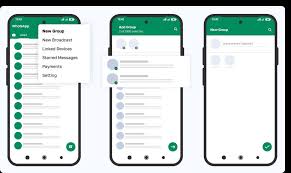
As people join your group using the link, you’ll receive notifications in the group chat. You can monitor the group’s membership and manage new join requests as needed.
Summary
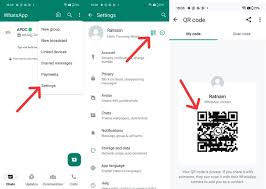
Open the group chat, press the group name, and choose “Invite by link” to copy, share, or create a QR code in order to make a WhatsApp group link. This link, which enables anyone with the URL to join, can only be created and managed by group administrators.