Social media
How to set Privacy Facebook

How to set privacy on facebook. Maintaining anonymity on social media sites like Facebook is crucial in the current digital era. It’s critical to comprehend and make use of the privacy options offered by these platforms due to the constantly changing landscape of internet security problems. Controlling who can view your postings on Facebook is one such important setting. We’ll go over how to change your Facebook post privacy to only friends in this post so that only people you trust can see your updates.
HOW TO SET PRIVACY ON FACEBOOK
Taking charge of your Facebook post privacy settings is essential in a time when digital privacy is of the utmost significance. You can keep control over your online interactions and feel secure by restricting who can see your posts. Don’t forget to periodically check and adjust your privacy settings to suit your comfort level and preferences. By following these guidelines, you may prioritize your security and privacy while still reaping the benefits of social networking.
Why Privacy Matters;
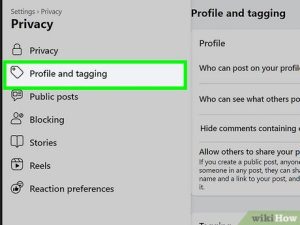

Privacy is not just about keeping personal information safe; it’s also about controlling who can access and interact with your content. By setting your Facebook post privacy to only friends, you can maintain a level of intimacy and security within your social circle. This ensures that your updates, photos, and thoughts are shared only with people you’ve approved, minimizing the risk of unauthorized access or misuse of your information.
Steps to Set Post Privacy to Only Friends
1. Accessing Privacy Settings:
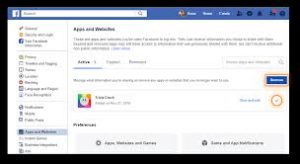

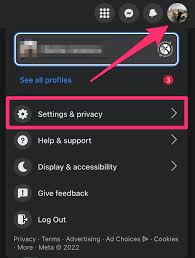
Log in to your Facebook account and navigate to your profile page. Click on the “Settings” option located at the top right corner of the screen. From the dropdown menu, select “Privacy Settings & Tools.”
2. Choosing Your Audience: Under the “Who can see your future posts?” section, click on the “Edit” option. A dropdown menu will appear, presenting different audience options. Select “Friends” to ensure that only your approved friends can view your future posts.
3. Reviewing Past Posts:

How to set privacy on facebook
While adjusting your post privacy settings, it’s essential to review who can see your past posts. To do this, click on the “Limit Past Posts” option located below the audience selector. This will change the audience for all your past posts to “Friends” only.
4. Additional Considerations: Facebook also provides the option to customize the audience for individual posts. When creating a new post, click on the audience selector dropdown located next to your name. Choose “Friends” to limit the visibility of that specific post to only your friends.
Maintaining Privacy Best Practices;

How to set privacy on facebook
Setting your Facebook post privacy to only friends is a proactive step towards safeguarding your online presence. However, there are additional best practices to keep in mind:
• Regularly review your friend list and remove any individuals you no longer wish to share your content with.
• Be cautious when accepting friend requests from unfamiliar or unknown users.
Summary
Go to Settings & Privacy > Settings > Privacy Checkup on Facebook to adjust privacy. Setting your friend list and future postings to “Friends” or “Only me,” limiting previous posts, and limiting who may locate you by phone or email to “Only me” or “Friends” are important steps.