TECHNOLOGY
Phone and computer connection via bluetooth

Phone and computer connection via Bluetooth. File transfers, screen mirroring, and data synchronization are made possible by connecting a phone to a computer by Bluetooth, Wi-Fi, or USB. For direct file access on Windows, utilize a USB cord or the Phone Link application. While iPhones primarily use Phone Link to sync calls and notifications, Android devices permit file transfers.
PHONE AND COMPUTER CONNECTION VIA BLUETOOTH
There are countless opportunities for smooth data transfer and communication when your PC and phone are connected via Bluetooth. Bluetooth technology offers a practical and effective way to stay connected across devices, whether you’re sharing files, tethering your internet connection, or managing media playback. You may maximize your wireless capabilities by simply establishing and maintaining Bluetooth connections between your computer and phone by following these easy steps.
Step 1: Enable Bluetooth on Your Phone and Computer;
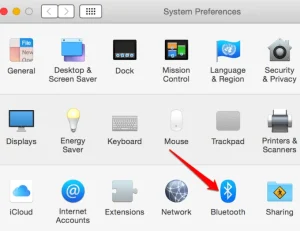

The first step is to ensure that both your phone and computer have Bluetooth capabilities enabled. On your phone, navigate to the settings menu and look for the Bluetooth option. Toggle the switch to enable Bluetooth. On your computer, access the Bluetooth settings through the system preferences or control panel and turn on Bluetooth.
Step 2: Pair Your Devices;
Once Bluetooth is enabled on both devices, it’s time to pair them. On your phone, go to the Bluetooth settings menu and select the option to search for nearby devices. Your computer should appear in the list of available devices. Select your computer from the list to initiate the pairing process.
Step 3: Verify the Pairing Code;
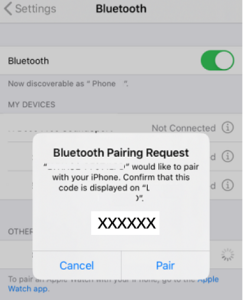

After selecting your computer, your phone may prompt you to enter a pairing code or confirm a passkey. Your computer will also display a pairing request notification. Verify that the pairing code or passkey shown on both devices matches and confirm the pairing.
Step 4: Complete the Pairing Process;
Once the pairing is confirmed, your phone and computer are now connected via Bluetooth. Depending on your device settings, you may need to grant permission for certain types of connections, such as file transfer or internet sharing. Follow any additional prompts to complete the pairing process.
Step 5: Test the Connection;

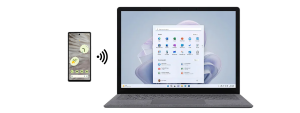
Phone and computer connection via Bluetooth
To ensure that the connection is successful, test the Bluetooth connection by transferring a small file between your phone and computer. You can also try using other Bluetooth-enabled features, such as tethering your phone’s internet connection to your computer or controlling media playback remotely.
Step 6: Disconnecting Your Devices;

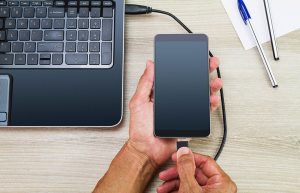
Phone and computer connection via Bluetooth
When you’re done using the Bluetooth connection, it’s important to disconnect your devices to conserve battery life and prevent unwanted access. You can do this by turning off Bluetooth on either device or by selecting the option to disconnect or unpair the devices in the Bluetooth settings menu.
Summary
Connecting a phone to a computer enables file transfers, screen mirroring, and data syncing via USB cable, Bluetooth, or Wi-Fi. For Windows, use the Phone Link app or a USB cable for direct file access. Android devices allow file transfers, while iPhones mainly sync notifications and calls via Phone Link.