WRITING
Pictures and WordPress Content

 Picturs and wordpress content. Adding photos to your WordPress media is crucial for capturing your audience’s attention and improving the user experience in today’s visually-driven online environment. Adding relevant and high-quality images to your blog posts, articles, or product pages can enhance their appeal and memorability. Don’t worry if you’re unfamiliar with WordPress or don’t know how to add images to your website. We’ll walk you through the steps of adding images to your WordPress article in this comprehensive guide.
PICTURES AND WORDPRESS CONTENT
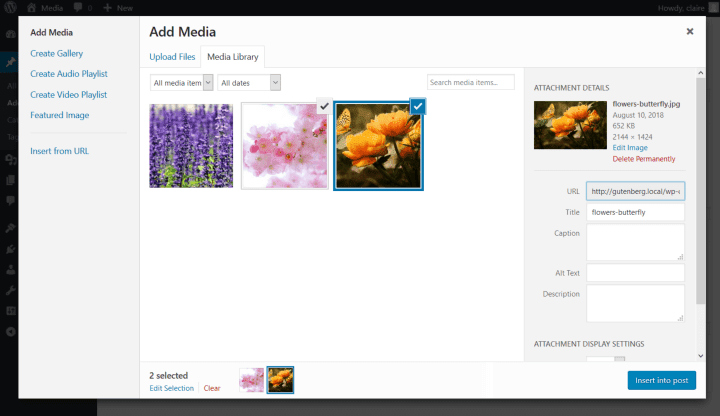
In WordPress, you have two options for adding content: either add a picture to your media library first, or use the picture block (or the Add Media button in the traditional editor) to upload it straight into a post. Click the “Add Media” button or the plus icon to add a photo. Then, upload a file from your computer or choose an already-existing image from your media library and add it to the content.
Step 1: Log in to Your WordPress Dashboard;

PICTURES AND WORDPRESS CONTENT
To get started, log in to your WordPress dashboard by entering your username and password. Once logged in, you’ll be taken to the WordPress admin area where you can manage your website’s content, settings, and media.
Step 2: Navigate to the Post or Page Editor;
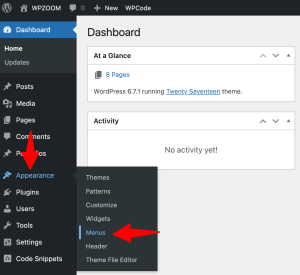
Next, navigate to the post or page editor where you want to add images. You can do this by selecting “Posts” or “Pages” from the left-hand menu and then clicking on the “Add New” button to create a new post or page. Alternatively, you can edit an existing post or page by selecting it from the list of published content.
Step 3: insert the image block;
PICTURES AND WORDPRESS CONTENT
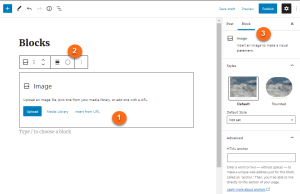
Once you’re in the post or page editor, place your cursor where you want to insert the image and click on the (+) icon to add a new block. In the block inserter menu, select the “Image” block option. This will create a new image block where you can upload or select an existing image from your media library.
Step 4: Upload or Select an Image;
After inserting the image block, you’ll have the option to upload a new image or select an existing image from your media library. To upload a new image, click on the “Upload” button and select the image file from your computer. To select an existing image from your media library, click on the “Media Library” tab and choose the desired image.
Step 5: Customize Image Settings;

Once you’ve uploaded or selected an image, you can customize its settings to fit your needs. You can adjust the image alignment, size, and caption by clicking on the image block and using the toolbar options that appear above it. Additionally, you can add alternative text (alt text) for accessibility purposes by clicking on the image block and entering a description in the “Alt Text” field.
Step 6: Preview and Publish Your Content;
PICTURES AND WORDPRESS CONTENT
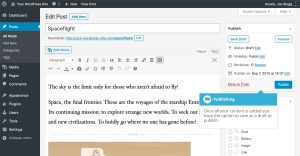
After adding and customizing your image, preview your content to see how it looks on the frontend of your website. If everything looks good, you can go ahead and publish your post or page by clicking on the “Publish” button. Your image will now be visible to your website visitors when they view your published content.
Summary
You may improve your website’s visual attractiveness and produce captivating content that draws in visitors by following these easy steps. Whether you’re publishing articles, sharing blog entries, or presenting products, using pertinent and excellent photographs is essential to leaving a lasting impact on your audience.


Good Writing Tips. Drafting and editing should be kept apart if you want to enhance your work right away. To get your ideas down on paper, swiftly write your initial draft without self-correction. After that, read your work aloud to identify any problematic wording and tighten your sentences by eliminating superfluous words.
GOOD WRITING TIPS
Tips for good writing. Whether you’re writing in your private journal or for your website, the suggestions below can help you enhance your ability to create content and elevate your writing from excellent to exceptional.
What is Good Writing?

Good writing is well organized and flows smoothly, having a consistent style or voice from start to finish. Good writing is also free of typos and faults in spelling, punctuation, and grammar.
Steps for Good Writing;
1. Write every day. Writing daily will help you improve your skills and sharpen your ability to construct grammatically accurate and appealing sentences
2. Use Active Voice: It’s more engaging than passive voice. Consider how “My mother baked the cake” is superior to “The cake was baked by my mother.”
3. Be a voracious reader Read widely to expand your vocabulary and improve your understanding of diverse writing styles. Explore various genres and authors.
4. Be clear and concise. For efficient communication, use clear and precise language. Avoid using unnecessary or flowery jargon that obscures your meaning.

5. Vary sentence structure. Change the structure of your sentences. This will make your writing more engaging for the reader.
6. Avoid overused words. Avoid using clichés and overused phrases. Strive to come up with innovative ways to express what you’re saying.
7. Be descriptive. Use descriptive language to assist your reader in envisioning your words. This will make what you wrote more memorable for the reader.
8. Use similes. Use similes and metaphors in your writing whenever it makes sense. This makes your writing more relatable to the reader.

Good Writing Tips
9. Use strong action words. Try to utilize powerful verbs rather than weak verbs. For example, instead of “walk,” use “saunter.” Instead of “get,” use “obtain.”
10. Avoid jargon. employing terms that are only familiar to a small set of readers.
Summary
Effective writing conveys a clear message to a target audience. It is error-free and use economical, dynamic language. Strong prose ultimately eliminates superfluous words to guarantee that the reader comprehends your precise meaning.

How to Write Book Review. An argument is made in a review. The fact that a review is a commentary rather than just a summary is its most crucial component. It enables you to engage in conversation and debate with the author of the piece as well as with other viewers. You can express agreement or disagreement and point out areas in which you think the work’s organization, expertise, or conclusions are excellent or lacking. With a thesis statement, supporting body paragraphs, and a conclusion, your opinion on the work in question should be expressed clearly. This statement will likely mirror other forms of academic writing.
HOW TO WRITE BOOK REVIEW
This handout will concentrate on book reviews; for a similar assignment, see our handout on literature reviews. A review is a critical assessment of a text, event, object, or phenomenon. Reviews can take into account books, articles, entire genres or fields of literature, architecture, art, fashion, restaurants, policies, exhibitions, performances, and many other forms.
What’s The Definition?
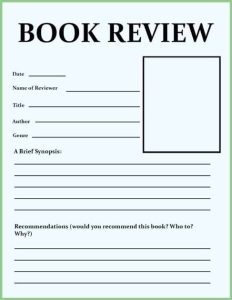
A book review is a critical assessment of a literature. A synopsis of the book’s key ideas and the reviewer’s thoughts.
Tips:
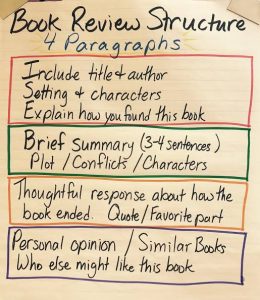
1.Introduce the book in a few phrases by summarizing its plot and mentioning if it is a part of a series or if reading previous novels in the series is necessary in order to enjoy this one.
2.Also, Talk about what you found most appealing about the book. Pay attention to your feelings and ideas regarding the narrative and the manner it was presented.
3.Meanwhile, Describe anything about the book that you didn’t enjoy. Explain why you believe it didn’t work out for you. To illustrate, would you have preferred a different conclusion to the one that left you feeling frustrated?
More Tips;
How to Write Book Review
4.However, to Condense your evaluation, Provide a brief summary of your feelings on the book and the kind of reader you would suggest it for. For instance, younger and older readers, as well as those who enjoy comedy, mystery, and romantic drama. Would you like to compare it to any particular novels or series?
5.If you would like, you may rate the book with a score of five or 10.
How to Write Book Review
6.What kind of data does the writer present to support their claims? Does the evidence hold up? If not, why not? Is the author’s argument sufficiently supported? literary elements
Summary
composing book reviews. By serving as guiding lights, book reviews help readers navigate the wide variety of stories present in the field of literature. But it’s not enough to simply summarize a book; you also need to make a connection between your thoughts and the reader. Whether you’re a writer, critic, or book lover, writing a book review can help the literary community as well as enhance your reading experience.

Torchlight Selection

Best Practices for Face Exfoliation

Chemical Face Exfoliation

A Step-by-Step Guide to Deleting Reels on Instagram

A Comprehensive Guide to Setting Up a YouTube Premiere