Social media
Instagram Post and Tagging

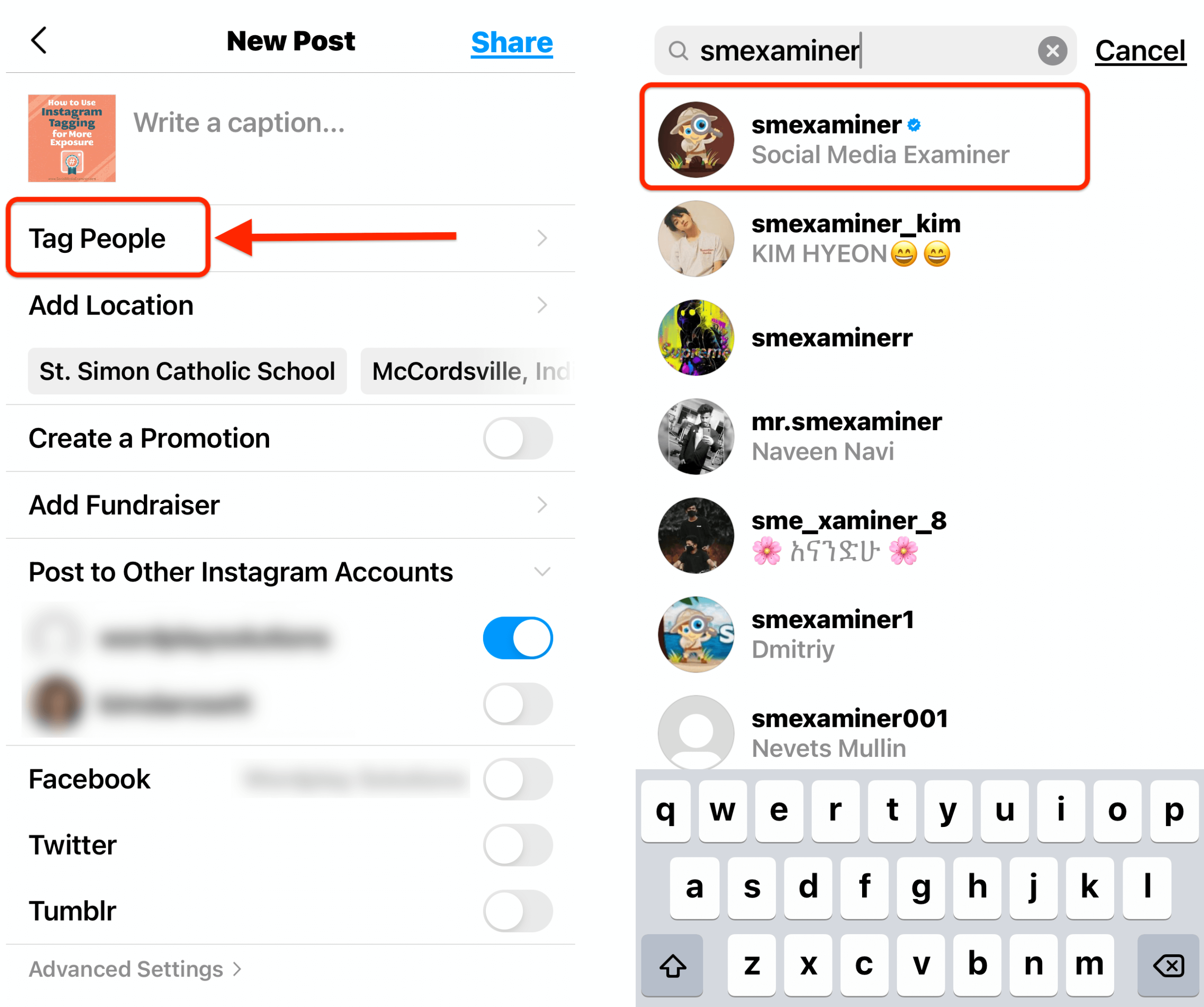
Instagram post and tagging. One easy yet effective strategy to increase interaction, recognize contributions, and build relationships within the Instagram community is to tag people in your pictures. Effective tagging gives your postings more depth and significance, whether you’re sharing intimate moments, working with others, or promoting brands. You can become an expert at tagging on Instagram and engage with your audience more deeply by following the simple steps described in this article and putting the advice given into practice.
INSTAGRAM POST AND TAGGING
Instagram’s tagging tool makes postings more social and engaging by connecting users with companies, friends, and collaborators. Tagging others gives your Instagram posts a personal touch, whether you’re sharing a special moment, working with others, or giving recognition to content creators. In order to improve the social experience on Instagram, we’ll look at the easy ways to tag someone in your posts.
Why Tagging Matters;

Tagging individuals in your Instagram posts serves multiple purposes:
1. Acknowledgment and Collaboration: Tagging allows you to give credit to individuals featured in your posts, collaborate with others, or highlight contributions from specific users.
2. Engagement: Tagged users receive notifications, encouraging them to engage with your post through likes, comments, or shares.
3. Connectivity:

Tags create connections between users, fostering a sense of community and facilitating networking opportunities.
Steps to Tag Someone in Your Instagram Post;
1. Capture or Select Your Content: Start by capturing a photo or video using the Instagram camera or selecting an existing piece of media from your device’s gallery.
2. Editing Your Post: Proceed to the editing screen by tapping the “+” icon at the bottom of the screen or tapping your profile picture to access your gallery. Choose the photo or video you want to share.
3. Adding Tags:
INSTAGRAM POST AND TAGGING
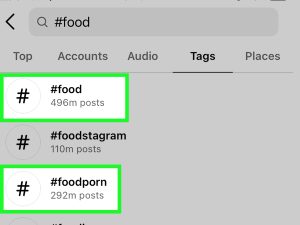
After selecting or capturing your content, proceed to the editing screen. Before sharing your post, tap on “Tag People,” usually represented by a silhouette icon with a “+” sign.
4. Select the Area to Tag: Tap on the specific area of the photo or video where you want to place the tag. You can then type the username of the person you want to tag.
5. Choose the User: As you type the username, Instagram will provide suggestions based on your input. Select the correct user from the suggestions list.
6. Confirm the Tag:
INSTAGRAM POST AND TAGGING
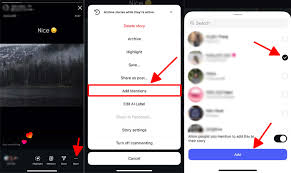
Once you’ve selected the user, tap on their profile to confirm the tag. You can add multiple tags by repeating the process for each user you want to tag.
7. Completing Your Post: After tagging individuals, proceed to add a caption, hashtags, and any additional elements to enhance your post.
8. Share Your Post: Once you’re satisfied with your post, tap on the “Share” button to publish it to your Instagram feed.
Tips for Effective Tagging;
INSTAGRAM POST AND TAGGING
• Be Relevant: Tag individuals who are relevant to the content of your post. This could include friends, collaborators, brands, or featured individuals.
• Be Considerate: Ensure that you have permission to tag someone before doing so, especially if the post includes them in a personal or sensitive context.
Summary
On Instagram, you can tag someone by selecting a spot on the photo, searching for the username, then tapping “Tag People” on the final uploading screen. To edit an existing post, tap the three dots, choose “Edit,” and then click the tag symbol. Tagging adds the post to the user’s “Tagged” profile section, boosts visibility, and gives users credit.




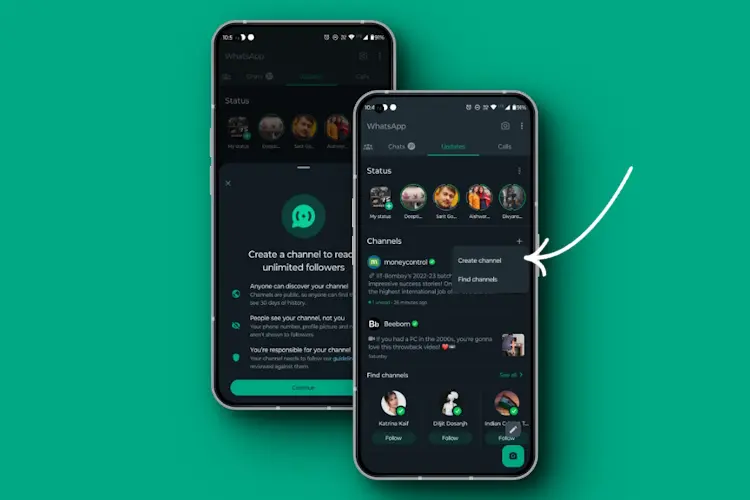
Whatsapp channels creation. You may build a profitable WhatsApp channel that successfully engages your audience, connects you with them, and advances your company’s or organization’s objectives by following these steps. Your WhatsApp channel can become a useful tool in your digital marketing toolbox with the correct approach and persistent work.
WHATSAPP CHANNELS CREATION
WhatsApp has become a commonplace communication tool in today’s linked world. With more than two billion users globally, it’s the perfect platform for companies, groups, and individuals to engage with their target audience. Building a community around your company or cause, sharing updates, and interacting with your fans can all be accomplished with the help of a WhatsApp channel. We’ll walk you through the entire process of setting up a WhatsApp channel in this article.
1. Define Your Purpose:
Before diving into creating your WhatsApp channel, it’s essential to define your purpose. Ask yourself: What do you aim to achieve with this channel? Whether it’s providing customer support, sharing news and updates, or fostering a community, having a clear purpose will guide your content strategy and engagement efforts.
2. Create your channel :
WhatsApp offers a dedicated solution for businesses called WhatsApp Business. It provides features like business profiles, messaging tools, and statistics to help you manage your interactions efficiently. Download the WhatsApp Business app from the App Store or Google Play Store and follow the prompts to set up your business profile.
After that, click on the status bar of the Whatsapp app, you will see channels available.
3. Click on create channel and customise Your channel:

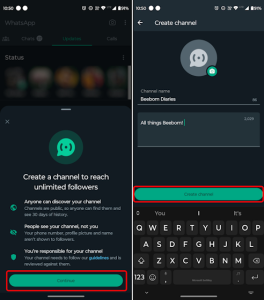
Click on the + sign and you’ll see where it is written “create channel, after that it’s time to customize your profile to reflect your brand identity. Upload a profile picture, add your name and possibly a description. A complete and professional-looking profile will instill trust and credibility among your audience.
4. Create Engaging Content:
Now that your profile is set up, it’s time to start creating content for your WhatsApp channel. Whether it’s text updates, images, videos, or links to relevant resources, make sure your content is engaging, informative, and adds value to your audience. Consider using multimedia formats to make your messages more visually appealing and interactive.
5. Promote Your Channel:
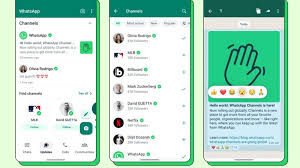
Whatsapp channels creation
Building an audience for your WhatsApp channel requires proactive promotion. Share your WhatsApp number and a brief description of your channel on your website, social media profiles, email newsletters, and other marketing channels. Encourage your existing followers to join your WhatsApp channel to stay updated and engaged.
6. Engage with Your Audience:
Engagement is key to the success of your WhatsApp channel. Respond promptly to messages, address inquiries, and foster discussions within your community. Use WhatsApp’s features like broadcast lists, group chats, and automated responses to streamline your communication and provide timely assistance to your audience.
7. Analyze and Iterate:

Whatsapp channels creation
Regularly monitor the performance of your WhatsApp channel using the built-in analytics provided by WhatsApp Business. Track metrics like message delivery, open rates, and response times to gauge the effectiveness of your efforts. Use these insights to refine your content strategy, optimize your engagement tactics, and continuously improve the overall experience for your audience.
Summary
Open the app, pick the Updates tab, tap the plus symbol next to Channels, and choose Create Channel to start a WhatsApp channel. Add a channel name, description, and icon by following the instructions. Channels are free, have an infinite amount of followers, and don’t reveal your phone number to them.
Whatsapp group creation tips. A quick and easy method to remain in touch with your network and have important conversations is to create a WhatsApp group. WhatsApp groups provide an easy way to communicate and work together, whether for personal or professional reasons.
WHATSAPP GROUP CREATION TIPS
WhatsApp groups are a convenient way to connect with friends, family, colleagues, or like-minded individuals. Whether you want to plan events, discuss topics of interest, or simply stay in touch, creating a WhatsApp group is quick and easy. In this guide, we’ll walk you through the steps to create your own WhatsApp group.
1. Open WhatsApp:

Begin by opening the WhatsApp application on your smartphone. WhatsApp is available for both iOS and Android devices and can be downloaded from the App Store or Google Play Store if you haven’t already installed it.
2. Navigate to Chats:
Once you’re in the WhatsApp interface, navigate to the “Chats” tab located at the bottom of the screen. This is where you’ll find all your existing chats and groups.
3. Tap on the New Chat Icon:
In the Chats tab, look for the icon or button that allows you to start a new chat. On most versions of WhatsApp, this is represented by a chat bubble icon with a “+” sign or a “New Chat” button. Tap on it to proceed.
4. Select “New Group”:
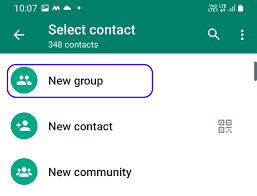
After tapping on the new chat icon, you’ll be presented with several options, including “New Group” and “New Broadcast.” Since we’re creating a group, select “New Group.”
5. Add Participants:
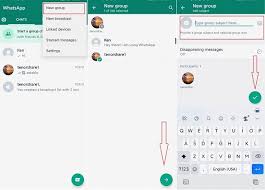
Next, you’ll need to select the participants you want to add to your group. You can choose from your WhatsApp contacts list by tapping on their names. As you select participants, their names will appear at the top of the screen under “Participants.”
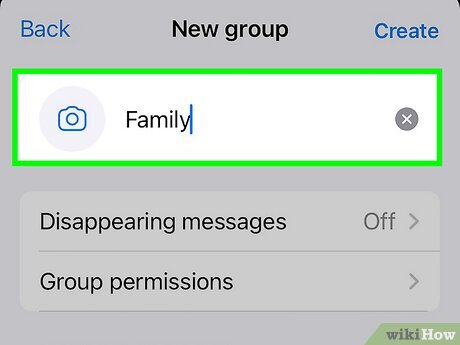
6. Set a Group Name:
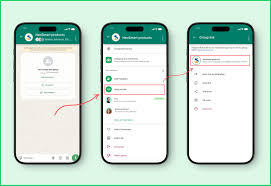
Whatsapp group creation tips
Once you’ve selected all the participants, tap on the “Next” or “OK” button, depending on your device. You’ll then be prompted to set a name for your group. Choose a descriptive and memorable name that reflects the purpose or theme of the group.
7. Customize Group Settings:
WhatsApp allows you to customize various group settings, such as group description, group icon (profile picture), and group privacy settings. You can access these options by tapping on the group name at the top of the chat screen and then selecting “Group Info” or “Group Settings,” depending on your device.
8. Create Your Group:
Whatsapp group creation tips
Once you’ve set the group name and customized the settings to your liking, tap on the “Create” or “Done” button to create your WhatsApp group. The group will be instantly created, and all selected participants will be added to it.
9. Start Chatting:
Congratulations! You’ve successfully created a WhatsApp group. You can now start chatting with the members of your group by sending messages, sharing photos and videos, or making voice and video calls directly from the group chat interface.
10. Manage Your Group:

Whatsapp group creation tips
As the group admin, you have the ability to manage the group by adding or removing participants, changing group settings, and moderating discussions. Be mindful of group guidelines and ensure that all members adhere to them to maintain a positive and productive group environment.
Summary
Establish a clear goal for your WhatsApp group, give it a short name (no more than 100 characters), and include a recognizable group icon. Establish community rules early on to keep things focused, designate several administrators for larger groups, and use tools like “[Disappearing Messages)” to make discussion interesting.
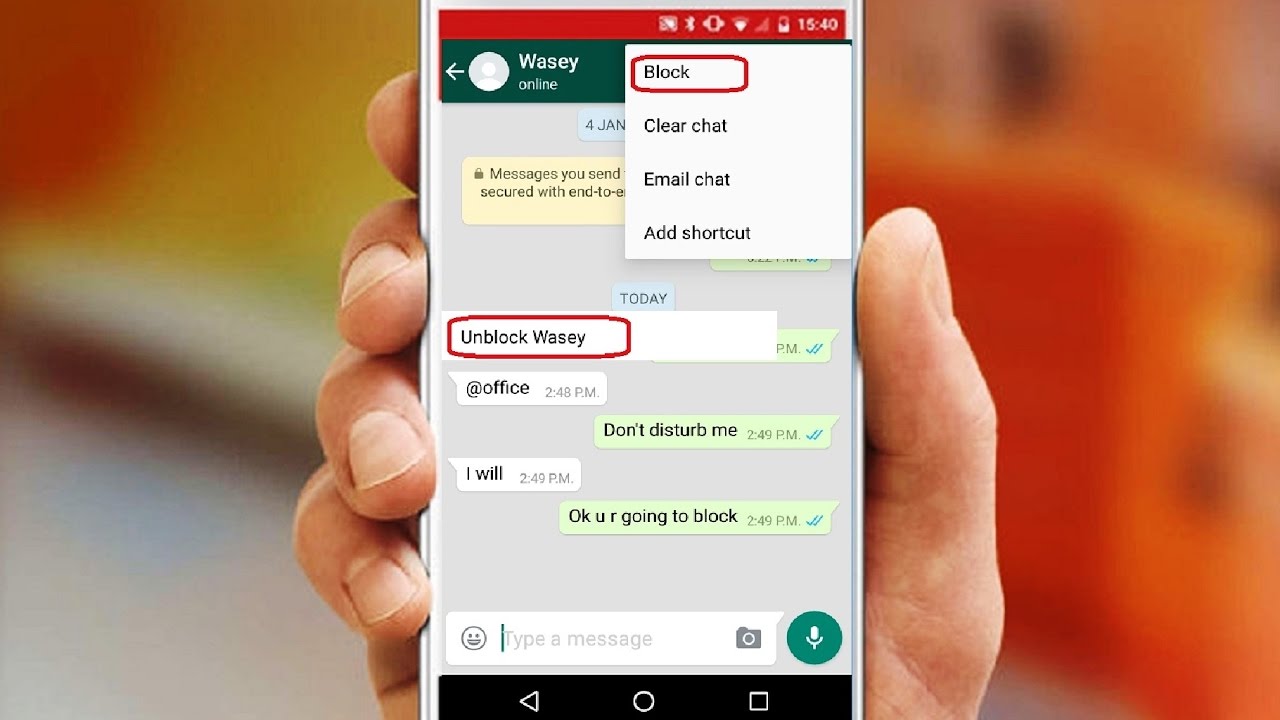
Tips for blocking someone on whatsapp. You may prevent someone from calling, chatting, or viewing your updates on WhatsApp by blocking them using the conversation settings (three dots > More > Block) or profile view. If you decide to report the individual, you will have to manually remove them from your phone’s contact list even though it will conceal your status.
TIPS FOR BLOCKING SOMEONE ON WHATSAPP
Although, there are a number of benefits of blocking someone on WhatsApp that are centered on improving personal peace of mind, safety, and privacy.
Through WhatApp settings, blocking unknown or objectionable contacts is simple. In a similar vein, it is possible to determine whether someone has blocked you. However, its a good idea to learn the consequences of blocking a contact on whatsapp and how to unblock them again before you block them
How to block a number on WhatsApp quickly;
Step 1: In the chat, navigate to the profile name of the contact you wish to block.
Step 2: Scroll down in the profile information to “(Block contact)”.
Step 3: To remove a contact, the “Block” option is sufficient. If the number seems malicious or you consider it spam, “Report and block” is recommended to block the contact from the WhatsApp servers too.
What happens if I mute someone on WhatsApp?

Tips for blocking someone on whatsapp
However, yes, even if you mute someone on WhatApp, you can still receive calls from them. Muting only stops message notifications, not call alerts. Does Someone Know When You Mute Their WhatApp Status? You won’t see their updates in your frontline feed, but they won’t know you’ve done it.
How to spot if you’ve been blocked on WhatsApp;
Tips for blocking someone on whatsapp
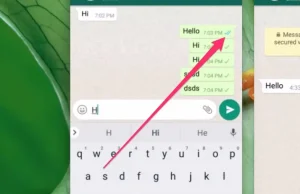
Also, whatsApp doesn’t notify users once they’ve been blocked. But there are a few signs that indicate if you’ve been blocked by someone:
- You can no longer view their status updates nor online status.
- You’ll no longer see the profile picture of a contact.
- Sent messages receive only a single check mark.
- You can no longer call them.
Summary
With WhatsApp, users may report spam and block contacts to stop getting calls and messages. Blocked individuals only receive a single checkmark in messages and are unable to access “last seen,” online status, or profile image updates. Chat settings allow you to block, and these actions are private.

Reasons for water pollution

Tips for washing hair

Relevance of water consumption

A Step-by-Step Guide to Deleting Reels on Instagram

A Comprehensive Guide to Setting Up a YouTube Premiere