
Social media
A Step-by-Step Guide to Creating a Facebook Page


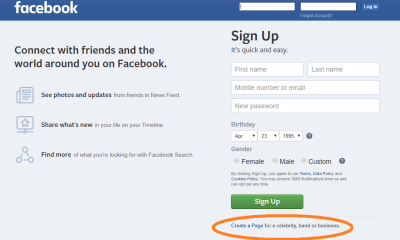
In today’s interconnected world, having a Facebook page for your business, brand, or personal endeavor is essential for reaching a wider audience and engaging with your community. Creating a Facebook page is a straightforward process, and this guide will walk you through the steps to get started.
Step 1: Sign Up or Log In to Facebook
If you don’t already have a Facebook account, you’ll need to sign up for one. Simply visit www.facebook.com and follow the prompts to create an account. If you already have an account, log in using your credentials.
Step 2: Navigate to Facebook’s Page Creation Tool
Once you’re logged in, navigate to the “Create” dropdown menu at the top right corner of the Facebook homepage. From the dropdown menu, select “Page.”
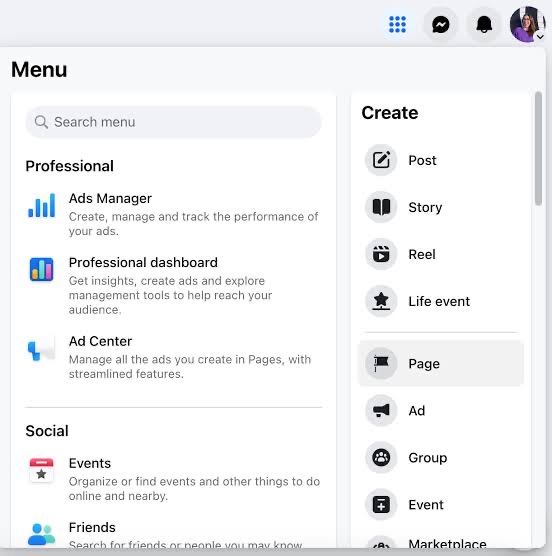
Step 3: Choose a Page Type
Facebook will present you with several options for the type of page you want to create, such as Business or Brand, Community or Public Figure, or Cause or Community. Select the option that best fits the purpose of your page.
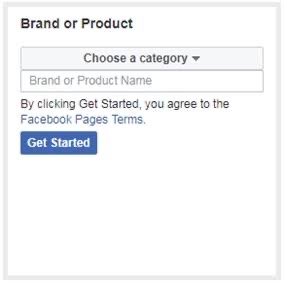
Step 4: Enter Basic Information
Next, you’ll need to enter basic information about your page, including the page name, category, and description. Make sure to choose a name that accurately reflects your brand or business and select the most relevant category to help users find your page.
Step 5: Add Profile and Cover Photos
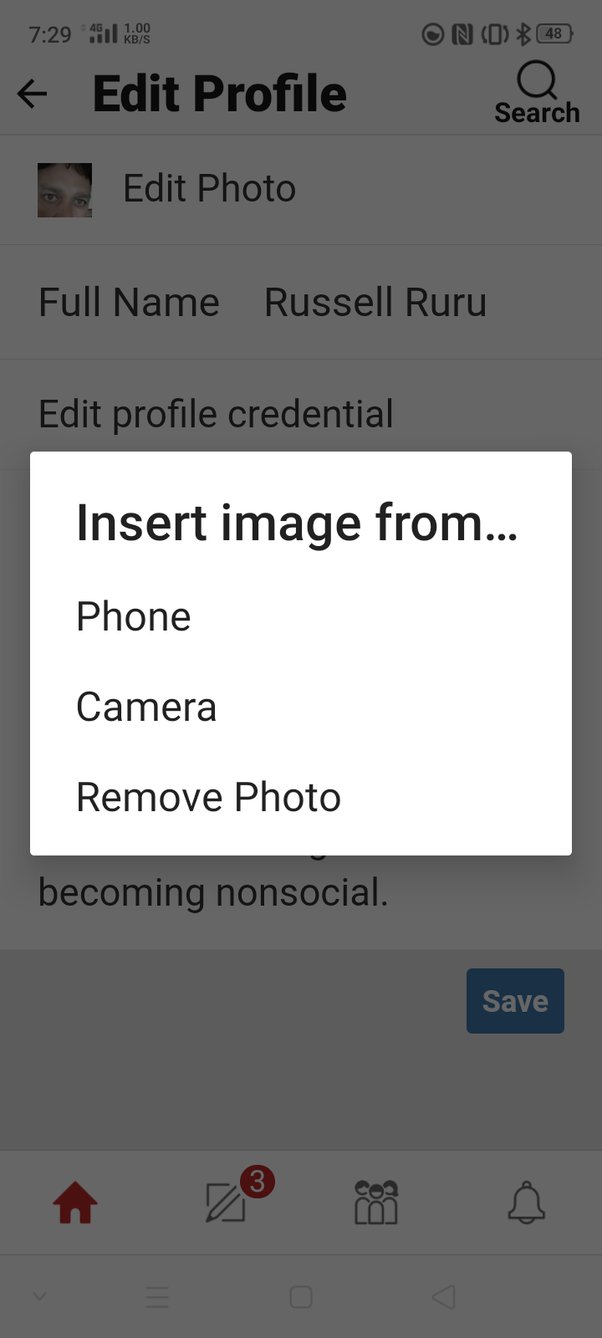
Upload a profile picture and cover photo for your page. These visuals are the first thing visitors will see when they come to your page, so choose high-quality images that represent your brand effectively.
Step 6: Customize Your Page
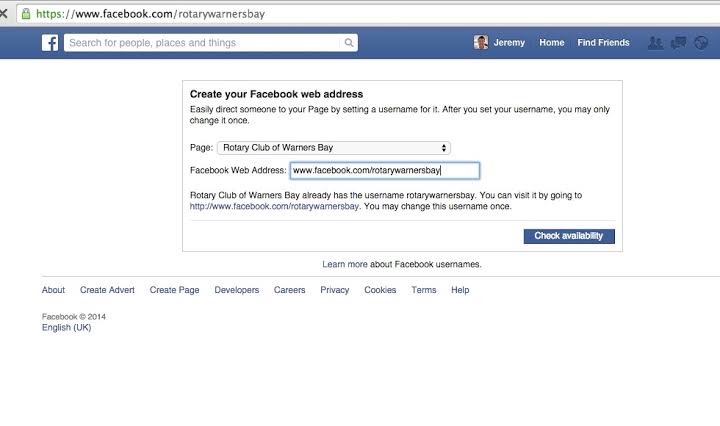
Once your page is created, you can customize it further by adding additional information such as your website URL, contact information, and business hours. You can also customize the layout and order of the sections on your page to highlight the most important information.
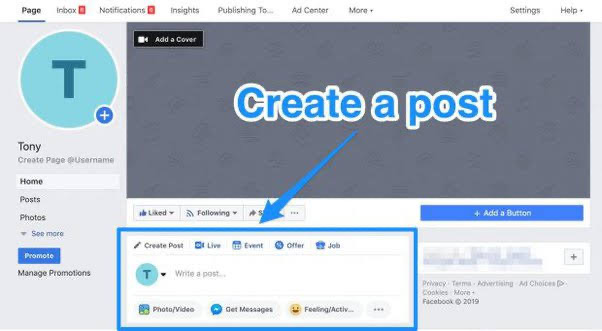
Step 7: Create Your First Post
With your page set up, it’s time to start sharing content! Create your first post to introduce your page to your audience and let them know what type of content they can expect to see from you in the future.
Step 8: Invite Friends and Followers
To help kickstart your page’s growth, invite your Facebook friends to like and follow your page. You can also share your page on your personal profile and other social media channels to attract more followers.
Step 9: Engage with Your Audience
As your page grows, it’s essential to engage with your audience regularly. Respond to comments, messages, and reviews promptly, and share content that encourages interaction and conversation among your followers.
Step 10: Analyze Your Page Insights
Finally, make use of Facebook’s Page Insights tool to track the performance of your page. Insights provide valuable data on your page’s reach, engagement, and audience demographics, allowing you to refine your content strategy and optimize your page for success.
Creating a Facebook page is a simple yet powerful way to establish an online presence for your business or brand. By following these steps and consistently sharing compelling content, you can build a loyal following and achieve your goals on the world’s largest social media platform.





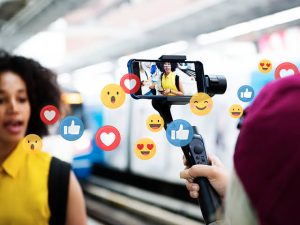
Social Media Influencer Requirements. To become a social media influencer, pick a topic you are passionate about, pick one or two platforms, such as Instagram or TikTok, and regularly share entertaining or useful videos. Responding to comments can help you establish a genuine relationship with your audience. You can also master audience building tactics by taking digital marketing courses.
SOCIAL MEDIA INFLUENCER REQUIREMENTS
A social media user who has built credibility in a particular area is known as a social media influencer. Because of their reach and credibility, these content producers can influence others and increase social media engagement by disseminating information to a wide audience.
Who is an Influencer?

An influencer, often known as a social media influencer, What Are Influencers? is a person who uses social media platforms to sway purchasing decisions. Promising influencers usually provide value on social media by way of high-quality material.
How to Become an Influencer
1. Finish the fundamental business tasks. Starting your influencer brand with the same mindset as a business is a crucial first step. Using business strategies will help you consistently draw in customers and make money. 2. Determine your specialty. An influencer can target a highly precise consumer market segment online by creating a niche. In addition to the demographics (age, geography, income, etc.) and psychographics (values, beliefs, interests, etc.) of your target audience, your niche may be founded on a certain type of material that you would post on social media.

2. Learn about your target group. After you’ve determined your specialty, study your target market through market research. In this manner, you can establish a strong relationship with your audience and provide insightful material that aligns with their objectives and areas of interest.
3. Establish your influencer company. Consider your influencer brand as an extension of your own personality, values, and passions; it’s a logical way to showcase your expertise in a certain field and open doors to commercial opportunities.
4. Examine your approach to content creation. Your social media posts are a major component of your influencer brand. Create a list of distinct content pieces that address various aspects of your category to begin developing a content strategy.
Social Media Influencer Requirements
5. Influencers can stimulate business expansion. The marketing potential is what gives influencers their power.
6. Write an outline of a business plan that meets your goals, summarizes what you offer, and analyzes competitor influencers in your category.
Summary
Discover how to develop your brand, motivate an audience, and understand the current social media landscape in order to become a social media influencer.

Social Media Exploration. In the digital age, social media has fundamentally altered how we interact, communicate, and consume content. These websites have grown into online marketplaces with tremendous potential for businesses seeking to engage with their target audience, raise brand awareness, and improve sales. Businesses can now connect with a global network of potential customers thanks to social media marketing. This article will examine social media marketing and teach us about its significance, key strategies, and impact on modern businesses.
SOCIAL MEDIA EXPLORATION
An examination of social media uncovers a digital ecosystem that has radically changed politics, economy, culture, and human communication. Today’s networks function as enormous, algorithm-driven venues where billions of individuals simultaneously participate as consumers and creators, going much beyond basic text-based chat rooms or early bulletin board systems.
Exploring The World of Social Media;
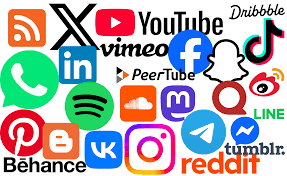
1. Although, Global Reach: Social media offers unrivaled access to a wide and varied audience, with billions of individuals actively using sites like Facebook, Instagram, Twitter, LinkedIn, and YouTube. Businesses may engage with people from many locations, cultures, and demographics thanks to their worldwide reach.
2. Also, Brand Awareness: Businesses can establish a distinctive identity and strong online presence using social media channels. User recognition and recall of a brand can be increased by active contact, consistent branding, and engaging content.
3. Meanwhile, Social media platforms provide businesses with sophisticated targeting options for targeted advertising, which enables them to contact consumers based on their demographics, interests, habits, and geographic location. Marketing efforts are guaranteed to reach the most relevant potential clients thanks to this focused approach.
More Exploration:

Social Media Exploration
4. However, Enhanced Customer Engagement: Social media facilitates direct communication between businesses and their customers in both directions. Positive customer experiences, loyalty, and trust are all increased when comments, messages, and feedback are addressed.

Social Media Exploration
5. Although, influencer marketing: Brand exposure and credibility can be increased by partnering with influencers and micro-influencers who have sizable fan bases in specialized areas. Influencers can increase traffic and conversions by promoting goods and services to their interested audiences. Important Techniques for Successful Social Media Marketing. advertising.
Summary
Social media include digital applications and websites such as Facebook, Instagram, and WhatsApp that facilitate communication, content sharing, and community building. Every day, billions of people use these platforms for commerce, leisure, and private conversation.
Promoting social media pages. Effective social media page promotion combines paid advertising, clever hashtag and keyword use, active involvement, high-quality content, and partnerships. You may expand your audience and improve your social media presence by regularly implementing these tactics and keeping an eye on their efficacy.
PROMOTING SOCIAL MEDIA PAGES
Effective social network page promotion calls for a combination of thoughtful preparation, interesting content, and persistent work. Here are five strategies to increase your online visibility on social media:
1. Create High-Quality Content;

Quality content is the foundation of any successful social media page. Focus on the following:
– Visual Appeal: Use high-quality images, graphics, and videos. Invest in good photography or design tools.
– Relevance: Share content that is relevant to your audience’s interests and needs. This could be educational, entertaining, or inspirational.
– Consistency: Post regularly to keep your audience engaged. Create a content calendar to plan and schedule your posts.
– Originality: Develop unique content that stands out. Share your own insights, experiences, and ideas rather than just reposting others’ content.
2. Engage with Your Audience;

Engagement is crucial for building a loyal following. Make sure to:
– Respond to Comments and Messages: Show your followers that you value their input by responding promptly and thoughtfully.
– Ask Questions: Encourage interaction by asking questions in your posts or stories.
-Host Giveaways and Contests: These can drive engagement and attract new followers. Ensure the prizes are relevant to your audience.
– Use Polls and Surveys: Use features like Instagram Stories polls or Facebook surveys to get feedback and boost interaction.
3. Leverage Hashtags and Keywords;

Promoting social media pages
Using the right hashtags and keywords can increase your content’s visibility.
– Relevant Hashtags: Use hashtags that are relevant to your content and popular within your niche. Avoid overly broad or irrelevant hashtags.
– Branded Hashtags: Create a unique hashtag for your brand to encourage user-generated content.
– Keyword Optimization: Use keywords in your bio, captions, and post descriptions that potential followers might search for.
– Trending Hashtags: Participate in trending topics or challenges that are relevant to your brand to gain visibility.
4. Collaborate with Influencers and Brands;

Promoting social media pages
Partnerships can expand your reach and attract new followers.
– Influencer Collaborations: Partner with influencers who have a following that overlaps with your target audience. They can promote your page to their followers through shoutouts, guest posts, or collaborations.
– Brand Partnerships: Collaborate with brands that complement your own. This could involve co-hosting events, creating joint content, or cross-promoting each other’s pages.
– Guest Takeovers: Allow influencers or other respected figures in your niche to take over your social media for a day. This can draw their followers to your page.
5. Utilize Paid Advertising;
Promoting social media pages
Investing in paid ads can significantly boost your visibility and reach.
– Social Media Ads: Platforms like Facebook, Instagram, Twitter, and LinkedIn offer targeted advertising options. You can create ads that target specific demographics, interests, and behaviors.
– Boosted Posts: Boosting a well-performing post can increase its reach. This is a simple way to get more eyes on your content.
Summary
Social media pages are customized digital profiles or hubs on networking sites that let people and companies communicate with audiences, create communities, and exchange content. Facebook, Instagram, and LinkedIn are some of the top platforms.

Earth Frozen Frontiers

Natural Majestic Wonders

Daily Life Hacks

A Step-by-Step Guide to Deleting Reels on Instagram

A Comprehensive Guide to Setting Up a YouTube Premiere










Pingback: How to Invite Friends to Like and Follow Your Facebook Page - SimplExplainer
Pingback: How to start a live broadcasting on Facebook - SimplExplainer
Pingback: Tips for likes and Followers on Facebook - SimplExplainer
Pingback: How to link whatsapp and facebook page - SimplExplainer