Tech
Changing generator oil


Changing the oil in your generator is a critical maintenance task that ensures the engine runs smoothly and efficiently. Regular oil changes help prevent engine wear, overheating, and potential failure. Here is a step-by-step guide on how to change your generator’s oil:
Materials Needed
– Replacement oil (refer to your generator’s manual for the correct type and quantity)
– Use Oil filter (if applicable)
– Oil funnel
– Oil drain pan
– Wrench set
– Clean cloths or rags
– Disposable gloves
– Oil filter wrench (if applicable)
Step-by-Step Guide
1. Preparation
– Read the Manual: Before you begin, read your generator’s manual for specific instructions, oil type, and oil capacity.
– Gather Materials: Ensure you have all the necessary materials and tools within reach.
– Warm Up the Generator: Run the generator for a few minutes to warm up the oil. Warm oil drains more easily and carries more impurities out of the engine.
– Ensure Safety: Turn off the generator and disconnect it from any power sources. Let it cool slightly to avoid burns.
2. Drain the Old Oil

– Position the Generator: Place the generator on a flat, stable surface. Position the oil drain pan beneath the oil drain plug.
– Remove the Drain Plug: Using the appropriate wrench, carefully remove the oil drain plug. Allow the oil to drain completely into the pan. Be cautious, as the oil may still be hot.
– Remove the Oil Filler Cap: Removing the oil filler cap can help the oil drain more quickly by allowing air to flow into the crankcase.
3. Replace the Oil Filter (if applicable)
– Locate the Oil Filter: Refer to your generator’s manual to find the location of the oil filter.
– Remove the Old Filter: Using an oil filter wrench, remove the old oil filter. Be prepared for some oil spillage.
– Prepare the New Filter: Before installing the new oil filter, apply a small amount of fresh oil to the gasket on the top of the filter. This helps ensure a proper seal.
– Install the New Filter: Screw on the new filter by hand until the gasket contacts the mounting surface, then tighten it an additional half to three-quarters turn. Avoid over-tightening.
4. Refill with New Oil

– Replace the Drain Plug: Once the old oil has drained completely, replace and tighten the oil drain plug securely.
– Add New Oil: Insert a funnel into the oil fill hole and slowly add the recommended type and amount of oil. Pour gradually to avoid overfilling.
– Check Oil Level: Use the dipstick to check the oil level. The oil should be between the “low” and “full” marks. Add more oil if necessary, but avoid overfilling.
– Replace the Oil Filler Cap: Once the oil is at the correct level, securely replace the oil filler cap.
5. Check for Leaks and Clean Up
– Start the Generator: Run the generator for a few minutes to circulate the new oil. Check for any leaks around the oil filter and drain plug.
– Recheck Oil Level: After turning off the generator, wait a few minutes, then recheck the oil level and top up if necessary.
– Dispose of Used Oil Properly: Transfer the used oil to a sealed container and take it to a recycling center or an appropriate disposal facility. Never dispose of oil improperly, as it is harmful to the environment.
Tips for Effective Oil Changes
– Regular Maintenance: Follow the recommended oil change intervals specified in your generator’s manual. Regular oil changes are key to a long-lasting engine.
– Record Maintenance: Keep a log of oil changes, including the date, type of oil used, and any other maintenance performed. This can help you stay on top of your generator’s upkeep.
– Use Quality Oil and Filters: Always use the recommended oil type and high-quality filters to ensure optimal performance and protection for your engine.
By following these steps, you can keep your generator running smoothly and efficiently, ensuring it’s ready to provide reliable power whenever you need it.



Review of wifi and laptop. The internal hardware and software of a laptop have a significant impact on its Wi-Fi performance; the most recent standards, such as Wi-Fi 6 or 6E, provide faster and more dependable connections. Though its hardware limits its gaming potential, reviews for particular laptops, such as the Primebook Wifi, emphasize its strong performance for daily tasks like browsing and streaming. A general review of “WiFi and laptop” depends on the specific laptop being examined, as reviews of laptops differ greatly depending on the model.
REVIEW OF WIFI AND LAPTOP
Identifying and fixing the root cause of your laptop’s Wi-Fi problems requires a methodical approach. You can frequently get a steady Wi-Fi connection back by making sure the network is operating properly, checking to see if Wi-Fi is enabled, updating drivers, reviewing network settings, and resolving interference or range problems. If the issue continues, it would be worthwhile to get expert technical assistance in order to identify and resolve any more complicated problems.
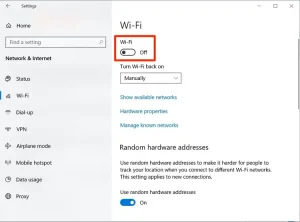
1. Wi-Fi is Disabled on Your Laptop;
REVIEW OF WIFI AND LAPTOP
Reason:
Sometimes, the Wi-Fi on your laptop might be disabled either through a physical switch or a function key.
Solution:
– Check Physical Switch: Some laptops have a physical switch or button to turn Wi-Fi on and off. Ensure it’s turned on.
– Use Function Keys: Look for the Wi-Fi icon on the function keys (usually F1-F12) and press the corresponding key, often in combination with the “Fn” key.
2. Wi-Fi Network Issues;

REVIEW OF WIFI AND LAPTOP
Reason:
The problem might not be with your laptop but with the Wi-Fi network itself.
Solution:
– Restart Router/Modem: Turn off your router and modem, wait for about 30 seconds, and then turn them back on.
– Check Other Devices: Ensure other devices can connect to the same Wi-Fi network. If not, the issue is likely with the network.
3. Incorrect Network Settings;

REVIEW OF WIFI AND LAPTOP
Reason:
Your laptop might have incorrect network settings, such as a wrong IP address or DNS server.
Solution:
– Forget and Reconnect to Network: Go to your Wi-Fi settings, select the problematic network, choose “Forget,” and then reconnect by entering the password again.
– Renew IP Address: Open Command Prompt and type ipconfig /release followed by ipconfig /renew to refresh your IP settings.
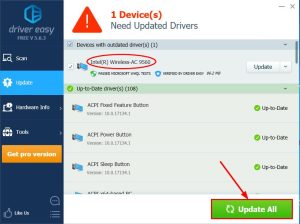
4. Outdated Wi-Fi Drivers;
Reason:
Outdated or corrupt drivers can prevent your laptop from connecting to Wi-Fi.
Solution:
– Update Wi-Fi Drivers: Go to Device Manager, find your Wi-Fi adapter under “Network adapters,” right-click, and select “Update driver.” Follow the prompts to search for updated drivers.
– Reinstall Wi-Fi Drivers: If updating doesn’t work, uninstall the driver and restart your laptop. It should automatically reinstall the correct drivers.
5. Interference or Range Issues;

Reason:
Physical obstructions or interference from other electronic devices can affect Wi-Fi connectivity.
Solution:
– Move Closer to Router: Ensure your laptop is within a reasonable range of your Wi-Fi router, ideally in the same room or within a clear line of sight.
– Reduce Interference: Keep your laptop and router away from other electronic devices that might cause interference, such as microwaves or cordless phones.
Summary
Experiencing issues with your laptop’s Wi-Fi connection can be frustrating, especially when you need to be online for work or leisure. Here are five common reasons why your laptop might not connect to Wi-Fi and solutions to resolve each issue.

Iphone storage tips. You are aware of the inconvenience that comes with having insufficient space on your device. Receiving messages, installing new apps, taking pictures, syncing media files, installing iOS upgrades, and doing other tasks that require storage space are all rendered impossible when your iPhone’s storage is full. Additionally, your photos and apps may become erratic, and your iPhone may begin to erase messages on its own.
IPHONE STORAGE TIPS
To ensure a seamless transition and increase the efficiency of your new phone, free up storage on your iPhone XR before moving data to an iPhone 13. Here are a few ways to make room on your iPhone XR. You can guarantee a seamless transfer to your new iPhone and clear up a substantial amount of space on your iPhone XR by following these instructions.
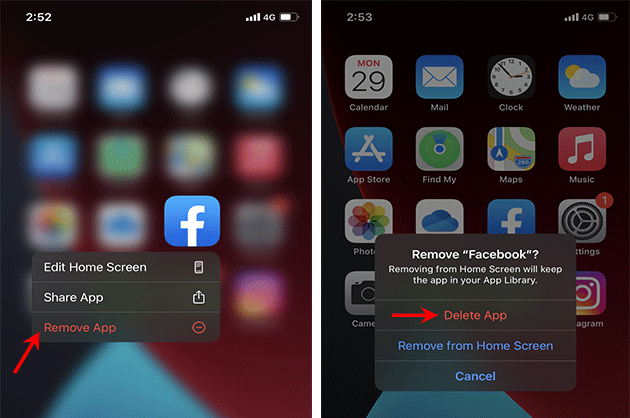
1. Delete Unnecessary Apps;
• Review Installed Apps: Go through your apps and delete any that you no longer use.
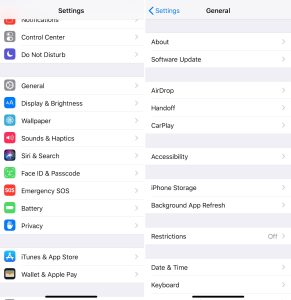
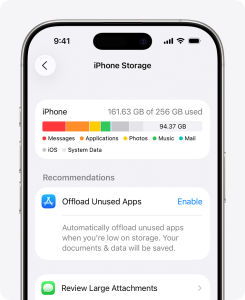
• Offload Unused Apps: This feature, found under Settings > General > iPhone Storage, removes the app but keeps its documents and data. You can reinstall the app later if needed.
2. Clear Cache and Data
• Safari Cache: Clear your Safari cache by going to Settings > Safari > Clear History and Website Data.
• App Cache: For some apps, you may need to go into the app’s settings to clear cached data.
3. Manage Photos and Videos on the storage;
– iCloud Photos: Enable iCloud Photos in Settings > [Your Name] > iCloud > Photos. Select “Optimize iPhone Storage” to store smaller versions on your device while keeping the originals in iCloud.
– Delete Unwanted Media: Go through your Photos app and delete any photos or videos you no longer need. Remember to empty the “Recently Deleted” album.
– Use Third-Party Storage: Transfer photos and videos to services like Google Photos or Dropbox and then delete them from your device.
4. Remove Old Messages;
– Message Attachments: Review large attachments in Messages by going to Settings > General > iPhone Storage > Messages and deleting any large attachments you don’t need.
– Message History: Set messages to delete automatically after a certain period. Go to Settings > Messages > Keep Messages and select either 30 days or 1 year.
5. Review Downloads and Documents;
• Files App: Go through the Files app and delete any downloaded documents you no longer need.
• Email Attachments: Delete large email attachments or old emails with large attachments.
6. Manage Music and Podcasts;
• Music: Delete songs or albums you no longer listen to. You can also stream music instead of downloading it.
• Podcasts: Delete old podcast episodes that you have already listened to. Go to Settings > Podcasts to manage your download settings.
7. Use Storage Management Recommendations;

Iphone storage tips
• iPhone Storage Recommendations: Go to Settings > General > iPhone Storage to see recommendations from Apple on how to save space. Follow these suggestions to free up additional space.
Final Steps to get more storage:
Backup and Transfer;
Iphone storage tips
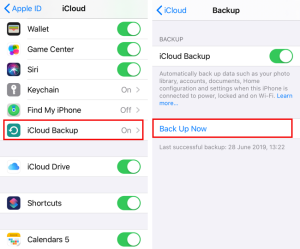
– Backup Your iPhone XR:
Use iCloud or iTunes/Finder to back up your iPhone XR before transferring data to your iPhone 13.
– Transfer Data to iPhone 13:

Iphone storage tips
When setting up your iPhone 13, choose to restore from an iCloud backup or use the Quick Start feature to transfer data directly from your iPhone XR.
Summary
Manage apps by removing or unloading those that aren’t being used, and remove big data like attachments and videos to increase iPhone capacity. Optimize your Photos library by managing huge downloads from streaming and podcast apps, clearing the cache in Safari, and turning on iCloud Photos or offloading original files.

What is Motion graphics. With their dynamic animations, breathtaking visuals, and smooth text-graphics integration, motion graphics have emerged as a potent medium for visual storytelling. We’ll go into the intriguing realm of motion graphics in this post, looking at its history, uses, and creative potential.
What are Motion Graphics?
this is a typical example of it;

WHAT IS MOTION GRAPHICS
Animated graphics that combine sound, visual effects, and movement to improve narrative, elicit strong feelings, and transmit information are called motion graphics. As opposed to conventional animation, which frequently include characters and storylines. They are are primarily concerned with animated graphical elements—such as typography, shapes, and imagery that provide captivating visuals.
Origins of Motion Graphics:
They have their origins in the early stages of cinema. where moving images were produced using methods like optical effects and stop-motion animation. With the advent of computer technology and digital animation software in the late 20th century. It evolved into a distinct art form, finding applications in film, television, advertising, and digital media.
Applications:
Many different media outlets and sectors use it, including:
1. Advertising:

WHAT IS MOTION GRAPHICS
They are a popular choice for advertising campaigns, allowing brands to convey messages and showcase products in visually compelling ways. From animated logos to explainer videos, it help brands stand out and engage audiences in crowded markets.
2. Film and Television:
It plays a crucial role in film and television productions, from title sequences and visual effects to informational graphics and animated infographics. They help set the tone, enhance storytelling, and create immersive viewing experiences for audiences.
3. Digital Media:

WHAT IS MOTION GRAPHICS
In the digital age, they are everywhere, from social media posts and website banners to online presentations and interactive content. They grab attention, convey information quickly, and drive engagement, making them an essential tool for digital marketers and content creators.
4. Education and Training:

They are also used in educational and training materials to explain complex concepts, visualize data, and engage learners. Animated tutorials, instructional videos, and interactive simulations help make learning more accessible and engaging.
Creative Possibilities:

One of the most exciting aspects of it is its creative versatility. With the right tools and imagination, it’s artists can bring virtually any idea to life. From abstract animations and experimental art to corporate branding and commercial projects, the possibilities are endless.
Artists use a variety of software tools, including Adobe After Effects, Cinema 4D, and Blender. To create stunning visual effects, intricate animations, and seamless motion sequences. They combine design principles such as typography, color theory. And composition with animation techniques such as keyframing, easing, and timing to craft compelling motion graphics.
Summary
For visual storytelling, they are a dynamic and adaptable medium that provide countless creative opportunities across media platforms and industries. regardless of your level of experience or inexperience as an animation graphics artist. Investigating this realm reveals a realm of artistic expression, inventiveness, and originality. So gather your resources, let your creativity run wild, and explore its fascinating universe!
Multiple System Atrophy

Key Relevance of Monounsaturated Fats

Best Proteinous Fruits

A Step-by-Step Guide to Deleting Reels on Instagram

How to Create a WhatsApp Group