Creativity
Davinci Resolve

Davinci resolve. Filmmakers can provoke emotions, improve storytelling, and produce visually spectacular works of art by using color grading, which is an essential phase in the process. Filmmakers of all skill levels may unleash their creativity and realize their vision with DaVinci Resolve’s extensive feature set and intuitive interface. Discover the full potential of your footage by diving into DaVinci Resolve, regardless of your level of experience.
DAVINCI RESOLVE
The practice of using color manipulation to improve and stylize a video’s visual appearance is known as color grading. DaVinci Resolve is becoming a preferred tool for both experienced colorists and aspiring filmmakers because to its robust capabilities and user-friendly design. The principles of color grading on (using) DaVinci Resolve will be covered in this guide.
Understanding the Interface;
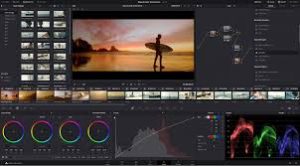

DaVinci Resolve’s interface is divided into several panels, each serving a specific purpose in the color grading process. The Media Pool allows you to import and organize your footage, while the Edit panel is where you assemble your timeline. The Color panel is where the magic happens, with various tools and controls for adjusting color, contrast, and saturation. Finally, the Delivery panel is where you export your graded footage.
Setting the Tone with Primary Corrections;
To achieve good Colour grading on DaVinci Resolve, Before diving into detailed adjustments, start by setting the overall tone of your footage using primary corrections. Adjust the lift, gamma, and gain controls to balance the shadows, midtones, and highlights. Use the color wheels or sliders to fine-tune the color temperature and tint until you achieve the desired look.
Fine-Tuning with Secondary Corrections;

DAVINCI RESOLVE
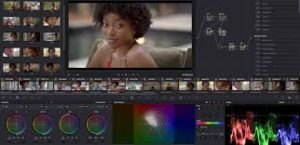
For more precise adjustments, utilize secondary corrections to target specific areas of your image. DaVinci Resolve offers a range of tools for isolating and manipulating colors, including qualifiers, power windows, and masks. Use these tools to selectively adjust hues, saturation, and luminance, ensuring consistency and coherence across your footage.
Creating Mood with Creative LUTs and Looks;
Once you’ve balanced and refined your colors, it’s time to unleash your creativity with creative LUTs (Look-Up Tables) and looks. DaVinci Resolve comes with a library of built-in LUTs and presets to help you achieve a variety of cinematic styles and moods. Experiment with different combinations until you find the perfect look for your project.
Harnessing the Power of Nodes;

DAVINCI RESOLVE
Nodes are the building blocks of DaVinci Resolve’s color grading workflow, allowing you to create complex adjustments and effects with ease. Use nodes to organize your corrections, create parallel adjustments, and apply effects such as vignettes, glows, and blurs. By chaining nodes together, you can achieve intricate and nuanced grading effects.
Collaborating and Sharing;
DaVinci Resolve offers robust collaboration and sharing features, making it easy to work with a team and deliver your final graded footage to various platforms. Use the collaboration tools to share projects, exchange feedback, and work concurrently on different aspects of your project. When it’s time to export your graded footage, DaVinci Resolve provides a range of export options and presets for different delivery formats and resolutions.
Summary
The industry-standard color grading program has a node-based approach on its “Color Page” specifically. Setting up color management, tweaking exposure and contrast, modifying saturation and white balance, and applying artistic looks with tools like Primary Wheels, Curves, and LUTs are important tasks. It enables thorough secondary grading using masks and qualifiers.