Social media
Linking Your WhatsApp Account to Your Facebook Page

In today’s interconnected digital landscape, integrating different communication channels can streamline your online presence and enhance your reach. Linking your WhatsApp account to your Facebook Page is a strategic move that allows you to leverage the power of both platforms for seamless communication and engagement with your audience. In this guide, we’ll walk you through the process of linking your WhatsApp account to your Facebook Page step by step.
1. Ensure Compatibility:
Before proceeding, ensure that your WhatsApp account is compatible with linking to a Facebook Page. This feature is available for WhatsApp Business accounts, so if you haven’t already, consider upgrading your personal WhatsApp account to WhatsApp Business.
2. Access WhatsApp Business Settings:
Open the WhatsApp Business app on your smartphone and navigate to the settings menu. This can usually be accessed by tapping on the three vertical dots in the top-right corner of the screen.
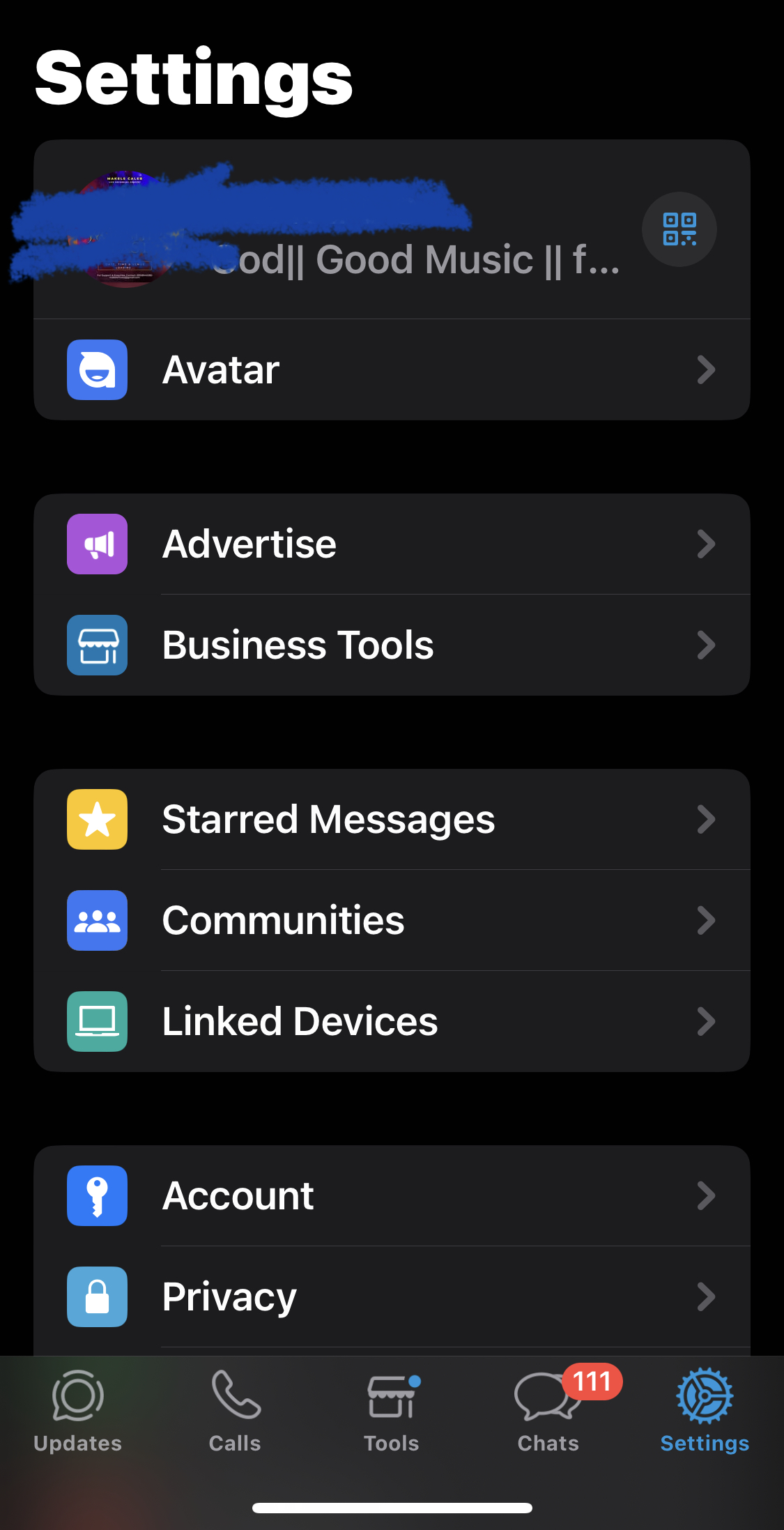

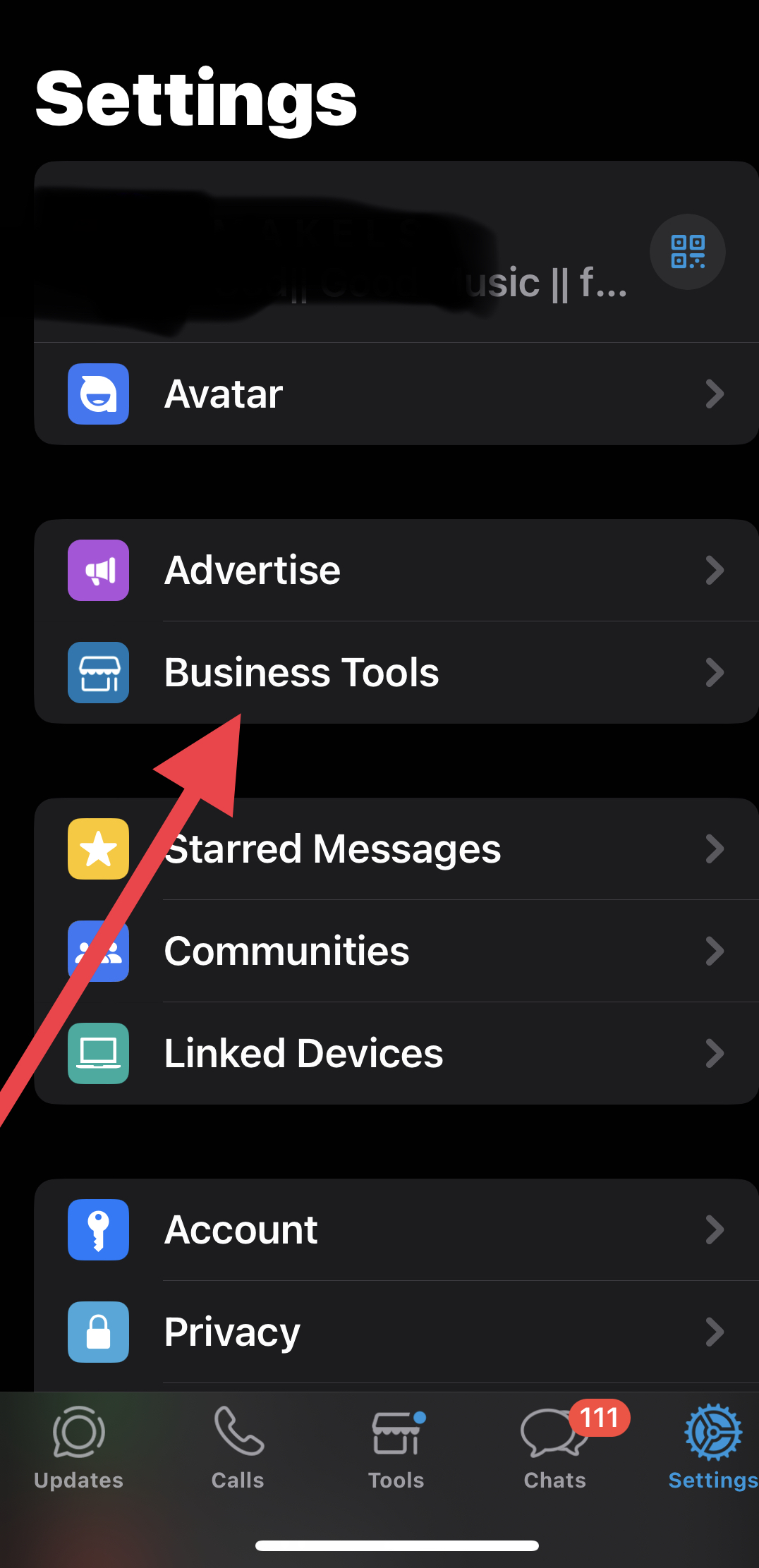
3. Tap on Business Tools:
Within the settings menu, locate and tap on the “Business Tools” option. This section contains a variety of tools and integrations designed to enhance your business’s communication capabilities.

4. Select Facebook:
In the Business Tools section, you’ll find an option labeled “Facebook.” Tap on this option to proceed with linking your WhatsApp account to your Facebook Page.
5. Log in to Facebook:
You’ll be prompted to log in to your Facebook account. Enter your Facebook credentials (email address and password) to proceed. Make sure you have administrative access to the Facebook Page you want to link with your WhatsApp account.
6. Choose Your Page:
After logging in, you’ll be presented with a list of Facebook Pages associated with your account. Select the Page that you want to link to your WhatsApp account from the list.
7. Confirm the Link:
Following your selection of the relevant Facebook Page, you will be prompted to verify the connection between your WhatsApp account and the chosen Page. Check the details and authorization needed for the integration, then click “Proceed.”
8. Customize Settings (Optional):
Depending on your preferences and business needs, you may have the option to customize various settings related to the integration between WhatsApp and Facebook. Explore the available options and adjust them according to your requirements.
9. Test the Integration:
After linking your WhatsApp account to your Facebook Page, it’s a good idea to test the integration to ensure that messages and communication flow smoothly between the two platforms. Send a test message from your Facebook Page’s inbox to your linked WhatsApp account, and vice versa, to verify the connection.
10. Monitor and Manage Interactions:
Track and manage WhatsApp and Facebook conversations inside their respective platforms after the linkage is configured. Respond promptly to messages, inquiries, and customer interactions to maintain a high level of engagement and satisfaction.
By following these steps, you can seamlessly link your WhatsApp account to your Facebook Page, enabling efficient communication and engagement with your audience across both platforms. Whether you’re a small business owner, a digital marketer, or a social media influencer, integrating WhatsApp with Facebook can enhance your online presence and streamline your communication efforts.