
Tech
The Negative Impact of Phone Screen Light on the Brain


Smartphones have revolutionized communication and access to information, becoming indispensable in daily life. However, the convenience of constant connectivity comes with a downside. The light emitted from phone a screen, particularly blue light, can significantly impact brain health and overall well-being.
Understanding Phone Screen Light and Blue Light

Phone screens emit a spectrum of light, including blue light, which has shorter wavelengths and higher energy compared to other types of visible light. Blue light plays a crucial role in regulating circadian rhythms, the body’s natural sleep-wake cycle. However, excessive exposure, especially at night, can disrupt this delicate balance and harm brain function.
1. Disruption of Sleep Patterns

The brain relies on darkness to signal the production of melatonin, the hormone responsible for sleep. Prolonged exposure to blue light from phone screens, especially before bedtime, suppresses melatonin production, leading to:
– Insomnia: Difficulty falling or staying asleep.
– Fragmented Sleep: Reduced quality of sleep, leaving you feeling tired even after sufficient hours.
– Delayed Sleep-Wake Cycle: A condition where the body struggles to fall asleep and wake up at appropriate times.
Chronic sleep disruption negatively impacts brain health, leading to cognitive impairment and a higher risk of mental health disorders.
2. Impaired Cognitive Function
Excessive exposure to phone screen light, particularly at night, can result in overstimulation of the brain, making it harder to relax and unwind. Over time, this can lead to:
– Reduced Memory Retention: Sleep is essential for consolidating memories, and disruption interferes with this process.
– Difficulty Concentrating: Sleep deprivation caused by blue light exposure hampers focus and productivity.
– Decreased Problem-Solving Skills: The brain’s ability to process complex information diminishes with insufficient rest.
3. Increased Risk of Mental Health Issues
Chronic exposure to phone screens and their emitted light has been linked to an increased risk of mental health challenges, such as:
– Anxiety and Depression: Disrupted sleep and overstimulation can exacerbate feelings of anxiety and depression.
– Stress: The constant notifications and interactions from phone use, combined with light exposure, can heighten stress levels.
4. Altered Brain Chemistry
Blue light exposure may also influence neurotransmitter production in the brain, such as dopamine and serotonin, which are critical for mood regulation. Overexposure can lead to:
– Mood Swings: Difficulty maintaining emotional balance.
– Reduced Motivation: Altered dopamine levels can impact drive and satisfaction.
5. Potential Long-Term Effects
While research is ongoing, prolonged exposure to phone screen light may pose long-term risks to brain health, such as:
– Neurodegenerative Disorders: Chronic sleep disruption has been linked to an increased risk of conditions like Alzheimer’s and Parkinson’s.
– Impaired Neural Development: For children and adolescents, excessive screen time may hinder the development of critical brain functions.
How to Mitigate the Impact of Phone Screen Light on the Brain
1. Limit Screen Time Before Bed
Avoid using phones or other screens at least 1–2 hours before bedtime to allow your brain to prepare for rest.
2. Use Night Mode or Blue Light Filters
Enable night mode on your device to reduce blue light emissions during evening hours. Blue-light-blocking glasses are also an effective alternative.
3. Follow a Consistent Sleep Schedule
Maintain a regular sleep routine to support your body’s natural circadian rhythm.
4. Engage in Non-Screen Activities
Instead of scrolling through your phone at night, try reading a book, meditating, or journaling to relax your mind.
5. Reduce Overall Screen Time
Limit your daily phone usage and take regular breaks to prevent overexposure.
6. Create a Sleep-Friendly Environment
Keep your bedroom dark, quiet, and free of electronic devices to promote deep, restorative sleep.
Conclusion
The blue light from phone screens has far-reaching consequences on brain health, disrupting sleep, impairing cognitive function, and contributing to mental health challenges. While it’s difficult to avoid screens entirely, adopting healthier habits and limiting exposure can minimize these effects. Prioritize your brain’s well-being by setting boundaries with technology and ensuring adequate rest—your mind will thank you for it.


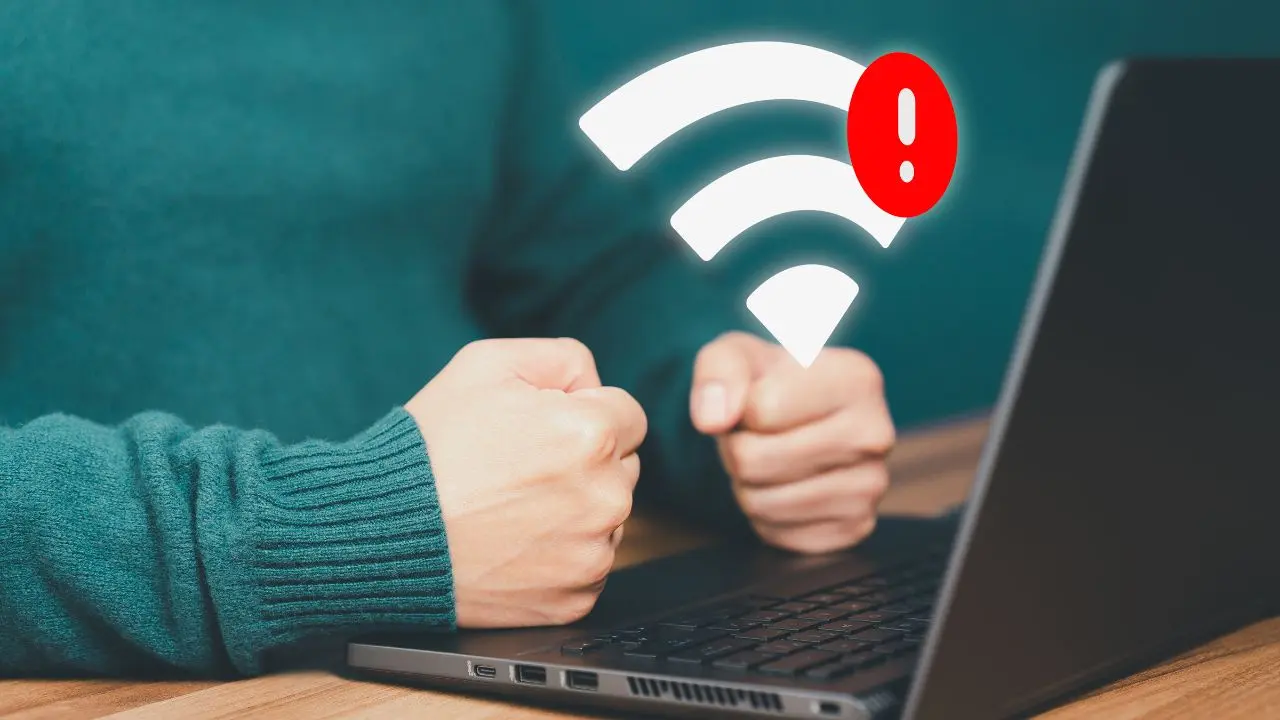

Review of wifi and laptop. The internal hardware and software of a laptop have a significant impact on its Wi-Fi performance; the most recent standards, such as Wi-Fi 6 or 6E, provide faster and more dependable connections. Though its hardware limits its gaming potential, reviews for particular laptops, such as the Primebook Wifi, emphasize its strong performance for daily tasks like browsing and streaming. A general review of “WiFi and laptop” depends on the specific laptop being examined, as reviews of laptops differ greatly depending on the model.
REVIEW OF WIFI AND LAPTOP
Identifying and fixing the root cause of your laptop’s Wi-Fi problems requires a methodical approach. You can frequently get a steady Wi-Fi connection back by making sure the network is operating properly, checking to see if Wi-Fi is enabled, updating drivers, reviewing network settings, and resolving interference or range problems. If the issue continues, it would be worthwhile to get expert technical assistance in order to identify and resolve any more complicated problems.
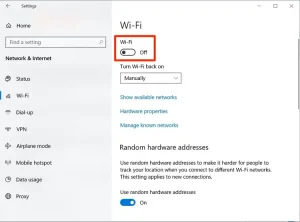
1. Wi-Fi is Disabled on Your Laptop;
REVIEW OF WIFI AND LAPTOP
Reason:
Sometimes, the Wi-Fi on your laptop might be disabled either through a physical switch or a function key.
Solution:
– Check Physical Switch: Some laptops have a physical switch or button to turn Wi-Fi on and off. Ensure it’s turned on.
– Use Function Keys: Look for the Wi-Fi icon on the function keys (usually F1-F12) and press the corresponding key, often in combination with the “Fn” key.
2. Wi-Fi Network Issues;

REVIEW OF WIFI AND LAPTOP
Reason:
The problem might not be with your laptop but with the Wi-Fi network itself.
Solution:
– Restart Router/Modem: Turn off your router and modem, wait for about 30 seconds, and then turn them back on.
– Check Other Devices: Ensure other devices can connect to the same Wi-Fi network. If not, the issue is likely with the network.
3. Incorrect Network Settings;

REVIEW OF WIFI AND LAPTOP
Reason:
Your laptop might have incorrect network settings, such as a wrong IP address or DNS server.
Solution:
– Forget and Reconnect to Network: Go to your Wi-Fi settings, select the problematic network, choose “Forget,” and then reconnect by entering the password again.
– Renew IP Address: Open Command Prompt and type ipconfig /release followed by ipconfig /renew to refresh your IP settings.
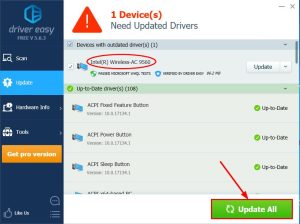
4. Outdated Wi-Fi Drivers;
Reason:
Outdated or corrupt drivers can prevent your laptop from connecting to Wi-Fi.
Solution:
– Update Wi-Fi Drivers: Go to Device Manager, find your Wi-Fi adapter under “Network adapters,” right-click, and select “Update driver.” Follow the prompts to search for updated drivers.
– Reinstall Wi-Fi Drivers: If updating doesn’t work, uninstall the driver and restart your laptop. It should automatically reinstall the correct drivers.
5. Interference or Range Issues;

Reason:
Physical obstructions or interference from other electronic devices can affect Wi-Fi connectivity.
Solution:
– Move Closer to Router: Ensure your laptop is within a reasonable range of your Wi-Fi router, ideally in the same room or within a clear line of sight.
– Reduce Interference: Keep your laptop and router away from other electronic devices that might cause interference, such as microwaves or cordless phones.
Summary
Experiencing issues with your laptop’s Wi-Fi connection can be frustrating, especially when you need to be online for work or leisure. Here are five common reasons why your laptop might not connect to Wi-Fi and solutions to resolve each issue.
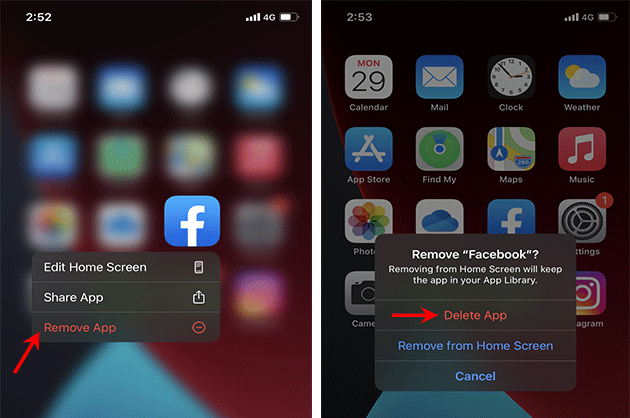
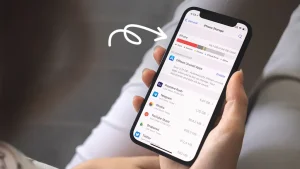
Iphone storage tips. You are aware of the inconvenience that comes with having insufficient space on your device. Receiving messages, installing new apps, taking pictures, syncing media files, installing iOS upgrades, and doing other tasks that require storage space are all rendered impossible when your iPhone’s storage is full. Additionally, your photos and apps may become erratic, and your iPhone may begin to erase messages on its own.
IPHONE STORAGE TIPS
To ensure a seamless transition and increase the efficiency of your new phone, free up storage on your iPhone XR before moving data to an iPhone 13. Here are a few ways to make room on your iPhone XR. You can guarantee a seamless transfer to your new iPhone and clear up a substantial amount of space on your iPhone XR by following these instructions.
1. Delete Unnecessary Apps;
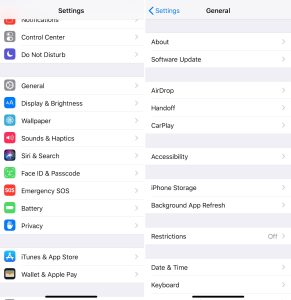
• Review Installed Apps: Go through your apps and delete any that you no longer use.
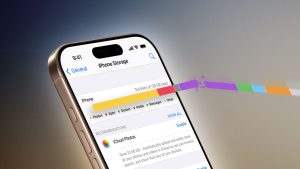
• Offload Unused Apps: This feature, found under Settings > General > iPhone Storage, removes the app but keeps its documents and data. You can reinstall the app later if needed.
2. Clear Cache and Data
• Safari Cache: Clear your Safari cache by going to Settings > Safari > Clear History and Website Data.
• App Cache: For some apps, you may need to go into the app’s settings to clear cached data.
3. Manage Photos and Videos on the storage;
– iCloud Photos: Enable iCloud Photos in Settings > [Your Name] > iCloud > Photos. Select “Optimize iPhone Storage” to store smaller versions on your device while keeping the originals in iCloud.
– Delete Unwanted Media: Go through your Photos app and delete any photos or videos you no longer need. Remember to empty the “Recently Deleted” album.
– Use Third-Party Storage: Transfer photos and videos to services like Google Photos or Dropbox and then delete them from your device.
4. Remove Old Messages;
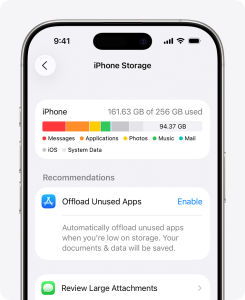
– Message Attachments: Review large attachments in Messages by going to Settings > General > iPhone Storage > Messages and deleting any large attachments you don’t need.
– Message History: Set messages to delete automatically after a certain period. Go to Settings > Messages > Keep Messages and select either 30 days or 1 year.
5. Review Downloads and Documents;
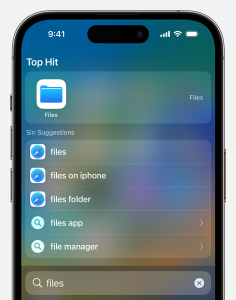
• Files App: Go through the Files app and delete any downloaded documents you no longer need.
• Email Attachments: Delete large email attachments or old emails with large attachments.
6. Manage Music and Podcasts;
• Music: Delete songs or albums you no longer listen to. You can also stream music instead of downloading it.
• Podcasts: Delete old podcast episodes that you have already listened to. Go to Settings > Podcasts to manage your download settings.
7. Use Storage Management Recommendations;
Iphone storage tips
• iPhone Storage Recommendations: Go to Settings > General > iPhone Storage to see recommendations from Apple on how to save space. Follow these suggestions to free up additional space.
Final Steps to get more storage:
Backup and Transfer;
Iphone storage tips
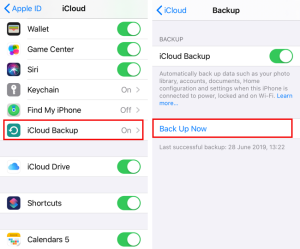
– Backup Your iPhone XR:
Use iCloud or iTunes/Finder to back up your iPhone XR before transferring data to your iPhone 13.
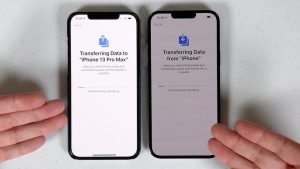
– Transfer Data to iPhone 13:
Iphone storage tips
When setting up your iPhone 13, choose to restore from an iCloud backup or use the Quick Start feature to transfer data directly from your iPhone XR.
Summary
Manage apps by removing or unloading those that aren’t being used, and remove big data like attachments and videos to increase iPhone capacity. Optimize your Photos library by managing huge downloads from streaming and podcast apps, clearing the cache in Safari, and turning on iCloud Photos or offloading original files.

What is Motion graphics. With their dynamic animations, breathtaking visuals, and smooth text-graphics integration, motion graphics have emerged as a potent medium for visual storytelling. We’ll go into the intriguing realm of motion graphics in this post, looking at its history, uses, and creative potential.
What are Motion Graphics?
this is a typical example of it;

WHAT IS MOTION GRAPHICS
Animated graphics that combine sound, visual effects, and movement to improve narrative, elicit strong feelings, and transmit information are called motion graphics. As opposed to conventional animation, which frequently include characters and storylines. They are are primarily concerned with animated graphical elements—such as typography, shapes, and imagery that provide captivating visuals.
Origins of Motion Graphics:
They have their origins in the early stages of cinema. where moving images were produced using methods like optical effects and stop-motion animation. With the advent of computer technology and digital animation software in the late 20th century. It evolved into a distinct art form, finding applications in film, television, advertising, and digital media.
Applications:
Many different media outlets and sectors use it, including:
1. Advertising:

WHAT IS MOTION GRAPHICS
They are a popular choice for advertising campaigns, allowing brands to convey messages and showcase products in visually compelling ways. From animated logos to explainer videos, it help brands stand out and engage audiences in crowded markets.
2. Film and Television:
It plays a crucial role in film and television productions, from title sequences and visual effects to informational graphics and animated infographics. They help set the tone, enhance storytelling, and create immersive viewing experiences for audiences.
3. Digital Media:

WHAT IS MOTION GRAPHICS
In the digital age, they are everywhere, from social media posts and website banners to online presentations and interactive content. They grab attention, convey information quickly, and drive engagement, making them an essential tool for digital marketers and content creators.
4. Education and Training:

They are also used in educational and training materials to explain complex concepts, visualize data, and engage learners. Animated tutorials, instructional videos, and interactive simulations help make learning more accessible and engaging.
Creative Possibilities:

One of the most exciting aspects of it is its creative versatility. With the right tools and imagination, it’s artists can bring virtually any idea to life. From abstract animations and experimental art to corporate branding and commercial projects, the possibilities are endless.
Artists use a variety of software tools, including Adobe After Effects, Cinema 4D, and Blender. To create stunning visual effects, intricate animations, and seamless motion sequences. They combine design principles such as typography, color theory. And composition with animation techniques such as keyframing, easing, and timing to craft compelling motion graphics.
Summary
For visual storytelling, they are a dynamic and adaptable medium that provide countless creative opportunities across media platforms and industries. regardless of your level of experience or inexperience as an animation graphics artist. Investigating this realm reveals a realm of artistic expression, inventiveness, and originality. So gather your resources, let your creativity run wild, and explore its fascinating universe!

Agricultural sector of the economy

Agricultural forms

Tips for successful proofreading

A Step-by-Step Guide to Deleting Reels on Instagram

A Comprehensive Guide to Setting Up a YouTube Premiere













Pingback: Teenagers and Decision-Making: Learning from Mistakes - SimplExplainer