Social media
Tips on how to Archive Instagram Post

Tips on how to archive instagram post. Instagram post archiving is a useful tool for controlling the information on your profile and upholding a carefully chosen look. Archiving gives you freedom and control over your Instagram material, whether you’re organizing your digital memories, clearing up your feed, or temporarily hiding items from public view. You can easily manage and archive your Instagram posts by following these simple steps, making sure that your profile represents your best online persona.
TIPS ON HOW TO ARCHIVE INSTAGRAM POST
Instagram is a digital scrapbook of memories as well as a platform for sharing ephemeral moments. You don’t have to keep all of your posts visible on your profile, though. Archiving provides a practical method for decluttering your feed, maintaining a consistent look, or temporarily hiding content from public view. In this guide, we’ll walk you through the simple steps to archive posts on Instagram.
Step 1: Open Instagram and Navigate to Your Profile

Tips on how to archive instagram post
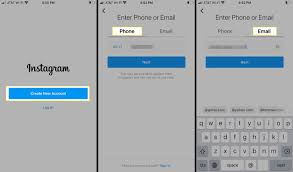
Launch the Instagram app on your mobile device and log in to your account. Once logged in, tap on your profile picture or username at the bottom right corner of the screen to access your profile.
Step 2: Select the Post You Want to Archive
Scroll through your profile to find the post you wish to archive. Tap on the post to open it and view the full details.
Step 3: Archive the Post

Tips on how to archive instagram post
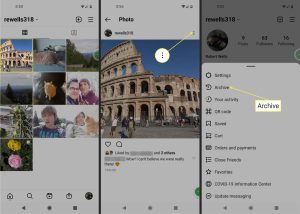
In the top right corner of the post, you’ll see three dots arranged vertically. Tap on these dots to open a menu of options. From the menu, select “Archive” (iOS) or “Archive post” (Android). Instagram will then confirm that the post has been successfully archived.
Step 4: Access Your Archived Posts
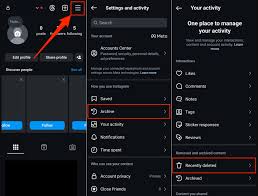
To access your archived posts, navigate back to your profile and tap on the menu icon (three horizontal lines) at the top right corner of the screen. From the menu, select “Archive.” Here, you’ll find two tabs: “Posts” and “Stories.” Tap on “Posts” to view all your archived posts.
Step 5: Restore or Permanently Delete Archived Posts

Tips on how to archive instagram post
In the “Posts” tab of your archive, you’ll see a collection of all the posts you’ve archived. To restore a post to your profile, tap on it to open it, then tap on the three dots at the top right corner and select “Show on Profile” (iOS) or “Show on profile” (Android). The post will be restored to its original location on your profile.
If you wish to permanently delete an archived post, follow the same steps to open the post, but this time select “Delete” (iOS) or “Delete post” (Android) from the menu. Confirm the deletion, and the post will be removed from your archive permanently.
Summary
By archiving an Instagram post, you may save its likes, comments, and insights while removing it from your public profile. To archive a post, tap its three dots (…) and choose “Archive.” You can “Show on Profile” or permanently remove archived items by using Your Activity in the settings.