Uncategorized
WordPress Articles and Inbound Links

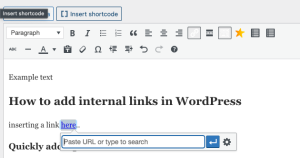

WordPress articles and inbound links. Inbound links are links pointing to your website from other websites, and “articles” in WordPress can be blog posts or pages. By selecting text and utilizing the “insert/edit link” option to look for more information on your website, you may use the built-in editor to build internal links within your articles. Use an SEO plugin like AIOSEO or Link Whisper, which may recommend and automate internal link development, to better manage incoming and outbound links, particularly for large sites.
WORDPRESS ARTICLES AND INBOUND LINKS
Internal links, sometimes referred to as inbound links, are essential for raising the visibility of your content on WordPress, optimizing SEO, and boosting user experience. You can direct readers to similar or pertinent content on your website, promote investigation, and create a logical hierarchy of knowledge by carefully including inbound links in your articles. We’ll show you how to add inbound links to your WordPress article in this tutorial.
Step 1: Log in to Your wordpress dashboard;

Begin by logging in to your WordPress dashboard using your username and password. Once logged in, navigate to the post or page editor where you want to add the inbound link.
Step 2: Highlight the Text You Want to Link;
Within the post or page editor, select the text that you want to turn into an inbound link. This could be a relevant keyword, phrase, or descriptive anchor text that provides context for the linked content.
Step 3: Click the Insert/Edit Link Button;
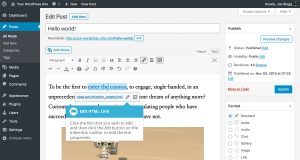

After highlighting the text, click on the “Insert/Edit Link” button in the toolbar above the editor. It looks like a chain link icon and is typically located next to other formatting options like bold and italic.
WordPress inbound links guides;
Step 4: Enter the URL of the Target Page;
In the pop-up window that appears, enter the URL of the target page that you want to link to. You can either type the URL directly into the field or paste it from your browser. Make sure to include the full URL, including the “http://” or “https://” prefix.
Step 5: Add link options;
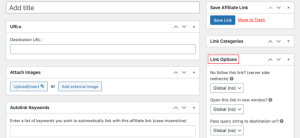

Optionally, you can configure additional link options before inserting the inbound link. These options include setting the link to open in a new tab, adding a title attribute for accessibility, and specifying link rel attributes for SEO purposes. Adjust these settings as needed, then click the “Add Link” button to insert the inbound link.
Step 6: Review and Publish Your Article;
After adding the inbound link, review your article to ensure that the link appears as intended and functions correctly. You can do this by previewing the post or page in the WordPress editor or by viewing it on the frontend of your website. Once you’re satisfied with the placement and functionality of the inbound link, click the “Publish” or “Update” button to save your changes and make the article live on your website.
Summary
You may improve navigation, boost SEO, and provide your readers more value by including pertinent internal links in your article that direct them to related or pertinent content on your website. To keep your inbound links current and useful for your readers, don’t forget to audit and update them on a regular basis.