
WRITING
How to Delete Articles on WordPress

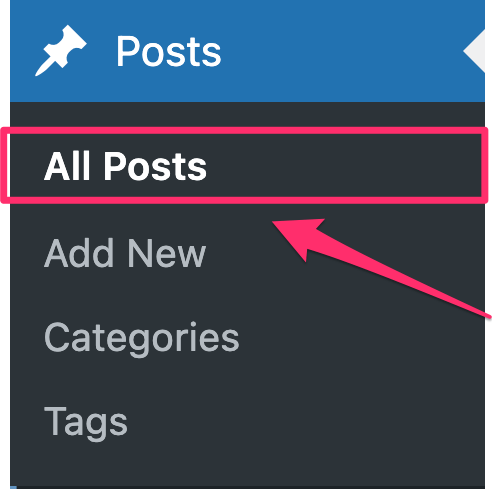

How to delete articles on wordpress. Go to your dashboard, select “Posts” > “All Posts,” mouse over the article you wish to delete, and then click the “Trash” link to remove it. This places the article in the trash. To permanently delete it, select “Delete Permanently” for the individual item or “Empty Trash” to get rid of everything at once from the “Trash” area.
HOW TO DELETE ARTICLES ON WORDPRESS
WordPress makes it simple to delete an article, but you must be careful to make sure you’re getting rid of the correct information and preventing any unexpected repercussions. This detailed tutorial will show you how to remove an article from WordPress, regardless of whether it contains mistakes, out-of-date material, or you have just decided it is no longer relevant.
Step 1;
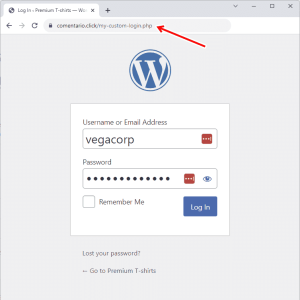
Log in to Your WordPress Dashboard,
Begin by logging in to your WordPress dashboard using your username and password. Once logged in, you’ll be taken to the WordPress admin area where you can manage your website’s content, settings, and users.
Step 2;
Navigate to the Posts or Pages Section, Depending on whether your article is a blog post or a static page, navigate to the appropriate section in the WordPress dashboard. To delete a blog post, click on “Posts” in the left-hand menu. To delete a static page, click on “Pages” instead.
Step 3;
HOW TO DELETE ARTICLES ON WORDPRESS
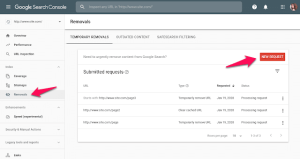
Locate the Article You Want to Delete, Once you’re in the Posts or Pages section, locate the specific article you want to delete from your WordPress website. You can use the search bar or browse through the list of published articles to find the one you’re looking for.
Step 4;
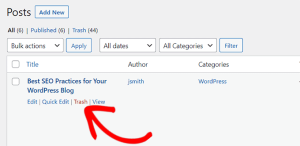
Edit the Article Hover your mouse over the title of the article you want to delete, and several options will appear beneath it. Click on the “Edit” option to open the article editor and make changes to the content if necessary. This step is optional but can be useful if you want to review the article before deleting it.
Step 5;
HOW TO DELETE ARTICLES ON WORDPRESS
Move the Article to Trash, After reviewing the article (if desired), click on the “Move to Trash” link located in the right-hand sidebar of the article editor. Confirm the action when prompted to move the article to the trash. Alternatively, you can also click on the “Trash” link directly from the list of articles in the Posts or Pages section and select the article you want to delete.
Step 6;
HOW TO DELETE ARTICLES ON WORDPRESS
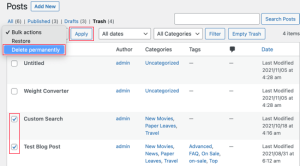
Empty the Trash (Optional), Once you’ve moved the article to the trash, it will remain there until you permanently delete it. To permanently remove the article from your WordPress website, click on the “Trash” link in the Posts or Pages section, select the article, and click on the “Empty Trash” button. Confirm the action when prompted, and the article will be permanently deleted from your site.
Summary
These easy steps will help you keep your WordPress website current and relevant by removing any unnecessary or out-of-date information. To prevent unintentionally deleting important content, always double-check the article you’re deleting. If at all possible, archive or update articles rather than completely deleting them.







Efficient usage of chatgpt. Providing precise context, using file uploads for data analysis, creating personas, and utilizing sophisticated capabilities like browsing and custom instructions are all necessary for effective ChatGPT use. Use iterative refining, establish a customized prompt library to save time, and divide complicated jobs into smaller prompts for optimum efficiency.
EFFICIENT USAGE OF CHATGPT
In today’s digital age, artificial intelligence has become an integral part of our lives, simplifying tasks and enhancing productivity. Among the myriad AI-powered tools available, ChatGPT stands out as a versatile and resourceful assistant, capable of aiding users in various domains.
Understanding ChatGPT:
Before diving into practical tips, it’s essential to grasp the fundamentals of it. Developed by OpenAI, it is a state-of-the-art language model trained on vast datasets, enabling it to comprehend and generate human-like text across diverse topics. It operates based on a “prompt-response” mechanism, where users input queries or statements, and ChatGPT generates relevant and coherent responses in real-time. Whether you’re conversing on the ChatGPT app, website, or integrating it into your platform via APIs, the underlying functionality remains consistent.
Tips for Effective Usage:
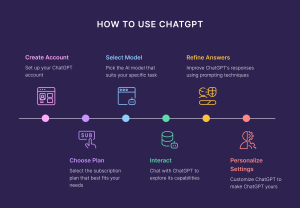
1. Provide Clear and Specific Prompts:

When interacting with ChatGPT, clarity is key. Clearly articulate your queries or requests, providing as much context as possible. This helps it understand your intentions accurately, leading to more relevant and satisfactory responses.
2. Experiment with Different Prompt Formats:
It responds well to various prompt formats, including questions, statements, or even incomplete phrases. Experiment with different styles to uncover the most effective approach for your specific needs.
3. Leverage Keywords and Context:

Incorporating relevant keywords and context into your prompts can significantly enhance the quality of ChatGPT’s responses. By guiding the conversation and providing additional information, you empower it to generate more accurate and insightful outputs.
4. Utilize Conversation History:
If you’re engaging in a prolonged conversation with ChatGPT, leverage the conversation history feature to maintain context and continuity. Referencing previous exchanges helps ChatGPT deliver more coherent responses and fosters a more seamless interaction experience.
5. Fine-tune Responses:

Efficient usage of chatgpt
In instances where ChatGPT’s responses require refinement or clarification, don’t hesitate to provide feedback and guide the conversation accordingly. It continuously learns from user interactions, and constructive input contributes to its ongoing improvement.
6. Explore Specialized Models and Features:
OpenAI offers specialized versions of ChatGPT tailored for specific applications, such as programming (CodeGPT) or generating creative content (DALL-E). Explore these specialized models and features to leverage ChatGPT’s capabilities in specialized domains.
Etiquette and Responsible Usage:
Efficient usage of chatgpt
While ChatGPT provides a wealth of opportunities for engagement and assistance, it’s imperative to exercise responsible usage and adhere to ethical guidelines. Avoid soliciting or engaging in activities that promote harm, misinformation, or unethical behavior. Additionally, respect it’s capabilities and limitations, refraining from exploiting it for malicious purposes or deceptive practices.
Summary
Making the most of ChatGPT can significantly improve your online experience, whether you’re looking for information, coming up with ideas, or just having a casual conversation. We’ll explore the nuances of utilizing ChatGPT efficiently in this post, going over important tactics and best practices to optimize its usefulness.
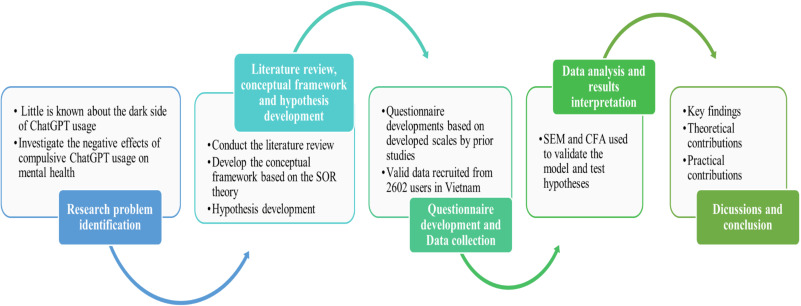
Chatgpt side effects. Even while ChatGPT’s efficiency and convenience are indisputable, it’s important to be aware of and take precautions against any potential negative consequences. Users can optimize the advantages of interacting with ChatGPT while reducing its possible disadvantages by being mindful of the risks of dependency, misinformation, privacy concerns, impact on human connection, and algorithmic prejudice. In the end, navigating the complicated world of AI-powered technology like ChatGPT requires careful use and critical thought.
CHATGPT SIDE EFFECTS
In the realm of artificial intelligence, ChatGPT stands as a powerful tool, capable of assisting users in various tasks and conversations. However, like any technology, its usage comes with potential side effects that users should be aware of. In this article, we’ll explore five key side effects of using ChatGPT and discuss strategies to mitigate their impact.
1. Dependency:

Users may become overly reliant on ChatGPT for information or decision-making, potentially diminishing critical thinking skills and self-reliance.
2. Misinformation:
ChatGPT generates responses based on the input it receives, which may include inaccuracies or biased information. Users must critically evaluate and verify the information provided.
3. Privacy Concerns:

Chatgpt side effects
Interacting with ChatGPT often involves sharing personal or sensitive information. Users should be mindful of privacy implications and avoid disclosing confidential details.
4. Loss of Human Connection:
Excessive reliance on ChatGPT for communication may lead to a reduction in meaningful human interactions, potentially impacting social skills and emotional well-being.
5. Algorithmic Bias:

Chatgpt side effects
ChatGPT’s responses can reflect underlying biases present in the training data, leading to unintended reinforcement or propagation of societal biases and stereotypes. It’s essential to be aware of these biases and actively work to mitigate their impact.
Summary
The negative effects of using ChatGPT can be divided into three categories based on new research, studies, and user reports: cognitive, psychological, and professional/academic implications. The most noteworthy results indicate that over reliance on the technology may result in social isolation, cognitive deterioration, and the spread of false information.
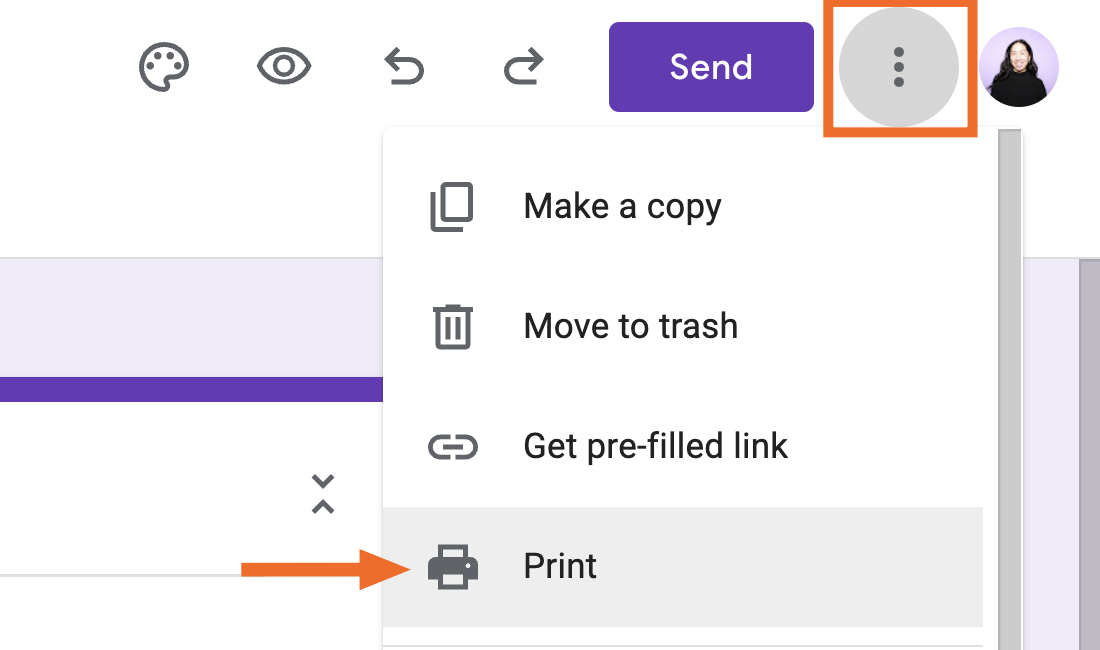
Tips for creating online google forms. Start with a clear title and description to direct replies when creating an efficient Google Form. To break up lengthy surveys, use section breaks and a variety of question kinds, such as multiple choice, checkbox, and dropdown. Use Google Forms to examine real-time results via Google Sheets, enable “Required” for important questions, and personalize themes for branding.
TIPS FOR CREATING ONLINE GOOGLE FORMS
The process of creating a Google Form is simple and enables you to collect data quickly and easily. Google Forms offers an easy-to-use platform for customisation, whether you’re planning an event, conducting a survey, or gathering feedback. Here’s how to make a Google Form step-by-step:
1. Access Google Forms:
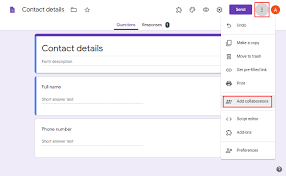
• Open your web browser and navigate to Google Forms by visiting “forms.google.com” or accessing it through Google Drive.
2. Sign in to your Google Account:
• If you’re not already signed in, sign in to your Google Account. If you don’t have one, you can create a Google Account for free.
3. Click on “+ Blank” or Choose a Template:
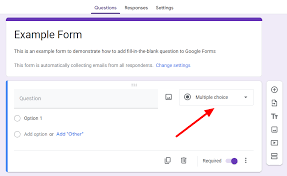
• On the Google Forms homepage, click on the “+ Blank” button to start a new form. Alternatively, you can choose a template that suits your needs.
4. Create Your Form:
• Title your form by clicking on “Untitled Form” at the top. Enter a descriptive title that reflects the purpose of your for
• Add questions to your form by clicking on the “+” button. Choose from various question types, including multiple-choice, short answer, or paragraph text.
• Customize each question by adding options, setting required responses, and adjusting the question type as needed.
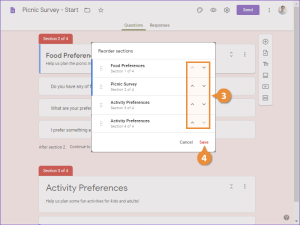
5. Organize Sections:
Tips for creating online google forms
• Organize your form into sections if it involves different topics or categories. Click on the three lines icon in the bottom-left corner to access the form settings, then click “Add section.”
6. Personalize Your Form:
• Customize the theme of your form by clicking on the color palette icon. Select a color scheme or add a background image to give your form a personalized touch.
7. Add Media:
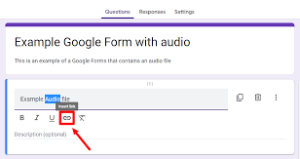
• Enhance your form by inserting images or videos. Click on the image or video icon to upload media from your computer or provide a URL.
8. Preview Your Form:
• Before sharing your form, click on the eye icon to preview how it will appear to respondents. Ensure that the questions, layout, and design meet your expectations.
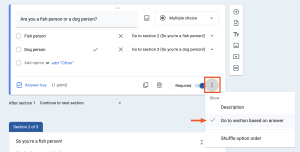
9. Adjust Settings:
Tips for creating online google forms
• Access the form settings by clicking on the gear icon. Customize settings such as collecting email addresses, limiting responses, or turning on/off accepting responses.
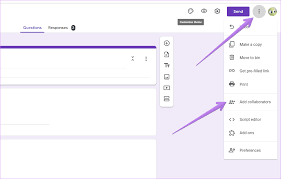
10. Share Your Form:
Tips for creating online google forms
– Click on the “Send” button in the upper-right corner to share your form. You can share it via email, generate a link, or embed it on a website. Google Forms also provides options to share on social media or through Google Classroom.
Summary
You may easily customize surveys and questionnaires to meet your unique requirements by creating a Google Form. Try with various question formats, topics, and layouts to create a form that works for you and successfully engages your respondents.

Exam success tips for waec

Tips for jamb success

Plastic water bottle hazards

A Step-by-Step Guide to Deleting Reels on Instagram

A Comprehensive Guide to Setting Up a YouTube Premiere

How to Create a WhatsApp Group
-

 Social media2 weeks ago
How to Delete Reels on IG
-

 Social media1 week ago
Tips for likes and Followers on Facebook
-
 Social media1 week ago
Guidelines for Creating a Facebook Page
-
 Social media1 week ago
Tips on how to Archive Instagram Post
-

 Photography1 week ago
Photography and Outdoors
-
 Social media2 weeks ago
Guidelines for Uploading Videos on Youtube