TECHNOLOGY
Data Loss Prevention


Data loss prevention. Meanwhile, hundreds, if not thousands, of authorized individuals access company data every day from on-premises repositories and cloud storage. For most organizations, preventing data loss while allowing authorized access is a top responsibility. Data loss prevention (DLP), which tracks data across the network and enforces security regulations on that data, assists companies in preventing data losses and leaks. Only authorized personnel should have access to the appropriate data for the appropriate purposes, according to security teams’ efforts.
DATA LOSS PREVENTION
A security tactic called data loss prevention makes use of procedures and technologies to guard against the loss, theft, or misuse of private information. It helps firms adhere to laws like GDPR by enforcing security policies, preventing unwanted access, and monitoring and managing data as it travels between networks, devices, and cloud services.
1. Use an External Hard Drive;

DATA LOSS PREVENTION
You can purchase HDD ( hard disk drives) or SSD ( Solid state drive) as external drives. Since HDD are older and less expensive than SSD, they are regarded as legacy technology. SSD are a superior option, but they are significantly more expensive. They have far faster copy speeds and are generally more portable.
2. Use a USB Flash Drive;
The most crucial files from your computer can be stored on USB flash drives, which are excellent portable storage options. Considering that USB devices are usually far smaller than external hard drives, it might be most cost effective to save just the data or documents that are really necessary rather than backing up the entire system
3. Use Optical Media;

DATA LOSS PREVENTION
You can create a copy of your data using optical media solutions, such as CDs or DVDs. You can make an image and copy of your data and crucial papers using a variety of burning options. Optical media works well because it gives you a tangible copy of your data that you can store in a secure location. It is crucial to remember that this approach is not infallible and that data loss may still occur in the event that the disk is scratched or damaged.
4. Use an Online Backup Service
By encrypting your files, setting up frequent backups, and keeping the backup files in a secure place, you can use an online backup service to protect your dat. A fantastic method to safeguard your data in the event of a computer crash or theft is to use online backup services. In order to ease your mind about data loss, they provide security features like file encryption and password protection. You can also plan frequent backups, both full and incremental, with them. To ensure that your data is secure, the majority of online backup service also let you store your backup files in a secure location
5. Invest in a Network Attached Storage Device;

DATA LOSS PREVENTION
Invest in a Network Attached Storage (NAS) device if data security is important to you. NAS is a dedicated server that gives your home or small business network file level storage and sharing .A NAS is made to be constantly connected and on, unlike an external hard drive that you plug into your router, allowing you access your data from anywhere at any time.
Summary
As data packets travel over a network, a DLP solution examines them to look for the usage of private data, including credit card numbers, medical records, customer information, and intellectual property. In this manner, businesses can implement appropriate usage guidelines and access restrictions for any kind of data.
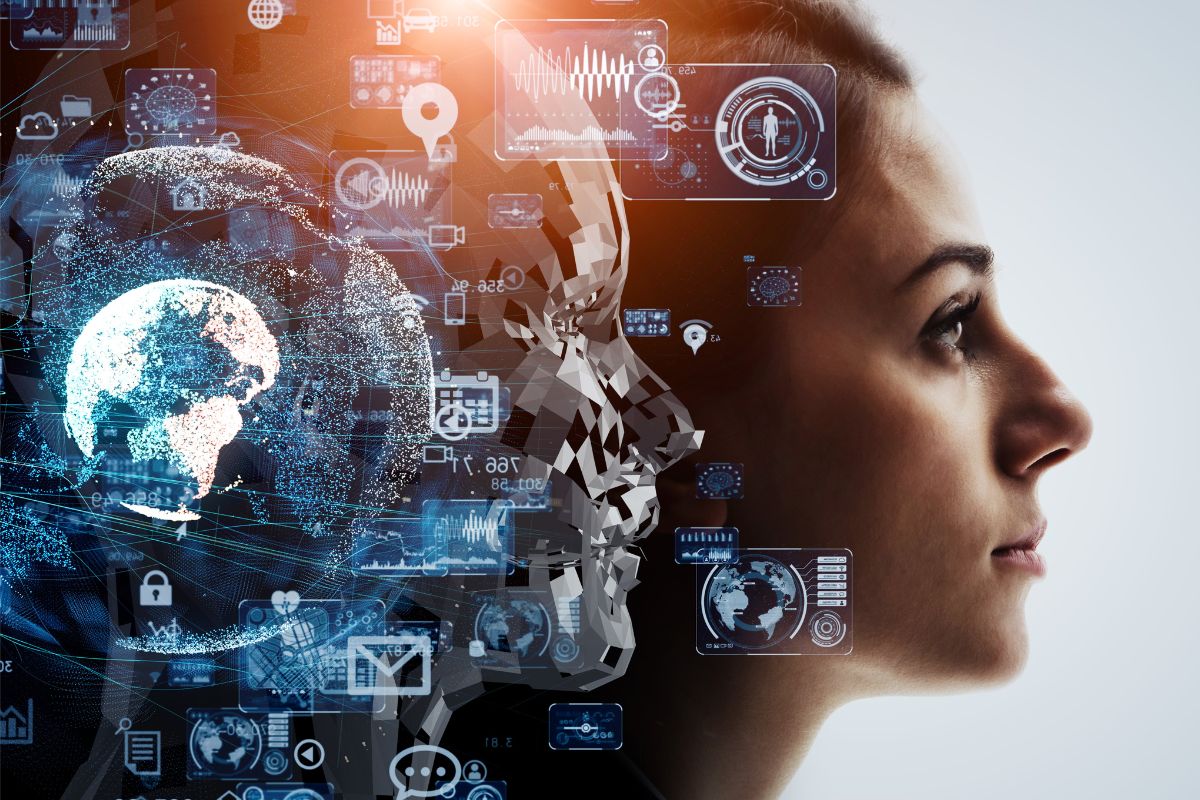
AI and the future. The ability of computing systems to carry out tasks commonly associated with human intellect, including as learning, reasoning, problem-solving, perception, and decision-making, is known as artificial intelligence (AI). It is a branch of computer science study that creates and examines techniques and software that allow machines to sense their surroundings and use intelligence and learning to conduct actions that optimize their odds of accomplishing predetermined objectives.
AI AND THE FUTURE
In industries like healthcare, finance, and manufacturing, AI’s advantages include increasing productivity, automating repetitive tasks, decreasing human error, and facilitating quicker, data-driven decisions that result in lower costs and better customer experiences. It can also handle hazardous jobs and personalize services. It increases productivity by enabling people to work creatively, provides round-the-clock access, and stimulates creativity through deeper insights and scalable solutions, revolutionizing everyday life and commercial operations.
What is intelligence?
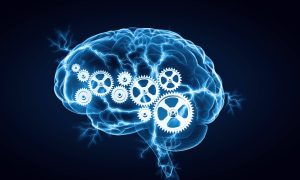
AI AND THE FUTURE
Even the most complex insect activity is typically not interpreted as a sign of intelligence, whereas all human behavior but the most basic. What makes the difference? Examine the actions of Sphex ichneumonids, the digger wasp. When the female wasp comes back to her burrow with food, she puts it on the threshold, looks inside to see if there are any intruders, and only then, if all is well, brings her food inside. If the wasp moves the food a few inches away from her burrow entrance while she is inside, it reveals the true nature of her instinctive behavior: whenever she emerges, she will repeat the entire process as many times as the food is displaced. The notable lack of intelligence in the instance.
Growth of AI;
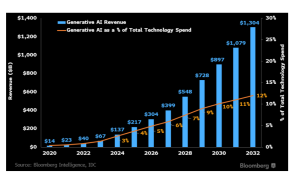
AI AND THE FUTURE
It is crucial to understand the definition and current state of artificial intelligence before exploring its future. “Artificial intelligence (AI) is the capacity of computers or computer controlled robots to carry out tasks related to intelligence.” Thus, I am a branch of computer science whose goal is to develop intelligent machines that can mimic human behavior.
Artificial intelligence classification;
Based on its capabilities, artificial intelligence can be classified into three categories: Row I: Row II: Generic Row I:… Sub-I: computer
The Future;
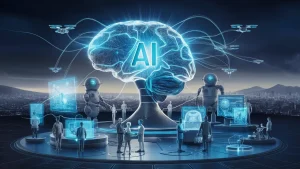
AI AND THE FUTURE
While artificial intelligence (AI) has a bright future, there are several challenges it must overcome. As technology advances, artificial intelligence (AI) is expected to become more and more commonplace, revolutionizing industries including finance, transportation, and healthcare. AI-driven automation will transform the labor sector and require new roles and competencies. whаt Аrtifiсiаl Intelligenсe is
Summary
Owing to constraints, this new field is now called “weak I.” But in the future, artificial intelligence will take the form of “creating powerful I.” I can currently only outperform humans in certain tasks, but it is expected that in the future I will be able to outperform humans in all cognitive tasks. The benefits and drawbacks of this development demonstrate how crucial it is to develop AI capabilities in order to carefully control and mold the future.

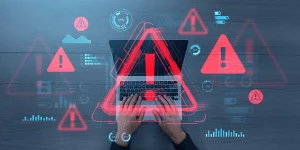
Cybersecurity and threats. This is the practice of using technologies, procedures, and policies to safeguard sensitive data, preserve privacy, and guarantee system integrity in order to defend computer systems, networks, programs, and data against digital attacks, damage, or illegal access. It covers topics like network security, application security, and information security and is essential in our connected world. It entails using techniques like multi-factor authentication, strong passwords, and incident response planning to defend against threats like malware, phishing, and ransomware.
CYBERSECURITY AND THREATS
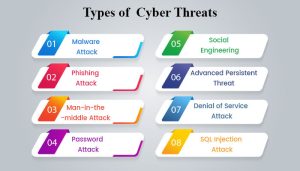
Cyber threats are malicious acts or potential dangers like malware, phishing, ransomware, DoS attacks, and social engineering that are intended to steal data, disrupt operations, or cause financial loss. Cybersecurity is the process of defending systems, networks, and data against digital attacks. These threats take advantage of weaknesses and use advanced techniques (such as artificial intelligence) to threaten availability, confidentiality, and integrity. As a result, people, organizations, and governments must constantly defend themselves.
A cyber threat: what is it?
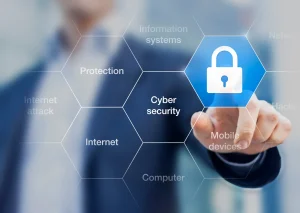
Any malicious activity to erase, steal, or interfere with data, vital systems, or digital life in general is considered a cyber threat. These hazards include malware attacks, computer viruses, data breaches, and denial-of-service (DoS) attacks.
Active threats;
In the context of cyber security, who are we specifically attempting to defend against? The threat actors can be divided into three categories:
• Identity thieves: Names, bank account information, email and physical addresses, and private company information are just a few examples of important data. Threat actors are often experts at obtaining this data for their own purposes or to resell to third parties.
- Wreckers: Their goal is to take down organizations, services, and gadgets. They do it sometimes for political reasons and other times just because they can.
Cyberwarfare agents: People are curious to learn the source of a new cyber threat that makes headlines. Government actors are among the common offenders.
Types;
CYBERSECURITY AND THREATS
Attacks against cybersecurity come in many ways, each with its own;
- Malware
These are a few typical categories of malware:
- Virus: • Worm
- Trojan
- Spyware:
- Cryptocurrency
- Theft of cryptocurrency
- 2. Social engineering
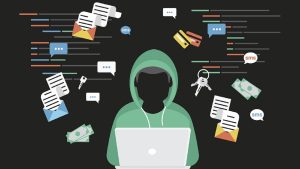
Because it depends more on human error than on technological flaws, social engineering is still one of the riskiest hacking strategies used by cybercriminals.
Social engineering assault types:
- Phishing:
Phishing techniques include spear phishing, phishing by voice, and phishing via SMS.
CYBERSECURITY AND THREATS
- Supply chain
The primary goals of these cybersecurity assaults are to disseminate malware through software update mechanisms, build processes, or source code, infecting legitimate programs.
How to protect your devices from cyber threats
1. Use strong passwords to secure your accounts
2. Configure two-factor authentication for each account you have.
3. Limit your connection to safe wifi networks.

CYBERSECURITY AND THREATS
4. Enable your firewall to watch incoming traffic.
5. Use automated updates to keep your devices updated.
6. If in doubt, get in touch with your IT department. Ransomware
Summary
Recognize the risks to cybersecurity. Today’s enterprises, organizations, and digital citizens need to understand and be ready for cybersecurity hazards, even though they may seem daunting. This article breaks down current cybersecurity risks, identifies the attackers, and offers practical protection strategies to prevent a data breach.
Trends and technology. The rate of change is accelerating due to the rapid advancement and change made possible by the rapid evolution of technology. IT workers are realizing that their careers won’t be the same in the contactless world of the future because not only are developing technologies and technology trends evolving, but much more has changed. Additionally, an IT worker in 2024 will be continuously learning, unlearning, and relearning—whether out of need or want. It means staying current with emerging technologies and their latest advancements. And it means anticipating what skills you’ll need to acquire in order to find a safe job tomorrow, as well as knowing how to get there.
TRENDS AND TECHNOLOGY
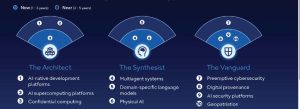
AI evolution—from simple assistants to autonomous agents—as well as essential AI infrastructure requirements (security, supercomputing), AI-native development, and specialized models will be major technological trends in 2026. Physical AI, immersive technology (AR/VR), quantum computing applications, and human-centric aspects like ethics, digital trust, and sophisticated human-machine interfaces will also see growth. Agentic AI, Domain-Specific Models, Physical AI, AI Security, AI Supercomputing, XR, Quantum, and Sustainable Tech are important fields that require new infrastructure, regulation, and expertise.
What is a Technological Trend?

Technology trends refer to the prevailing developments, innovations, and advancements in the world of technology. These trends often shape the direction of industries, businesses, and society as a whole, influencing how we interact, work, and live.
Why is Technological Trends Important?
Following technological trends is critical for both individuals and businesses because it keeps them competitive and relevant in a continuously changing digital market. Keeping up with changing technology allows you to make informed decisions about implementing new tools, enhancing processes, and capitalizing on growth prospects. Technology trends refer to current advances, inventions, and improvements in the field of technology.
Technological Trends in 2026;
Trends and technology
1. AI-generated content. Artificial intelligence can create high-quality, creative content such as writing, photos, videos, and music. This technology uses algorithms like GPT (Generative Pre-trained Transformer) and DALL-E to comprehend and generate material that is relevant to human tastes.
Trends and technology
2. Quantum Computing. Quantum computers use quantum mechanics to process information tenfold faster than conventional computers for specific tasks. which skills
Summary
Artificial Intelligence (AI), particularly Agentic AI (self-acting systems) and Generative AI, which drive new platforms and cybersecurity, will be the main technological developments for 2026 and beyond. Advanced Connectivity (5G/6G, IoT), Edge Computing, Cybersecurity (Trust & Risk Management), Quantum Computing, Sustainable Tech, Biotech, and immersive experiences with Extended Reality (XR) are other important areas that are based on developing Distributed Infrastructure and strive for increased efficiency, autonomy, and digital trust.

Holidays and Vacations

Bilingual Education Impacts

Career Tips

A Step-by-Step Guide to Deleting Reels on Instagram

How to Create a WhatsApp Group