Tech
How to Export Photos from Your Camera to Your Computer

In the digital age, photography has become more accessible than ever, allowing us to capture life’s precious moments with the click of a button. However, the journey of a photo doesn’t end with its capture; it’s only just beginning. Transferring photos from your camera to your computer is a crucial step in the process, enabling you to edit, organize, and share your images with ease. In this comprehensive guide, we’ll walk you through the steps to export photos from your camera to your computer.
Step 1: Connect Your Camera to Your Computer


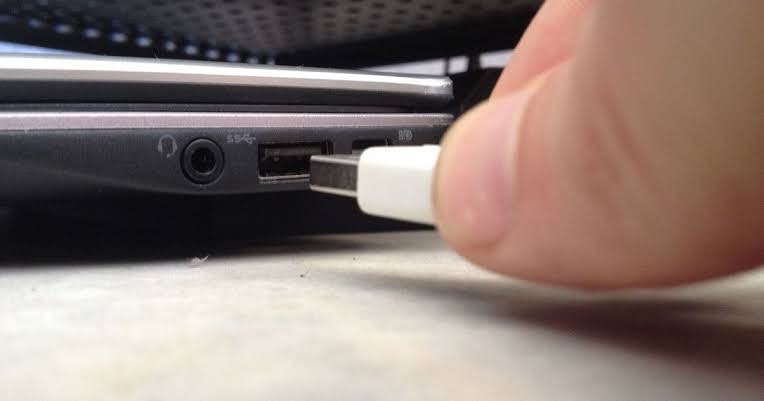
The first step in transferring photos from your camera to your computer is establishing a connection between the two devices. Depending on your camera and computer, you may use a USB cable, memory card reader, or wireless transfer method. Ensure that your camera is powered on and in the appropriate mode for data transfer.
Step 2: Locate Your Photos
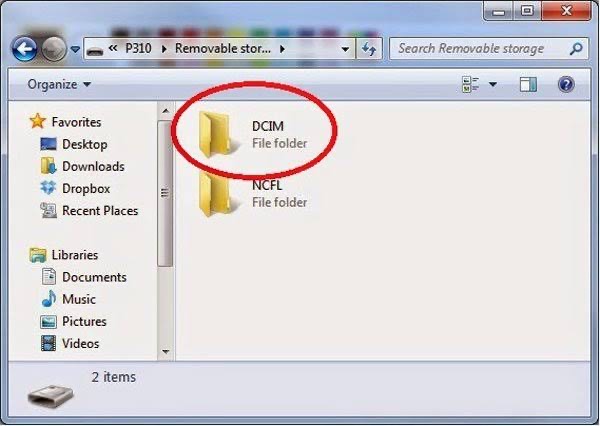

To access your images on the camera’s memory card or internal storage, first connect your camera to your computer and then navigate to the folder or storage location. This may vary depending on your camera model and settings. Look for a folder labeled “DCIM” (Digital Camera Images) or “Photos” to find your image files.
Step 3: Select and Copy Your Photos


With your photos located, you can now select and copy the files you wish to transfer to your computer. You can typically do this by clicking and dragging the photo files from the camera’s storage folder to a folder on your computer’s hard drive. Alternatively, you can use the copy and paste commands or the import function in your computer’s file management software.
Step 4: Monitor the Transfer Process
Watch the file transfer process as it happens to make sure all of the photo files are successfully and flawlessly transferred from your camera to your computer. Depending on the size and number of files, this process may take some time. Be patient and allow the transfer to complete before disconnecting your camera from your computer.
Step 5: Verify and Organize Your Photos
Once the transfer is complete, take a moment to verify that all photo files have been successfully transferred to your computer. Open the folder where you copied the files and review the contents to ensure that nothing was missed. This is also a good time to organize your photos into folders. Or directories based on date, event, or other criteria for easier access and management.
Step 6: Safely Eject Your Camera
Before disconnecting your camera from your computer, it’s important to safely eject the device to avoid data corruption or loss. Depending on your operating system. You can typically do this by clicking on the eject or safely remove hardware icon in the taskbar or file explorer window. Once your camera is safely ejected, you can disconnect it from your computer.

To export photos from your camera to your computer is a simple yet essential process that enables you to unleash the full potential of your images. By following these steps and best practices, you can ensure a smooth and efficient transfer experience. Allowing you to focus on editing, sharing, and preserving your photographic memories for years to come.