
TECHNOLOGY
Reviewing Canon PowerShot G7

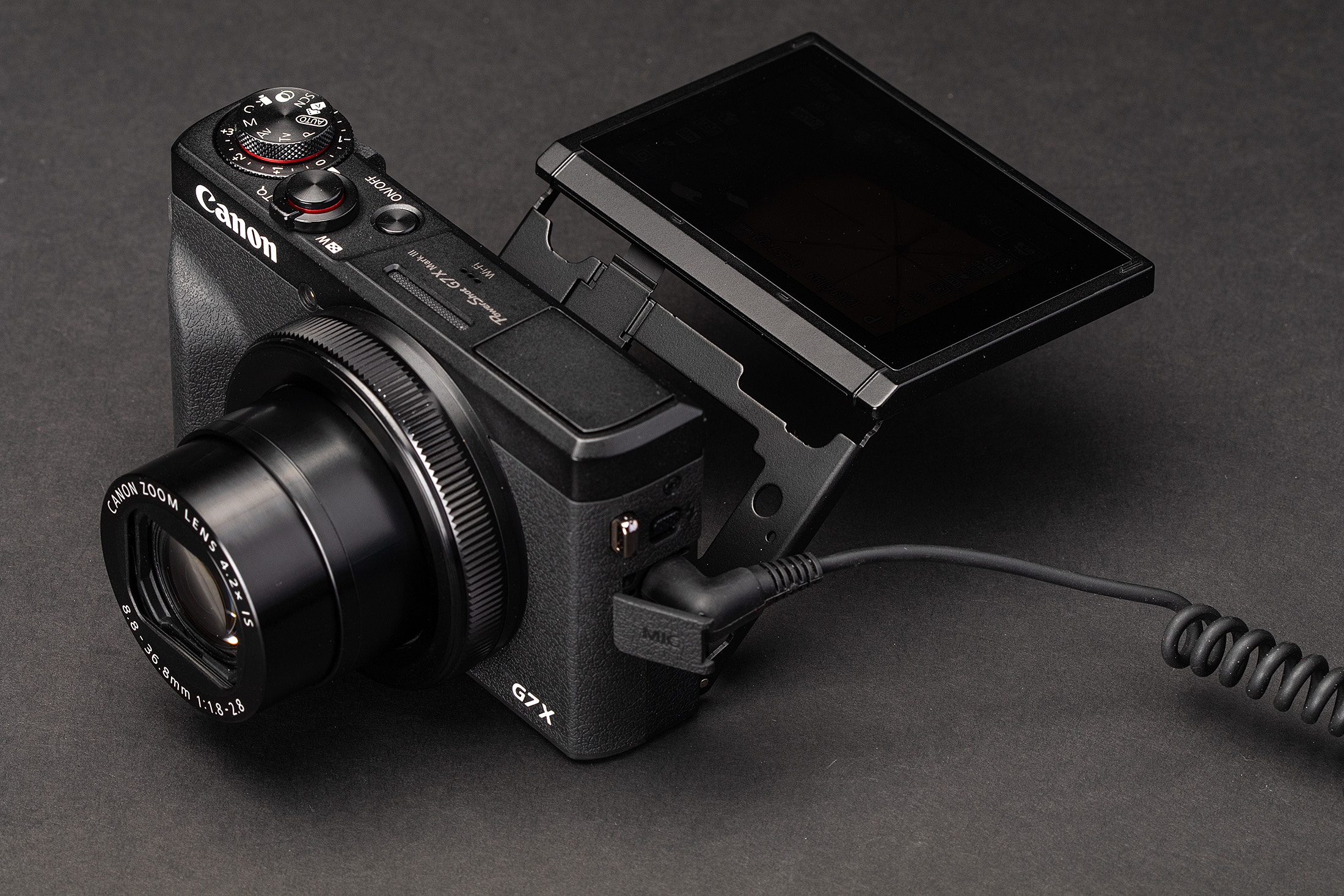
Reviewing canon powershot G7. In today’s fast-paced world of photography, the Canon PowerShot G7 X Mark III is a powerful and adaptable little camera that performs exceptionally well in both still and motion picture modes. The PowerShot G7 X Mark III is ideal for enthusiasts, content producers, and tourists seeking a portable powerhouse that can take breathtaking pictures and movies while on the road because of its elegant design, superior image quality, cutting-edge capabilities, and seamless connectivity choices. The PowerShot G7 X Mark III is a dependable friend that enables you to easily record life’s priceless moments and express your creativity, whether you’re traveling the world or sharing your work online. Location, internet connectivity, and other factors affect the availability of YouTube streaming features.
REVIEWING Canon PowerShot G7
Although the longevity of the first model has been criticized, the Canon PowerShot G7 X is a range of high-end compact cameras renowned for its rapid lens, small size, and superb photo quality. The G7 X series has a tilting touchscreen, Wi-Fi/NFC, a 1-inch sensor, and manual control options. Newer models (G7 X Mark III) are also advertised for vlogging, however their video features can be hampered by overheating in 4K, and their autofocus in video mode is not as reliable as it is in still images. Nevertheless, older models are still quite good at still photography.
1. Design and Build Quality;
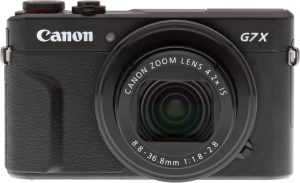
The Canon PowerShot G7 X Mark III boasts a sleek and compact design that fits comfortably in the palm of your hand. Despite its small size, the camera feels solid and well-built, with a durable construction that inspires confidence in its longevity. The ergonomic grip and intuitive button layout make it easy to handle and operate, while the tilting touchscreen LCD allows for flexible composition and easy navigation of settings and menus.
2. Image and Video Quality;

Equipped with a 20.1-megapixel 1-inch CMOS sensor and Canon’s DIGIC 8 image processor, the PowerShot G7 X Mark III delivers impressive image quality and performance in various shooting conditions. The camera produces sharp, detailed images with vibrant colors and excellent dynamic range, making it well-suited for a wide range of photography genres, from landscapes and portraits to street photography and travel adventures.
3. Performance and Features;

Reviewing Canon PowerShot G7
The PowerShot G7 X Mark III is packed with advanced features and shooting modes to enhance your creative possibilities. From customizable exposure settings and creative filters to built-in ND filter and RAW file support, the camera offers a wide range of options for capturing and expressing your vision. The addition of a dedicated live streaming function further expands the camera’s versatility, allowing users to live stream directly to YouTube* via Wi-Fi or tethered to a compatible smartphone.
4. Connectivity and Sharing;
Reviewing Canon PowerShot G7
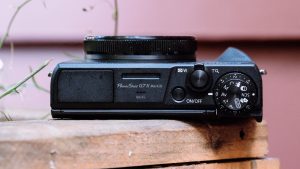
Connectivity is a key focus of the Canon PowerShot G7 X Mark III, with built-in Wi-Fi and Bluetooth® technology enabling seamless sharing and remote control functionality. The Canon Camera Connect app allows users to transfer images and videos to their smart devices, remotely control the camera, and geotag images for easy sharing and organization. With the ability to connect to compatible smart devices and social media platforms, the PowerShot G7 X Mark III ensures that you can stay connected and share your creativity with the world.
Summary
It is crucial to have connectivity, portability, and versatility. For both enthusiasts and content producers, Canon’s PowerShot G7 X Mark III camera seeks to meet these demands. We will examine the Canon PowerShot G7 X Mark III’s features, performance, and overall usability in this review, examining its potential as a little digital photography powerhouse.
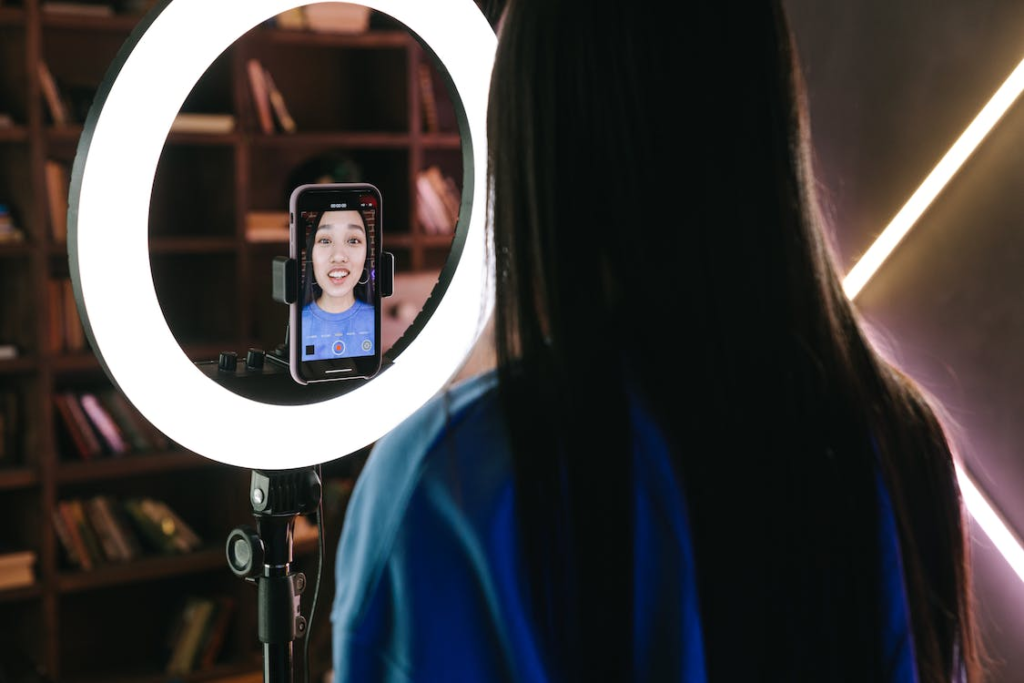
Tips for ring light usage. Ring lights are LED-powered, circular lighting devices intended for use in beauty, photography, and videography. With adjustable brightness and color temperature, they offer uniform, diffused illumination that lessens shadows on the subject. They are frequently used to create distinctive catchlights in the eyes and for close-ups and portrait photography.
TIPS FOR RING LIGHT USAGE
In order to minimize shadows and provide a “halo” effect, place the light directly in front of your face, just above eye level, with the camera centered inside the ring. Choose a color temperature of about 5600K for a natural daylight appearance, keep a distance of one to three feet from the subject, and adjust brightness to prevent washed-out skin.
HOW TO USE A RING LIGHT ;

Although, a ring light is a simple, relatively inexpensive way to get started with studio photography – and with the right approach, it can look really, really good. Here are just a few photos I’ve taken using a ring light:
But how can you use a ring light to create portraits like these? And furthermore, how can you go beyond standard ring light photography to capture photos that stand out from the crowd?
What is a ring light?

Meanwhile, a ring light is a circular, ring-shaped light designed to be placed directly in front of a subject. You then position your camera in the center of the ring and capture your photos.
Here is a standard external ring light, photographed from the back (left) and front (right):
There are two types of rings lights you should be familiar with:
Off-camera ring lights, which attach to an external light stand, offer a wide band of illumination, and include a large aperture into which a camera can fit.
TWO EXAMPLES OF RING LIGHT
Smartphone ring lights;

Tips for ring light usage
Also, these compact ring lights are designed to be attached to smartphones so they are ideal if you enjoy taking photos on the go with your phone. They are typically lightweight and portable, making them convenient for spontaneous content creation
Macro ring lights;
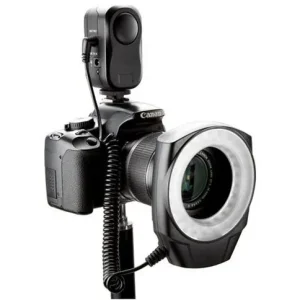
Tips for ring light usage
However, these are specialised ring lights designed for macro photography. They attach to the front of macro lenses and provide close-up illumination for small subjects. Hard light is poor for macro photography so ring lights are essential for reducing shadows and emiting a soft light perfect for capturing intricate details.
Summary
In order to provide bright, even, shadow-free lighting, set your camera or smartphone in the center of a ring lamp placed immediately in front of your face or subject at eye level. Choose color temperatures that go well with your skin tone and adjust the brightness to prevent overexposure, usually from a distance of one to two feet.
Tips for shutting down Iphone. It’s crucial to know how to correctly shut down your iPhone for a number of reasons, such as extending battery life, resolving problems, or just taking a break. You may confidently turn off your iPhone anytime needed by following the instructions in this article. Gaining proficiency with this fundamental feature will guarantee a more seamless interaction with your iPhone, regardless of your level of experience.
TIPS FOR SHUTTING DOWN IPHONE
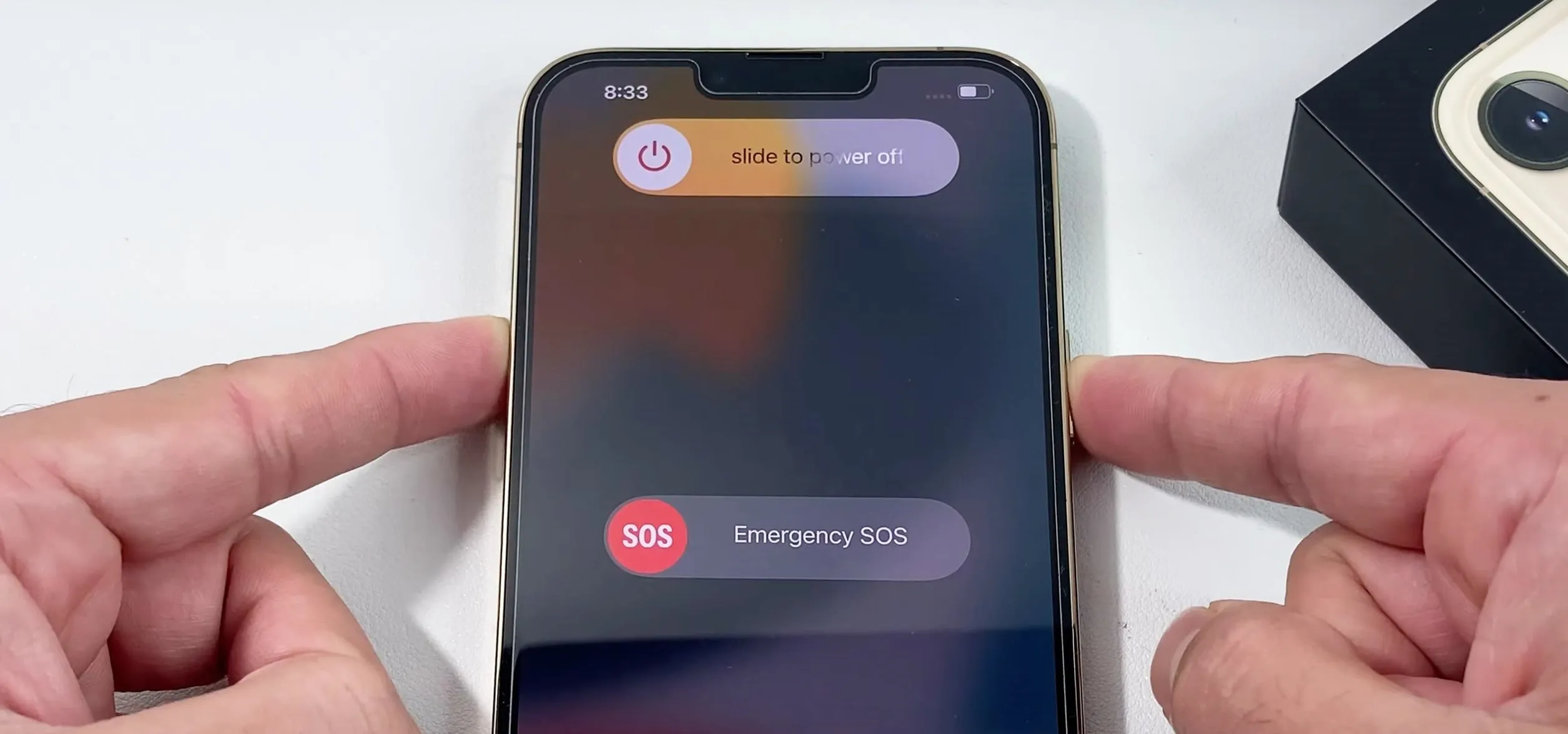
To turn off an iPhone, hold down the side and volume buttons (or, on previous models, only the side button) until a slider displays. Then, drag to turn off the device. Alternatively, to turn it off, select Settings > General > Shut Down.
Step 1: Locate the Side Button

The side button, located on the right side of your iPhone, serves multiple functions, including powering on/off your device, activating Siri, and taking screenshots. It’s important to differentiate between a quick press and a long press for shutting down the device.
Step 2: Simultaneously Press Side Button and Volume Button
To initiate the power off process, simultaneously press and hold the side button and one of the volume buttons (either the volume up or volume down button) on your iPhone. Hold both buttons down at the same time until the “slide to power off” slider appears on the screen.
Step 3: Slide to Power Off

Tips for shutting down Iphone
Once the “slide to power off” slider appears, release the side button and volume button. You can then use your finger to slide the slider from left to right to power off your iPhone.
After sliding the power off slider, your iPhone will begin the shutdown process. Depending on your device model and any ongoing tasks, this process may take a few moments. Once shut down, your iPhone’s screen will go completely black, indicating that it is powered off.
Power On Your iPhone;
Tips for shutting down Iphone
To power on your iPhone again, simply press and hold the side button until the Apple logo appears on the screen. Your device will then boot up, and you can use it as usual.
Summary
Holding the side button and any volume button (Face ID) or only the side button (Home button) and sliding the slider will shut down your iPhone to improve efficiency and free up RAM. Use a forced restart (volume up, down, then hold the side button) for devices that are frozen. For optimal effects, leave it off for at least five minutes.
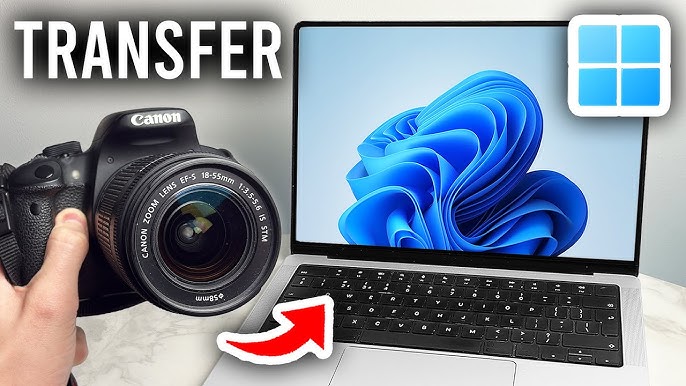
Video export from camera to computer. It’s simple to export videos from your camera to your computer. This makes it simple for you to access, modify, and distribute your video. You can guarantee a seamless and trouble-free transfer experience by adhering to these guidelines and best practices. enabling you to concentrate on expressing your imagination and making your video projects a reality.
VIDEO EXPORT FROM CAMERA TO COMPUTER
Use H.264 for 100% compatibility or HEVC (H.265) for better compression and smaller file sizes for high-quality video exports. Align the frame rate () and export resolution (1080p or 4K) with the source video. To guarantee clear, excellent results, aim for a higher bitrate (1080p). In the digital age, cameras have become powerful tools for capturing life’s moments in vivid detail. Whether you’re a professional filmmaker or an amateur enthusiast. To export videos from your camera to your computer is a fundamental skill that opens the door to editing, sharing, and preserving your precious footage. In this guide. We’ll walk you through the process of exporting videos from your camera to your computer, step by step.
Step 1: Connect Your Camera to Your Computer

The first step in transferring videos from your camera to your computer is establishing a physical connection between the two devices. Depending on your camera and computer, you may use a USB cable, memory card reader, or wireless transfer method. Ensure that your camera is powered on and in the appropriate mode for data transfer.
Step 2: Locate Your Videos;
Once your camera is connected to your computer, navigate to the folder or storage location where your videos are stored on the camera’s memory card or internal storage. This may vary depending on your camera model and settings. Look for a folder labeled “DCIM” (Digital Camera Images) or “Videos” to find your video files.
Step 3: Select and Copy Your Videos;
VIDEO EXPORT FROM CAMERA TO COMPUTER
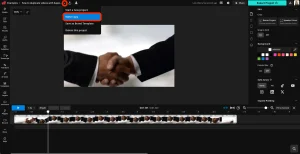
With your videos located, you can now select and copy the files you wish to transfer to your computer. You can typically do this by clicking and dragging the video files from the camera’s storage folder to a folder on your computer’s hard drive. Alternatively, you can use the copy and paste commands or the import function in your computer’s file management software.
Step 4: Monitor the Transfer Process;
While your camera copies the video files to your PC. Keep an eye on the transfer process to make sure that every file is moved correctly and without any problems. Depending on the size and number of files, this process may take some time. Be patient and allow the transfer to complete before disconnecting your camera from your computer.
Step 5: Verify and Organize Your Videos;

VIDEO EXPORT FROM CAMERA TO COMPUTER
After the file process, pause to make sure all of the video files were successfully moved to your computer. Check the folder where you copied the files to make sure nothing was overlooked. This is also a good time to organize your videos into folders or directories based on date, event, or other criteria for easier access and management.
Step 6: Safely Eject Your Camera;
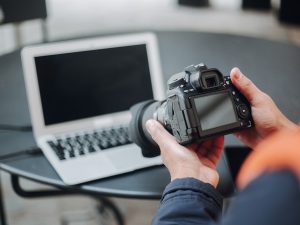
Before disconnecting your camera from your computer. It’s important to safely eject the device to avoid data corruption or loss. Depending on your operating system, you can typically do this by clicking on the eject. Or safely remove hardware icon in the taskbar or file explorer window. Once your camera is safely ejected, you can disconnect it from your computer.
Summary
Videos can be sent from a camera to a computer using Wi-Fi, a direct USB cable connection, or an SD card reader, which is the fastest method. Drag files from the DCIM or MP4_ROOT folder onto your computer after removing the memory card and inserting it into a card reader that is linked to the computer.

Tips for Emotional stress

Anxiety and stress reduction

Face cleansing tips

A Step-by-Step Guide to Deleting Reels on Instagram

A Comprehensive Guide to Setting Up a YouTube Premiere

How to Create a WhatsApp Group
-

 Social media3 weeks ago
How to Delete Reels on IG
-

 Music2 weeks ago
Lyrics for Iké Nilé
-

 Social media2 weeks ago
Tips for likes and Followers on Facebook
-
 Photography2 weeks ago
Photography and Outdoors
-

 Social media3 weeks ago
Guidelines for Uploading Videos on Youtube
-

 Social media2 weeks ago
Guidelines for Creating a Facebook Page