TECHNOLOGY
Tips for AC Refill



Tips for AC refill. In order to refill an air conditioning system, find the low-pressure port first, then connect the recharge hose. Check the pressure gauge and inject refrigerant in small amounts until the proper pressure is attained. Using the right kind of refrigerant for your car, wearing safety gear, and never overcharging the system are all very important. Regulations from the EPA require that you contact an expert to recharge the system for household units.
TIPS FOR AC REFILL
In order to restore your system’s cooling capacity, you must add refrigerant to your air conditioner. A certain quantity of refrigerant is necessary for your air conditioner to operate correctly. The system cannot effectively absorb and release heat if the level declines as a result of a leak or other problem, which results in warm air or ineffective cooling. Knowing when your air conditioner (AC) needs a gas refill (often referred to as refrigerant or coolant) is crucial for maintaining its efficiency and longevity. Here are some signs that indicate your AC might need a gas refill:
1. Reduced Cooling Efficiency;

TIPS FOR AC REFILL
• One of the most common signs is that the AC is not cooling the room as effectively as it used to. If you notice that it takes longer to cool the room or the air isn’t as cold as it should be, this could be a sign that the refrigerant level is low.
2. Increased Electricity Bills;
• Low refrigerant levels can cause the AC to work harder to achieve the desired temperature, leading to higher energy consumption. If you notice a sudden spike in your electricity bills without a corresponding increase in usage, it might be due to your AC needing a gas refill.
3. Ice Buildup on the Evaporator Coils;
• When the refrigerant level is low, the evaporator coils can become too cold, causing moisture in the air to freeze on the coils. This ice buildup can reduce the efficiency of your AC and is a clear indicator that you might need a gas refill.
4. Hissing or Bubbling Noise;

TIPS FOR AC REFILL
• A hissing or bubbling noise from your AC unit can indicate a refrigerant leak. If there’s a leak, the refrigerant level will drop, leading to the need for a refill. This noise is often heard when the AC is running.
5. AC Blows Warm Air
• If your AC is blowing warm or room-temperature air instead of cold air, this is a strong sign that the refrigerant level is low and the system is unable to cool the air effectively.
6. Visible Refrigerant Leaks;
• Sometimes, you might be able to see refrigerant leaks around the unit. This could appear as oily residue around the refrigerant lines or components. Leaks need to be repaired, and the refrigerant needs to be refilled.
7. AC Runs Continuously;

TIPS FOR AC REFILL
• If the AC unit runs continuously without shutting off, it could be struggling to reach the set temperature due to low refrigerant levels. Normally, the AC should cycle on and off once it reaches the desired temperature.
What to Do If You Suspect Low Refrigerant;
1. Professional Inspection;
• If you suspect your AC needs a gas refill, it’s essential to contact a professional HVAC technician. They can check for leaks, repair them if necessary, and refill the refrigerant to the correct level.
2. Regular Maintenance;
• Regular maintenance can help prevent low refrigerant levels. Have your AC serviced annually to ensure it’s operating efficiently and to catch potential issues early.
3. Avoid DIY Refill;

• Refilling refrigerant is not a DIY task. It requires specialized knowledge and equipment, as well as adherence to safety and environmental regulations. Always rely on a certified professional for this job.
Summary
By being aware of these signs and acting promptly, you can ensure your air conditioner operates efficiently, providing reliable cooling when you need it most.

AI Benefits. By incorporating a variety of artificial intelligence (AI) skills that enable computers to understand, reason, learn, and behave similarly to people, this technological marvel transcends basic automation.By automating tedious operations, reducing errors, and analyzing vast volumes of data to make quick judgments, artificial intelligence (AI) offers significant advantages. It facilitates quicker work, cost savings, and the resolution of challenging issues in fields including daily work and health.
AI BENEFITS
Before discussing the advantages of artificial intelligence (AI), let’s first look at its definition. When viewed broadly, artificial intelligence (AI) allows a computer program to think and learn on its own. It mimics human intelligence in machines to carry out activities for which we frequently depend on humans.
1. Decrease in Human Error;

Reducing errors and improving accuracy and precision are two of artificial intelligence’s most important advantages. Every decision made by AI is based on a specific set of algorithms and previously collected data. Correct programming can decrease these errors to zero.
2. Making Decisions;
Making decisions is one of AI’s well-known advantages. AI improves decision-making by using massive data to spot trends and patterns that are frequently missed by humans. Businesses and people may make well-informed decisions fast and precisely by using machine learning algorithms, which can evaluate past data and forecast future events.
3. No Hazards;

AI Benefits
By allowing AI robots handle numerous dangers for us, humans can overcome them, which is another important advantage of AI. Machines having metal bodies can withstand hostile atmospheres and endure missions such as bomb defusing, space travel, and underwater exploration.
4. Online Support;
In order to reduce the need for human labor, some of the most modern organizations deploy digital assistants to engage with users. Conversational searches are made possible by the usage of digital assistants by many websites, which provide content in response to user inquiries. Sometimes chatbots are so intelligent that it’s hard to know if we’re speaking to a human or a machine.
5. Novelty;

AI Benefits
AI is the driving force behind many advances in almost every industry that enable people to solve the most difficult problems. For instance, new developments in AI-based technology have made it possible for medical professionals to identify breast cancer in women early.
Summary
The ability of a computer system or machine to carry out tasks that typically require human intelligence is known as artificial intelligence, or AI. Learning, reasoning, problem-solving, language comprehension, and image recognition are some of these tasks. On sites like Google AI, you may learn more about useful tools and developer initiatives.

Tech Trends to Look out for. Trends in technology to be aware of. The rate of change is accelerating due to the rapid advancement and change made possible by the rapid evolution of technology. IT workers are realizing that their careers won’t be the same in the contactless world of the future because not only are developing technologies and technology trends evolving, but much more has changed.
TECH TRENDS TO LOOK OUT FOR
Additionally, an IT worker in 2024 will be continuously learning, unlearning, and relearning—whether out of need or want. It means staying current with emerging technologies and their latest advancements. And it means anticipating what skills you’ll need to acquire in order to find a safe job tomorrow, as well as knowing how to get there.
What is a Technological Trend?

Technology trends refer to the prevailing developments, innovations, and advancements in the world of technology. These trends often shape the direction of industries, businesses, and society as a whole, influencing how we interact, work, and live.
Why is it Important?
Following technological trends is critical for both individuals and businesses because it keeps them competitive and relevant in a continuously changing digital market. Keeping up with changing technology allows you to make informed decisions about implementing new tools, enhancing processes, and capitalizing on growth prospects. Technology trends refer to current advances, inventions, and improvements in the field of technology.
Technological Trends to Watch out for;

Tech Trends to Look out for
1. AI-generated content. Artificial intelligence can create high-quality, creative content such as writing, photos, videos, and music. This technology uses algorithms like GPT (Generative Pre-trained Transformer) and DALL-E to comprehend and generate material that is relevant to human tastes.
2. Quantum Computing. Quantum computers use quantum mechanics to process information tenfold faster than conventional computers for specific tasks. which skills
Summary
Agentic AI systems that carry out multi-step activities on their own are important technological trends to keep an eye on. Advanced robotics and physical AI that combine vision and mechanics, Post-quantum cryptography, domain-specific language models, and IT infrastructure that is sustainable by design

Artificial Intelligence and the Future. Owing to constraints, this new field is now called “weak I.” But in the future, artificial intelligence will take the form of “creating powerful I.” I can currently only outperform humans in certain tasks, but it is expected that in the future I will be able to outperform humans in all cognitive tasks. The benefits and drawbacks of this development demonstrate how crucial it is to develop AI capabilities in order to carefully control and mold the future.
ARTIFICIAL INTELLIGENCE AND THE FUTURE
Precision healthcare, automated work forces, and embedded smart systems are all part of the future of AI. Global safety laws, customized compact models, and clever software agents are some of the major advancements.
What is intelligence?

Artificial Intelligence and the Future
Even the most complex insect activity is typically not interpreted as a sign of intelligence, whereas all human behavior but the most basic. What makes the difference? Examine the actions of Sphex ichneumonids, the digger wasp. When the female wasp comes back to her burrow with food, she puts it on the threshold, looks inside to see if there are any intruders, and only then, if all is well, brings her food inside. If the wasp moves the food a few inches away from her burrow entrance while she is inside, it reveals the true nature of her instinctive behavior: whenever she emerges, she will repeat the entire process as many times as the food is displaced. The notable lack of intelligence in the instance.
Growth of AI;
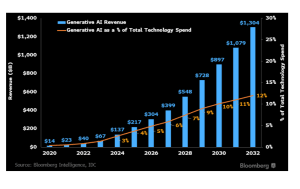
Artificial Intelligence and the Future
It is crucial to understand the definition and current state of artificial intelligence before exploring its future. AI is the capacity of computers or computer controlled robots to carry out tasks related to intelligence.” Thus, I am a branch of computer science whose goal is to develop intelligent machines that can mimic human behavior.
AI classification;
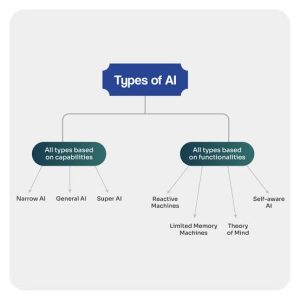
Based on its capabilities, artificial intelligence can be classified into three categories: Row I: Row II: Generic Row I:… Sub-I: computer
The Future;

While artificial intelligence (AI) has a bright future, there are several challenges it must overcome. As technology advances, artificial intelligence (AI) is expected to become more and more commonplace, revolutionizing industries including finance, transportation, and healthcare. AI-driven automation will transform the labor sector and require new roles and competencies.
Summary
The capacity of computers and other devices to mimic human learning, thinking, and problem-solving is known as AI. Narrow AI, machine learning, and generative AI are important categories.

Music Recording Apps for Phones

Review of Bandlab Music App

N-Track Studio Review

A Step-by-Step Guide to Deleting Reels on Instagram

A Comprehensive Guide to Setting Up a YouTube Premiere